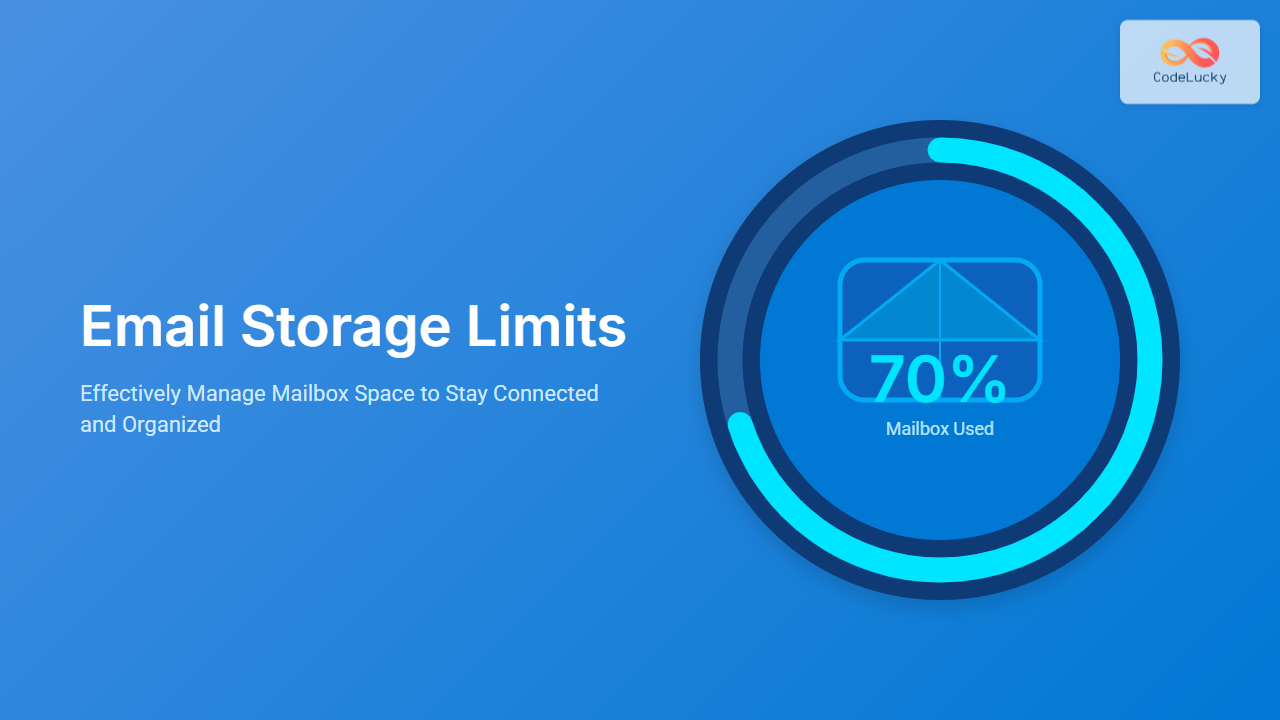
Email storage limits are a critical aspect of managing communication in both personal and professional settings. When limits are reached, email delivery can be disrupted, and vital messages might be lost. This comprehensive guide explores what email storage limits are, why they matter, and how to effectively manage mailbox space to ensure a smooth email experience.
Understanding Email Storage Limits
Email storage capacity defines the maximum amount of data your mailbox can hold, usually measured in megabytes (MB) or gigabytes (GB). These limits are imposed by email service providers or organizations to manage server resources efficiently.
Common mailbox storage constraints include:
- Incoming mail size restriction
- Total mailbox storage quota
- Attachment size limits
Exceeding these limits typically results in bounced emails or inability to send/receive mails. Knowing your limits helps avoid such scenarios.

Why Managing Mailbox Space Matters
Efficient mailbox management prevents disruption, optimizes search speed, and protects your important data. Overfilled mailboxes result in:
- Missed important emails due to delivery failures
- Slower email client performance
- Increased difficulty in organization and search
Proactive management saves time and frustration.
How to Check Your Email Storage Usage
Most mail services provide a usage dashboard or status indicator:
- Gmail: Storage details shown at the bottom left corner, integrating Gmail, Google Drive & Google Photos usage.
- Outlook/Office 365: Settings » Mail » Storage to view mailbox size and quota.
- Yahoo Mail: “Settings” » “More Settings” » “Storage” to monitor usage.
Strategies to Manage and Free Up Mailbox Space
Effective mailbox management involves regular cleaning, archiving, and leveraging tools. Here are key strategies:
Delete Large and Unnecessary Emails
Sort emails by size and remove attachments or entire emails that are no longer needed.
// Example pseudocode for deleting emails larger than 5MB
for each email in mailbox:
   if email.size > 5MB:
       delete(email)
Archive Important but Old Emails
Archiving moves messages out of the primary mailbox but keeps them accessible when needed. Many email clients allow exporting emails as files or using internal archive folders.
Utilize Cloud Storage for Attachments
Instead of sending heavy attachments, upload files to cloud services (Google Drive, OneDrive) and share links in emails.
Automate Cleanup with Rules or Filters
Create filters to automatically delete or archive newsletters, promotional emails, or messages older than a certain period.

Example: Cleaning a Mailbox in Gmail
To find and delete emails with large attachments in Gmail:
- Search with
has:attachment larger:10Mto list emails over 10MB. - Select unwanted large emails and delete or archive them.
- Empty trash to free space.
This simple process helps to quickly reclaim storage space.
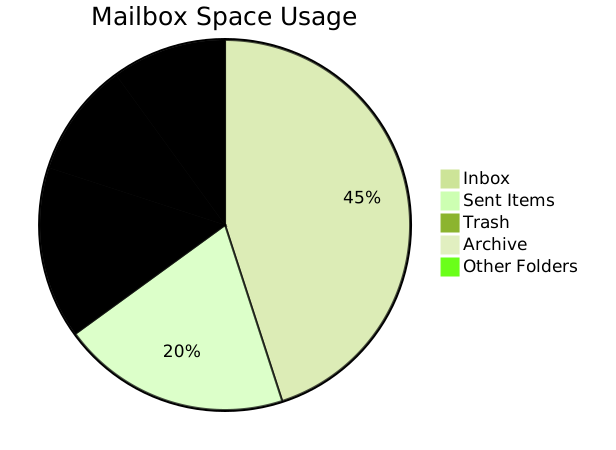
Interactive Visualization of Mailbox Space Breakdown
Below is a simplified visual structure showing how mailbox space might be distributed:
Handling Storage Limits Programmatically
For IT admins and developers, programmatically managing mailbox limits with APIs (like Microsoft Graph for Outlook or Gmail API) is an efficient approach.
Example: Using Gmail API to check user quota

GET https://gmail.googleapis.com/gmail/v1/users/userId/profile

Response:
{
  "emailAddress": "[email protected]",
  "messagesTotal": 1200,
  "threadsTotal": 300,
  "historyId": "98765",
  "storageQuota": {
    "limit": 15728640000,
    "usage": 7340032000,
    "usageInDrive": 7340032000,
    "usageInTrash": 104857600
  }
}
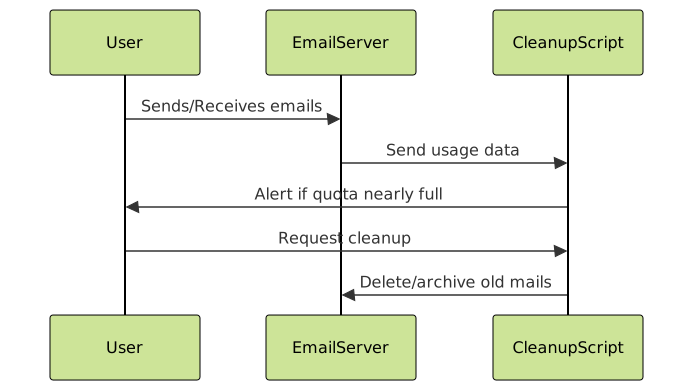
This allows automated alerts or cleanup scripts to maintain mailbox health.
Best Practices to Avoid Mailbox Overload
- Regularly review mailbox size and clean as needed
- Implement retention policies
- Use cloud links for big files
- Educate users on efficient email habits
- Automate routine maintenance wherever possible
Conclusion
Understanding and managing email storage limits is essential for uninterrupted communication and productivity. By monitoring storage, applying cleanup techniques, and leveraging tools and automation, users can keep mailboxes organized and within limits. This not only prevents email delivery issues but also improves overall user experience.