
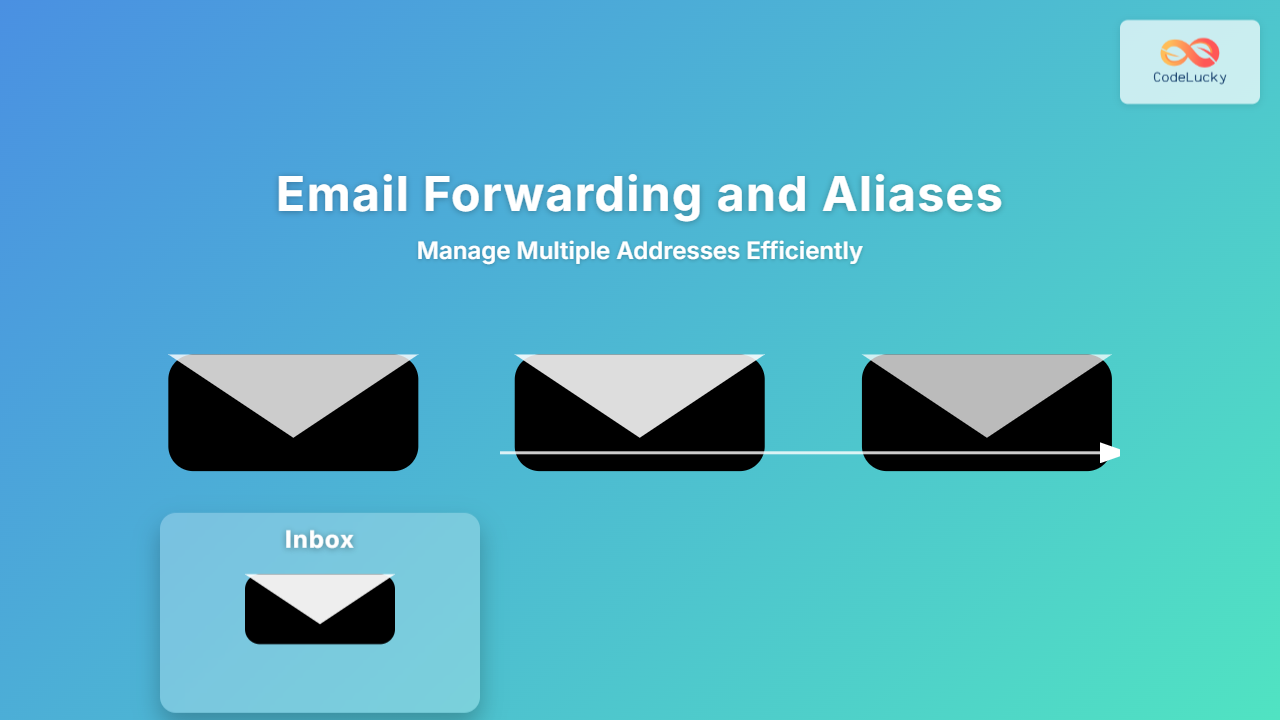
Email management can quickly become overwhelming when juggling multiple addresses. Whether for personal, business, or project purposes, handling various email accounts independently can be tedious, time-consuming, and inefficient. The solution lies in understanding email forwarding and email aliases—two powerful techniques that help you manage multiple email addresses from a single inbox seamlessly.
What is Email Forwarding?
Email forwarding is the process of automatically redirecting incoming emails from one email address to another email account. Essentially, emails sent to Address A are automatically sent (forwarded) to Address B, where you can read and respond to them.
Common Uses of Email Forwarding
- Consolidating emails from multiple accounts into one inbox.
- Redirecting emails during travel or absence.
- Setting up temporary addresses for specific projects or campaigns.
Example of Email Forwarding Setup
Suppose you have [email protected] but want all emails sent to this address to arrive at your personal inbox [email protected].
With forwarding enabled at [email protected], emails land directly in [email protected] without needing to check multiple accounts.
What is an Email Alias?
Email aliases are alternative email addresses that point to a single main inbox, but unlike forwarding, they often do not require separate login credentials. Think of aliases as nickname email addresses that map to one primary mailbox.
How Aliases Work
- Aliases share the same underlying mailbox as the primary address.
- Emails sent to any of the aliases arrive in the same inbox.
- Useful for filtering and organizing emails by address.
Example of Email Alias
If your primary email is [email protected], you might create aliases like [email protected] or [email protected]. All messages sent to these aliases deliver to your main inbox but can be labeled or sorted distinctly.
Forwarding vs Aliases: Key Differences
| Feature | Email Forwarding | Email Alias |
|---|---|---|
| Separate login | Yes, original mailbox exists independently | No, all email addresses use the same mailbox |
| Setup required by | Sender or mailbox owner configures forwarding | Mailbox administrator creates aliases |
| Usage | Redirect emails to another inbox | Receive emails at multiple addresses in one inbox |
| Filter & organize | Manual filtering in final mailbox needed | Aliases can be used to auto-sort emails |
How to Use Aliases and Forwarding Together
It’s common to combine aliases and forwarding for maximum efficiency. For example, you might have aliases set for various business functions and forward all these emails to a single Gmail account for central management.
This setup allows you to maintain professional identities with aliases but still use the convenience of a single email client.
Practical Email Examples with Visual Output
Example 1: Email Forwarding Rule Setup
On Gmail (destination mail), to filter and label forwarded emails:
If email received from [email protected]:
  Apply label: "Project"
  Show in inbox
This helps visually organize emails once forwarded.
Example 2: Alias Filtering
Say your [email protected] receives emails for aliases [email protected] and [email protected]. You can create filters based on the “To:” address:
Filter:
  If “To” contains [email protected]
  Apply label: Support

Filter:
  If “To” contains [email protected]
  Apply label: Sales
Interactive Email Alias Usage Example
Using Gmail’s +alias feature, you can dynamically create aliases. For example:
- Original email:
[email protected] - Alias emails:
[email protected],[email protected]
All these variants deliver to your primary inbox, but filters based on the alias suffix help organize incoming mail.
Benefits of Using Email Forwarding and Aliases
- Centralized Management: Manage multiple addresses easily from a single inbox.
- Improved Organization: Use labels and filters to separate emails by purpose or project.
- Increased Privacy: Use aliases to protect your primary email from spam.
- Enhanced Professionalism: Create role-based aliases for business communications.
- Flexibility: Change forwarding rules without changing your email address.
Tips for Optimal Email Address Management
- Set clear forwarding and alias rules for easy sorting.
- Use descriptive alias names corresponding to specific tasks or projects.
- Regularly clean up forwarding rules and aliases to avoid clutter.
- Check spam filters occasionally, especially for forwarded emails.
- Consider domain-level aliasing if you own a custom domain for more control.
Conclusion
Email forwarding and aliases are indispensable tools in modern email management, enabling you to handle multiple email addresses efficiently without switching accounts constantly. By implementing strategic aliases and forwarding rules, you save time, improve workflow, and create an organized inbox tailored to your needs. Whether for business or personal use, mastering these tools leads to a streamlined communication experience.





