
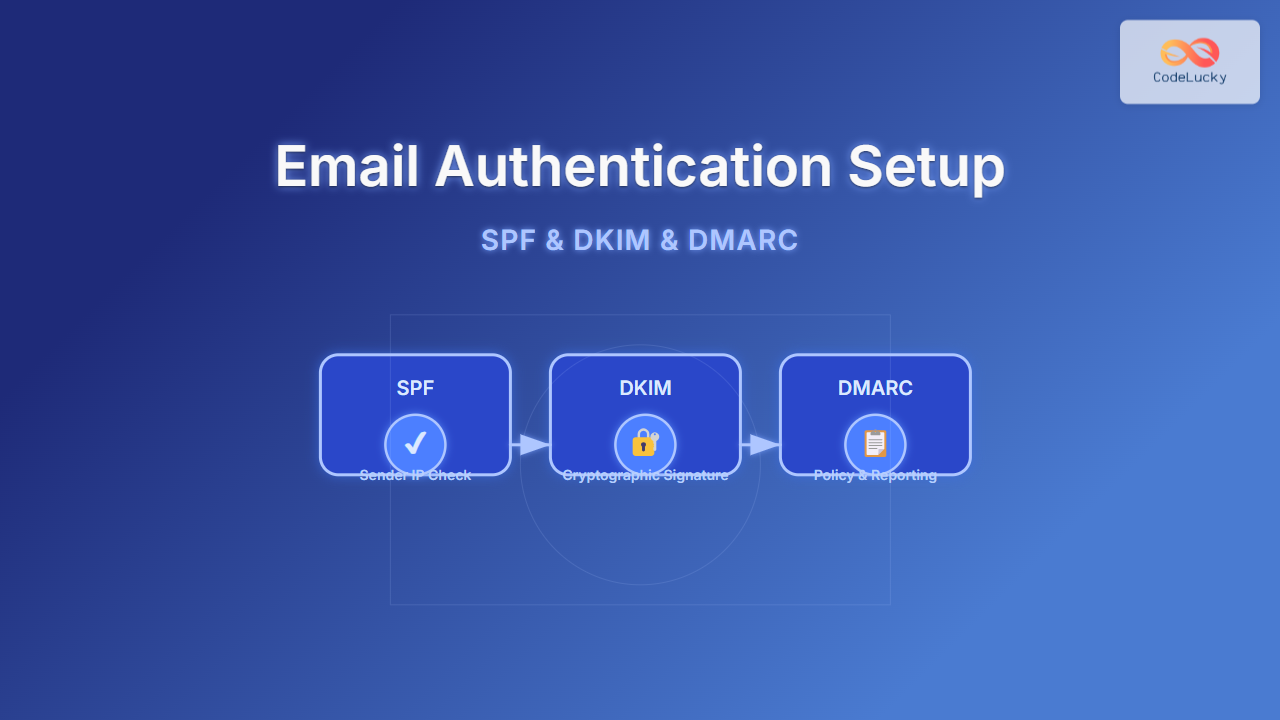
In the modern world of email communication, ensuring that your emails are authenticated properly is crucial to maintain trust, avoid spam filters, and protect your domain reputation. This article dives deep into the core email authentication protocols: SPF (Sender Policy Framework), DKIM (DomainKeys Identified Mail), and DMARC (Domain-based Message Authentication, Reporting & Conformance). You will learn how to set them up correctly with DNS examples, clear explanations, and visual diagrams to understand the mechanism behind each.
Why Email Authentication Matters
Email spoofing and phishing attempts have become prevalent threats, where attackers send emails pretending to be from a trusted source. Without authentication, it becomes easy to forge email headers, damaging brand reputation and compromising security. Implementing SPF, DKIM, and DMARC helps:
- Verify that the email originated from an authorized mail server (SPF)
- Ensure the message integrity and authenticity via cryptographic signature (DKIM)
- Provide policy and reporting to handle suspicious emails (DMARC)
Understanding SPF (Sender Policy Framework)
SPF is a DNS record that defines which mail servers are authorized to send email on behalf of your domain. When an incoming mail server receives your email, it checks the SPF record to verify if the sending server IP is allowed.
SPF Record Format Example
An SPF record is published as a TXT DNS record. Here’s a simple example:
v=spf1 ip4:192.168.1.10 include:_spf.google.com -all
This means:
v=spf1: SPF version 1ip4:192.168.1.10: Authorizes IP 192.168.1.10 to send mailinclude:_spf.google.com: Also allows Google’s SPF servers-all: Hard fail for any server not listed

Setting up SPF
1. Identify all IP addresses and services authorized to send email for your domain.
2. Publish a DNS TXT record following the SPF syntax.
3. Test your SPF record using tools like spf-validator or online SPF checkers.
What is DKIM (DomainKeys Identified Mail)?
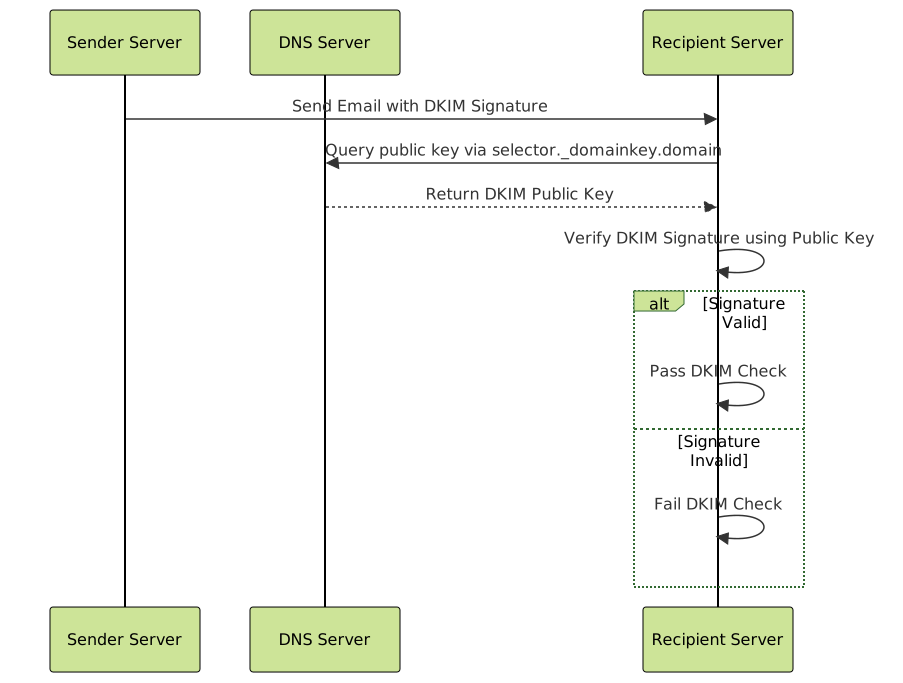
DKIM adds a digital signature to email headers, allowing the receiver to verify the email was not tampered with and confirming the sender’s domain ownership. This is done using a private key to sign outgoing emails and a public key published in DNS.
How DKIM Works
When you send an email, your mail server generates a cryptographic signature header based on the email content and headers using your private key. The recipient’s server retrieves the public key from your DNS and uses it to verify the signature.
Example DNS TXT Record for DKIM
This is an example of a DKIM public key published in DNS under a selector:
default._domainkey.example.com IN TXT "v=DKIM1; k=rsa; p=MIIBIjANBgkqhkiG9w0BAQEFAAOCAQ8AMIIBCgKCAQEA..."
Here:
defaultis the selector._domainkeyindicates it’s a DKIM record.v=DKIM1indicates the DKIM version.k=rsaspecifies the algorithm.p=...is the base64-encoded public key.
Generating DKIM Keys and Configuring Mail Server
Most mail servers provide tools to generate DKIM key pairs. The private key stays on your mail server for signing, and the public key must be added as a DNS TXT record.
DMARC (Domain-based Message Authentication, Reporting & Conformance)
DMARC ties SPF and DKIM together by specifying how to handle mails that fail these checks. It lets the domain owner publish a policy and receive reports about email authentication status, helping to improve domain security and visibility.
DMARC DNS Record Example
_dmarc.example.com IN TXT "v=DMARC1; p=reject; rua=mailto:[email protected]; ruf=mailto:[email protected]; pct=100"
Explanation:
v=DMARC1: DMARC versionp=reject: Reject emails failing DMARC checksrua: Aggregate reports email addressruf: Forensic reports email addresspct=100: Apply policy to 100% of emails

Steps to Implement DMARC
- Publish your SPF and DKIM records correctly.
- Create a DMARC record with
p=noneto start monitoring without enforcement. - Analyze DMARC reports (aggregate and forensic).
- Gradually change policy to
quarantineand thenrejectbased on report insights.
Bringing It All Together: Email Authentication Workflow
The following illustrates the complete flow of email authentication checks on incoming messages using SPF, DKIM, and DMARC:

Testing and Monitoring Your Setup
After publishing your DNS records (SPF, DKIM, DMARC), use tools like:
- MXToolbox for checking SPF, DKIM, DMARC records
- Mail-tester.com for sending test emails
- DMARC aggregate report analyzers such as DMARCian or Postmark
Common Mistakes to Avoid
- Not including all authorized mail servers in SPF record
- Incorrect DKIM key length or mismatch between private/public keys
- Starting DMARC enforcement without monitoring reports
- Overly strict SPF or DKIM policies causing legitimate emails to fail
Summary
Setting up SPF, DKIM, and DMARC is essential for protecting your domain from email spoofing, improving your email deliverability, and maintaining your brand’s trustworthiness. When used together, these protocols provide a robust defense and give domain owners control over how unauthenticated messages are treated. Proper setup requires publishing correct DNS TXT records and gradually enforcing policies based on report analysis.
Following the step-by-step explanations and examples in this guide will help implement a strong email authentication framework on CodeLucky.com domains or any other.





