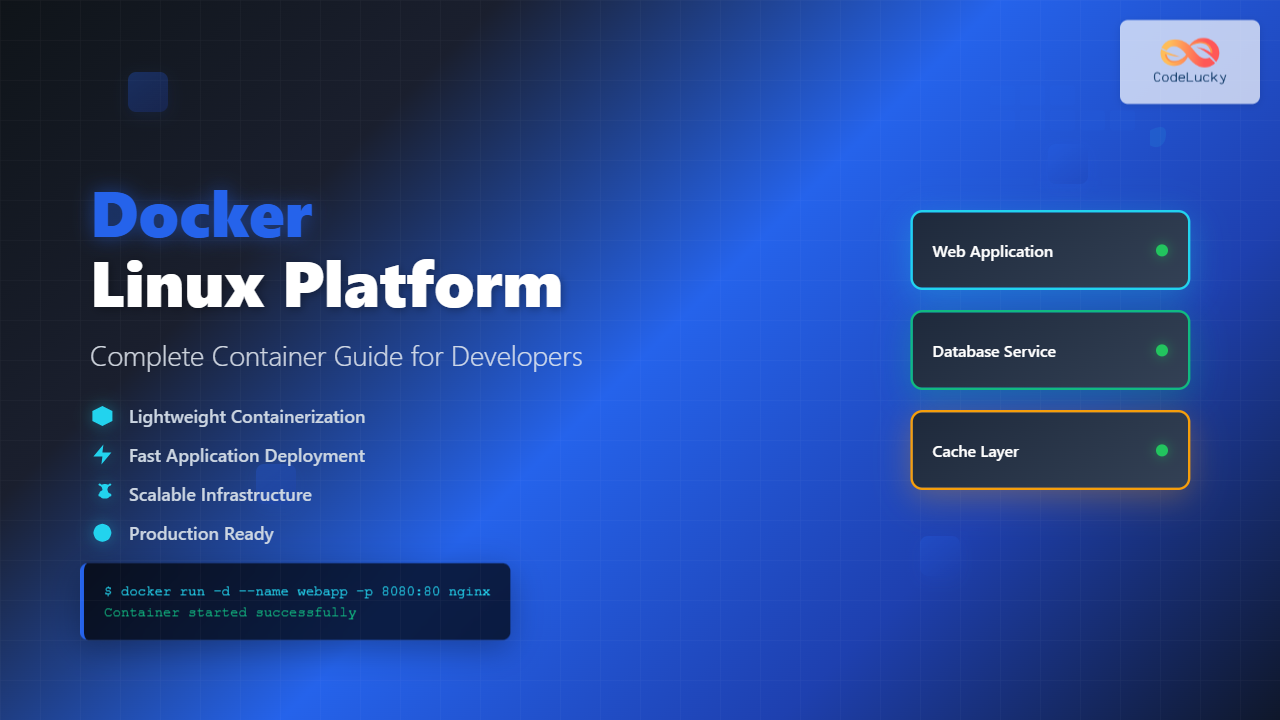
Docker has revolutionized software development and deployment by introducing lightweight containerization technology. As a platform that enables developers to package applications with their dependencies into portable containers, Docker has become an essential tool in modern DevOps workflows. This comprehensive guide will walk you through everything you need to know about Docker on Linux systems.
What is Docker?
Docker is an open-source containerization platform that allows developers to package applications and their dependencies into lightweight, portable containers. Unlike traditional virtual machines that virtualize entire operating systems, Docker containers share the host OS kernel, making them more efficient and faster to start.
Key Benefits of Docker
- Portability: Applications run consistently across different environments
- Efficiency: Containers use fewer resources than virtual machines
- Scalability: Easy horizontal scaling of applications
- Isolation: Applications run in isolated environments
- Version Control: Container images can be versioned and tracked
Installing Docker on Linux
Docker installation varies depending on your Linux distribution. Here are the most common installation methods:
Ubuntu/Debian Installation
# Update package index
sudo apt update

# Install required packages
sudo apt install apt-transport-https ca-certificates curl gnupg lsb-release

# Add Docker's official GPG key
curl -fsSL https://download.docker.com/linux/ubuntu/gpg | sudo gpg --dearmor -o /usr/share/keyrings/docker-archive-keyring.gpg

# Add Docker repository
echo "deb [arch=amd64 signed-by=/usr/share/keyrings/docker-archive-keyring.gpg] https://download.docker.com/linux/ubuntu $(lsb_release -cs) stable" | sudo tee /etc/apt/sources.list.d/docker.list > /dev/null

# Install Docker
sudo apt update
sudo apt install docker-ce docker-ce-cli containerd.io
CentOS/RHEL/Fedora Installation
# Install required packages
sudo yum install -y yum-utils

# Add Docker repository
sudo yum-config-manager --add-repo https://download.docker.com/linux/centos/docker-ce.repo

# Install Docker
sudo yum install docker-ce docker-ce-cli containerd.io

# Start and enable Docker service
sudo systemctl start docker
sudo systemctl enable docker
Post-Installation Setup
# Add your user to the docker group (optional)
sudo usermod -aG docker $USER

# Verify installation
docker --version

# Test Docker installation
docker run hello-world
Expected Output:
Docker version 24.0.5, build ced0996
Hello from Docker!
This message shows that your installation appears to be working correctly.
Essential Docker Commands
Image Management Commands
Pulling Images
# Pull an image from Docker Hub
docker pull ubuntu:latest

# Pull specific version
docker pull nginx:1.21-alpine
Output:
latest: Pulling from library/ubuntu
405f018f9d1d: Pull complete
Digest: sha256:b6b83d3c331794420340093eb706a6f152d9c1fa51b262d9bf34594887c2c7ac
Status: Downloaded newer image for ubuntu:latest
docker.io/library/ubuntu:latest
Listing Images
# List all images
docker images

# List images with specific format
docker images --format "table {{.Repository}}\t{{.Tag}}\t{{.Size}}"
Output:
REPOSITORY    TAG       IMAGE ID       CREATED        SIZE
ubuntu        latest    08d22c0ceb15   2 weeks ago    77.8MB
nginx         1.21      87a94228f133   3 weeks ago    133MB
hello-world   latest    9c7a54a9a43c   4 months ago   13.3kB
Removing Images
# Remove specific image
docker rmi ubuntu:latest

# Remove unused images
docker image prune

# Force remove all images
docker rmi $(docker images -q) --force
Container Management Commands
Running Containers
# Run container in detached mode
docker run -d --name my-nginx -p 8080:80 nginx

# Run container interactively
docker run -it ubuntu:latest /bin/bash

# Run container with environment variables
docker run -e MYSQL_ROOT_PASSWORD=secret -d mysql:8.0
Container Status and Information
# List running containers
docker ps

# List all containers (including stopped)
docker ps -a

# Show container details
docker inspect my-nginx

# View container logs
docker logs my-nginx

# Follow logs in real-time
docker logs -f my-nginx
Example Output for docker ps:
CONTAINER ID   IMAGE     COMMAND                  CREATED          STATUS          PORTS                  NAMES
2c8d1b4a3f2e   nginx     "/docker-entrypoint.…"   2 minutes ago    Up 2 minutes    0.0.0.0:8080->80/tcp   my-nginx
Container Operations
# Start stopped container
docker start my-nginx

# Stop running container
docker stop my-nginx

# Restart container
docker restart my-nginx

# Execute command in running container
docker exec -it my-nginx /bin/bash

# Copy files to/from container
docker cp file.txt my-nginx:/app/
docker cp my-nginx:/app/file.txt ./
Network Management
# List networks
docker network ls

# Create custom network
docker network create my-network

# Run container on specific network
docker run -d --network my-network --name web nginx

# Connect container to network
docker network connect my-network my-nginx

# Inspect network
docker network inspect my-network
Volume Management
# Create volume
docker volume create my-volume

# List volumes
docker volume ls

# Run container with volume
docker run -d -v my-volume:/data --name data-container ubuntu

# Mount host directory
docker run -d -v /host/path:/container/path nginx

# Remove unused volumes
docker volume prune
Working with Dockerfiles
Dockerfiles are text files that contain instructions for building Docker images. Here’s a comprehensive example:
Basic Dockerfile Example
# Use official Node.js runtime as base image
FROM node:18-alpine

# Set working directory
WORKDIR /app

# Copy package.json and package-lock.json
COPY package*.json ./

# Install dependencies
RUN npm ci --only=production

# Copy application source code
COPY . .

# Create non-root user
RUN addgroup -g 1001 -S nodejs
RUN adduser -S nextjs -u 1001

# Change ownership of app directory
RUN chown -R nextjs:nodejs /app
USER nextjs

# Expose port
EXPOSE 3000

# Define environment variable
ENV NODE_ENV=production

# Health check
HEALTHCHECK --interval=30s --timeout=3s --start-period=5s --retries=3 \
  CMD curl -f http://localhost:3000/health || exit 1

# Command to run application
CMD ["npm", "start"]
Building Images from Dockerfile
# Build image with tag
docker build -t my-app:latest .

# Build with build arguments
docker build --build-arg NODE_ENV=development -t my-app:dev .

# Build without cache
docker build --no-cache -t my-app:latest .
Multi-stage Dockerfile Example
# Build stage
FROM node:18-alpine AS builder
WORKDIR /app
COPY package*.json ./
RUN npm ci
COPY . .
RUN npm run build

# Production stage
FROM node:18-alpine AS production
WORKDIR /app
RUN addgroup -g 1001 -S nodejs
RUN adduser -S nextjs -u 1001
COPY --from=builder --chown=nextjs:nodejs /app/dist ./dist
COPY --from=builder --chown=nextjs:nodejs /app/package*.json ./
RUN npm ci --only=production && npm cache clean --force
USER nextjs
EXPOSE 3000
CMD ["node", "dist/index.js"]
Docker Compose
Docker Compose is a tool for defining and running multi-container Docker applications using YAML files.
Docker Compose Installation
# Download Docker Compose
sudo curl -L "https://github.com/docker/compose/releases/download/v2.20.0/docker-compose-$(uname -s)-$(uname -m)" -o /usr/local/bin/docker-compose

# Make executable
sudo chmod +x /usr/local/bin/docker-compose

# Verify installation
docker-compose --version
Docker Compose Example
Create a docker-compose.yml file:
version: '3.8'

services:
  web:
    build: .
    ports:
      - "3000:3000"
    environment:
      - NODE_ENV=production
      - DATABASE_URL=postgresql://user:password@db:5432/myapp
    depends_on:
      - db
    volumes:
      - ./logs:/app/logs
    networks:
      - app-network

  db:
    image: postgres:15-alpine
    environment:
      - POSTGRES_DB=myapp
      - POSTGRES_USER=user
      - POSTGRES_PASSWORD=password
    volumes:
      - postgres_data:/var/lib/postgresql/data
    networks:
      - app-network

  redis:
    image: redis:7-alpine
    ports:
      - "6379:6379"
    volumes:
      - redis_data:/data
    networks:
      - app-network

volumes:
  postgres_data:
  redis_data:

networks:
  app-network:
    driver: bridge
Docker Compose Commands
# Start all services
docker-compose up

# Start services in detached mode
docker-compose up -d

# Build and start services
docker-compose up --build

# Stop services
docker-compose down

# View logs
docker-compose logs

# Scale services
docker-compose up --scale web=3

# Execute command in service
docker-compose exec web /bin/bash
Docker Security Best Practices
Image Security
# Scan images for vulnerabilities
docker scan my-app:latest

# Use specific versions instead of 'latest'
FROM node:18.17.0-alpine

# Run as non-root user
RUN adduser -D -s /bin/sh myuser
USER myuser
Runtime Security
# Run container with limited privileges
docker run --user 1000:1000 --read-only --tmpfs /tmp my-app

# Limit container resources
docker run --memory=512m --cpus=0.5 my-app

# Use security profiles
docker run --security-opt seccomp=seccomp-profile.json my-app
Container Monitoring and Debugging
Resource Monitoring
# View container resource usage
docker stats

# Monitor specific container
docker stats my-nginx

# View container processes
docker top my-nginx

# Get container resource usage in JSON
docker stats --no-stream --format json
Debugging Containers
# Inspect container filesystem changes
docker diff my-nginx

# View container events
docker events --filter container=my-nginx

# Export container as tar
docker export my-nginx > container-backup.tar

# Save image as tar
docker save my-app:latest > my-app.tar

# Load image from tar
docker load < my-app.tar
Advanced Docker Features
Docker Swarm Mode
# Initialize swarm
docker swarm init

# Join worker node
docker swarm join --token SWMTKN-1-... manager-ip:2377

# Deploy service
docker service create --replicas 3 --name web -p 80:80 nginx

# Scale service
docker service scale web=5

# List services
docker service ls
Container Registry Operations
# Login to registry
docker login

# Tag image for registry
docker tag my-app:latest myregistry.com/my-app:v1.0

# Push image to registry
docker push myregistry.com/my-app:v1.0

# Pull from private registry
docker pull myregistry.com/private-app:latest
Docker Performance Optimization
Image Optimization Tips
- Use multi-stage builds to reduce final image size
- Minimize layers by combining RUN commands
- Use .dockerignore to exclude unnecessary files
- Choose minimal base images like Alpine Linux
- Remove package caches after installation
Example .dockerignore File
node_modules
npm-debug.log
.git
.gitignore
README.md
.env
.env.local
coverage
.nyc_output
Optimized Dockerfile Example
FROM node:18-alpine

# Install dependencies in separate layer
WORKDIR /app
COPY package*.json ./
RUN npm ci --only=production && npm cache clean --force

# Copy source code
COPY . .

# Remove unnecessary files and create user in single layer
RUN rm -rf tests docs *.md && \
    addgroup -g 1001 -S nodejs && \
    adduser -S nextjs -u 1001 && \
    chown -R nextjs:nodejs /app

USER nextjs
EXPOSE 3000
CMD ["node", "server.js"]
Troubleshooting Common Issues
Container Won’t Start
# Check container logs
docker logs container-name

# Inspect container configuration
docker inspect container-name

# Run container interactively to debug
docker run -it --entrypoint /bin/sh image-name
Disk Space Issues
# Check Docker disk usage
docker system df

# Clean up unused resources
docker system prune

# Remove all stopped containers
docker container prune

# Remove unused images
docker image prune -a

# Remove unused volumes
docker volume prune
Network Connectivity Issues
# List network interfaces in container
docker exec container-name ip addr

# Test connectivity between containers
docker exec container1 ping container2

# Inspect network configuration
docker network inspect bridge
Conclusion
Docker has transformed the way we develop, test, and deploy applications by providing a consistent and portable containerization platform. This comprehensive guide covered the essential aspects of Docker on Linux, from basic installation and commands to advanced features like Docker Compose and Swarm mode.
Key takeaways include mastering fundamental Docker commands, understanding container lifecycle management, implementing security best practices, and optimizing images for production use. As containerization continues to evolve, Docker remains a cornerstone technology for modern application deployment and DevOps practices.
Whether you’re a beginner starting with containerization or an experienced developer looking to enhance your Docker skills, the commands and examples in this guide provide a solid foundation for working with Docker on Linux systems. Remember to regularly update your Docker installation and stay informed about security best practices to maintain a robust containerized environment.
Related Posts
Container Virtualization: Complete Guide to OS-level Virtualization Technology
Container virtualization represents a revolutionary approach to application deployment and resource management through OS-level virtualization. Unlike traditional hardware virtualization, containers...
Container Operating Systems: Complete Guide to Docker and Kubernetes Platforms
Container operating systems have revolutionized how we deploy, manage, and scale applications in modern computing environments. Unlike traditional operating systems...
containerd Linux: Complete Guide to Industry-Standard Container Runtime
Containerd has emerged as the industry-standard container runtime, serving as the foundation for modern containerization platforms like Docker and Kubernetes....
PHP Docker: Containerizing PHP Applications
In today's fast-paced development world, containerization has become a game-changer. Docker, the leading containerization platform, has revolutionized how we develop,...
Rancher Linux: Complete Container Management Platform for DevOps Teams
Rancher Linux revolutionizes container management by providing a comprehensive platform that simplifies Kubernetes orchestration, multi-cloud deployments, and enterprise-grade container operations....

podman Command Linux: Complete Container Management Guide
Podman (Pod Manager) is a powerful, daemonless container engine that provides a Docker-compatible command-line interface for managing containers and pods...

kind Linux: Complete Guide to Running Kubernetes in Docker Containers
What is kind (Kubernetes in Docker)? kind (Kubernetes in Docker) is a powerful tool designed for running local Kubernetes clusters...

Kubernetes Linux: Complete Guide to Container Orchestration Platform
Kubernetes has revolutionized how we deploy, manage, and scale containerized applications on Linux systems. As the leading container orchestration platform,...

OpenShift Linux: Complete Guide to Enterprise Kubernetes Platform Management
OpenShift represents Red Hat's enterprise-grade Kubernetes platform that revolutionizes how organizations deploy, manage, and scale containerized applications on Linux systems....
Vagrant Linux: Complete Guide to Development Environment Management
Vagrant revolutionizes development environment management by providing a consistent, reproducible way to create and manage virtual development environments. This comprehensive...

machinectl Command Linux: Complete Guide to Managing systemd Containers and VMs
The machinectl command is a powerful utility in Linux systems that provides comprehensive management capabilities for systemd containers and virtual...

CRI-O Linux: Complete Guide to Lightweight Container Runtime for Kubernetes
CRI-O (Container Runtime Interface - Open Container Initiative) is a lightweight, OCI-compliant container runtime specifically designed for Kubernetes. Unlike Docker,...