Working with Docker containers often requires direct access to the container’s shell to troubleshoot, execute commands, or inspect the container environment. This comprehensive guide explains multiple ways to get into a Docker container’s shell, with clear examples and visual explanations, ideal for beginners and advanced users alike.
What Does It Mean to Access a Docker Container’s Shell?
Accessing a Docker container’s shell means opening an interactive command-line interface inside the running container. This allows the user to run commands as if they were logged into a traditional Linux machine hosted by the container.
This is useful for:
- Debugging running containers
- Inspecting the container’s file system
- Running administrative commands
- Performing quick experiments without rebuilding images
Preparing to Access Shell in Docker Container
Before entering a container’s shell, ensure you have the following:
- Docker installed and running on your host machine
- A running Docker container instance
- Basic familiarity with the terminal/command line
Method 1: Using docker exec Command
The primary method to access a running container’s shell is via the docker exec command. This allows executing commands inside the container, including launching an interactive shell.
Basic Syntax:
docker exec -it <container_name_or_id> <shell>– -i: Keep STDIN open
– -t: Allocate a pseudo-TTY (terminal)
– <shell>: Usually bash or sh
Example: Accessing bash shell
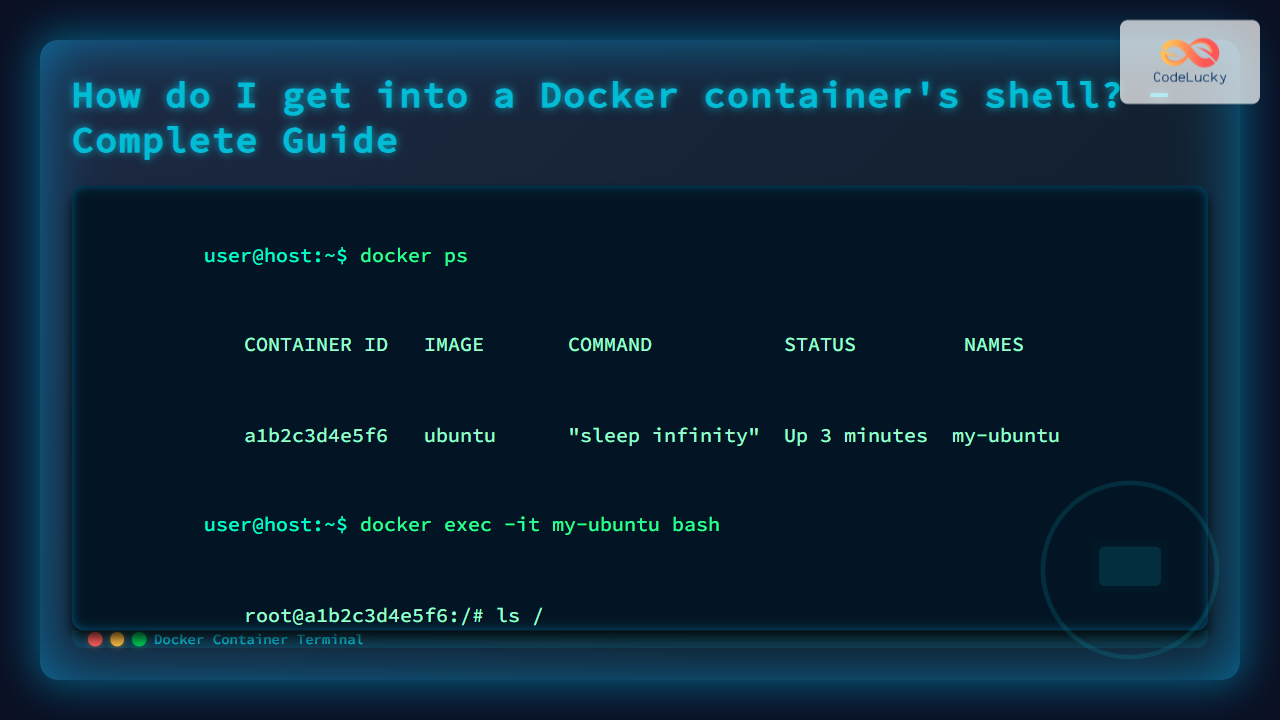
$ docker ps
CONTAINER ID   IMAGE       COMMAND                  CREATED           STATUS          PORTS                    NAMES
1a2b3c4d5e6f   ubuntu      "sleep infinity"         3 minutes ago     Up 3 minutes                              my-ubuntu

$ docker exec -it my-ubuntu bash
root@1a2b3c4d5e6f:/# ls
bin  boot  dev  etc  home  ...
root@1a2b3c4d5e6f:/# exit
The above example shows listing running containers and then opening a bash shell inside the one named my-ubuntu. Inside, the ls command shows the root directory contents.
Method 2: Using docker attach
The docker attach command attaches your terminal to a running container’s process. This method is usually suitable only if the container’s main process is running a shell or a foreground interactive process.
Usage:
docker attach <container_name_or_id>Note: This shares the same input/output as that container’s main process. It can be risky because detaching incorrectly may stop the container.
Safe detach keys: Ctrl + P, Ctrl + Q (in sequence) to detach without stopping the container.
This method is less commonly used to get shell access and primarily used for containers started with an interactive shell by default.
Method 3: Using docker exec with sh Shell
If a container does not have bash installed (common in lightweight images like Alpine), use sh shell as fallback:
docker exec -it <container_name_or_id> shThis launches a Bourne shell inside the container.
Example:
$ docker exec -it alpine_container sh
/ # ls
bin   dev   etc   home   ...
/ # exit
Method 4: Starting a New Container with Interactive Shell
Sometimes you might want to start a new temporary container that immediately gives shell access rather than attaching to an existing one.
docker run -it --rm ubuntu bashHere:
-it: Interactive terminal--rm: Automatically remove the container after exit
This is great for quick experiments or debugging without leaving containers lingering.
Visualizing Docker Shell Access Workflow

Tips for Working Inside Docker Shell
- Use
exitorCtrl+Dto leave the shell safely without stopping the container (usingdocker exec). - Remember containers might have minimal tools available—install others if necessary.
- Use
docker psanytime to list running containers and their IDs.
Common Issues and Troubleshooting
- Command not found: If
bashis missing, trysh. - Container not running: Start container first with
docker start <container>. - Permission denied: Ensure Docker daemon access rights, possibly run commands with
sudo.
Summary
Getting shell access inside Docker containers is essential for development, debugging, and maintenance. The docker exec -it <container> bash command is the most common and versatile approach, supported by alternatives based on container configuration and user needs.
Combined with Docker’s powerful container management features, these methods give developers agility and insight when working in containerized environments.