
Understanding DNS and Why Domain Resolution Matters
The Domain Name System (DNS) is a fundamental component of the internet’s infrastructure that translates human-friendly domain names like www.example.com into IP addresses that networking devices use to communicate. When a DNS problem occurs, users cannot reach websites or services, resulting in frustrating “site not found” errors or connection failures.
This article dives deep into common DNS problems, how to identify them, and most importantly, step-by-step resolutions to get domain resolution working correctly again.
Common DNS Problems and Their Causes
DNS problems typically revolve around issues such as:
- DNS Server Unreachable: Network issues or misconfigured firewall blocking access to DNS servers.
- Incorrect DNS Records: A-records, CNAMEs, MX records that are outdated, wrong, or deleted.
- DNS Cache Poisoning or Corruption: Cached bad records in local or intermediate DNS servers.
- Propagation Delays: Changes in DNS records not updated globally yet.
- ISP DNS Problems: Internet service provider’s DNS servers failing or providing incorrect responses.

How to Diagnose DNS Resolution Issues
Diagnosis is crucial for effective resolution. Here are some practical tools and commands:
- ping: Checks if the domain resolves to an IP and if that IP is reachable.
- nslookup: Queries specific DNS servers to check responses for a domain.
- dig: Provides detailed DNS query information, including record type and time to live (TTL).
- tracert/traceroute: Helps determine network path and spot routing problems affecting DNS reachability.
Example: Diagnosing DNS with dig
dig example.comThis command asks the configured DNS server for the A record of example.com. Sample output snippet:
; <<>> DiG 9.16.1-Ubuntu <<>> example.com
;; ANSWER SECTION:
example.com. 3600 IN A 93.184.216.34
If this query returns no result or an error like status: NXDOMAIN, the domain is not resolving correctly.
Step-by-Step Solutions to Fix DNS Issues
1. Verify Local Network and DNS Configuration
Check if the device’s DNS settings are correct and if the network has connection to DNS servers.
- On Windows, use
ipconfig /allto confirm DNS server IP addresses. - Use
ping 8.8.8.8(Google Public DNS IP) to verify network connectivity. - Try changing DNS to a reliable public DNS, such as Google (8.8.8.8, 8.8.4.4), Cloudflare (1.1.1.1), or OpenDNS.
2. Clear DNS Cache
Sometimes stale or corrupted cache causes DNS failures. Flush it locally and remotely if possible:
- On Windows:
ipconfig /flushdns - On macOS:
sudo dscacheutil -flushcache; sudo killall -HUP mDNSResponder - Restart router to clear DNS caches in home network.
3. Check and Correct DNS Records at Authoritative Source
Verify DNS records hosted on the authoritative DNS provider or control panel for your domain are correctly configured:
- A Record: Should point to the correct public IP of your webserver or service.
- CNAME: Properly set if used to alias domains.
- MX Records: Correct for mail delivery.
- TTL: Set to reasonable values – too high values delay propagation.
4. Test Using Alternative DNS Servers
If your ISP DNS server is slow or unreliable, temporarily set your device or network to use public DNS servers and test domain resolution.
5. Check for DNS Propagation Delays
After DNS changes, global propagation can take time (minutes to 48 hours). Use online DNS propagation checkers or dig to query multiple DNS servers worldwide.
Advanced DNS Troubleshooting
When basic steps fail, consider deeper diagnostics:
Inspect DNS Zone Files
Errors in zone files can cause issues. Examples include missing semicolons, incorrect syntax, or wrong serial numbers. Validate with DNS zone file validator tools before deployment.
Monitor Authoritative DNS Server Health
Ensure that authoritative servers are online, responding to queries, and configured for redundancy.
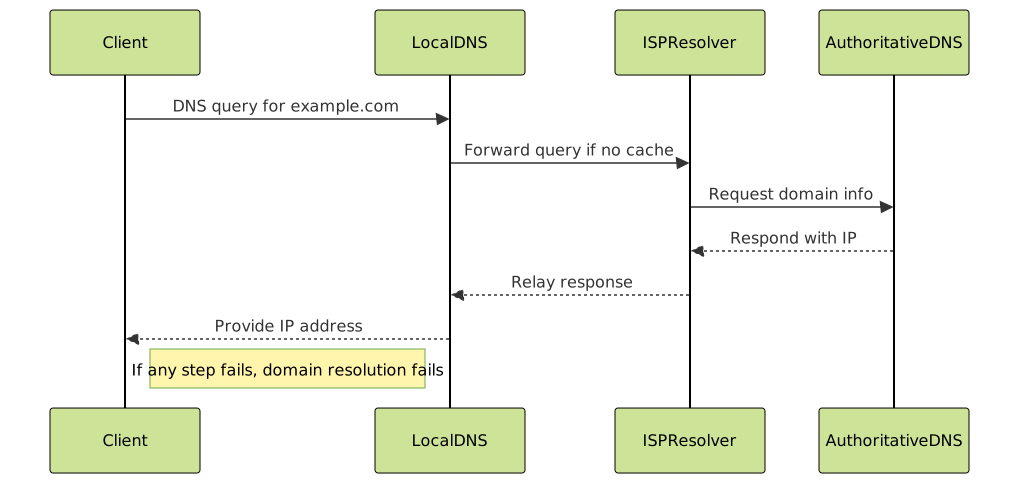
Visualizing Domain Resolution & Failure Points
The following diagram demonstrates where DNS failures commonly occur and where to intervene for fixes.

Interactive Example: Testing DNS Resolution in Real Time
The simplest interactive test is to use your system terminal or command prompt for commands like ping, nslookup, or dig. Below is a snippet you can run in a terminal environment:
# Check domain resolution IP address
nslookup example.com

# Detailed DNS query with dig
dig example.com +trace

# Clear local DNS cache (Windows)
ipconfig /flushdns
Output will show which DNS servers are queried, where failures occur, and the resolved IP addresses.
Summary: Best Practices for Preventing DNS Problems
- Use multiple authoritative DNS servers for redundancy.
- Choose reliable DNS providers with global presence.
- Keep DNS records up to date and validate zone files.
- Monitor DNS server health and response times regularly.
- Clear DNS caches during troubleshooting to ensure fresh queries.
- Educate users or clients about DNS propagation delays after edits.
With these effective diagnostic steps, practical fixes, and preparation strategies, resolving domain resolution issues becomes straightforward, ensuring reliable connectivity and optimal user experience on the internet.





