
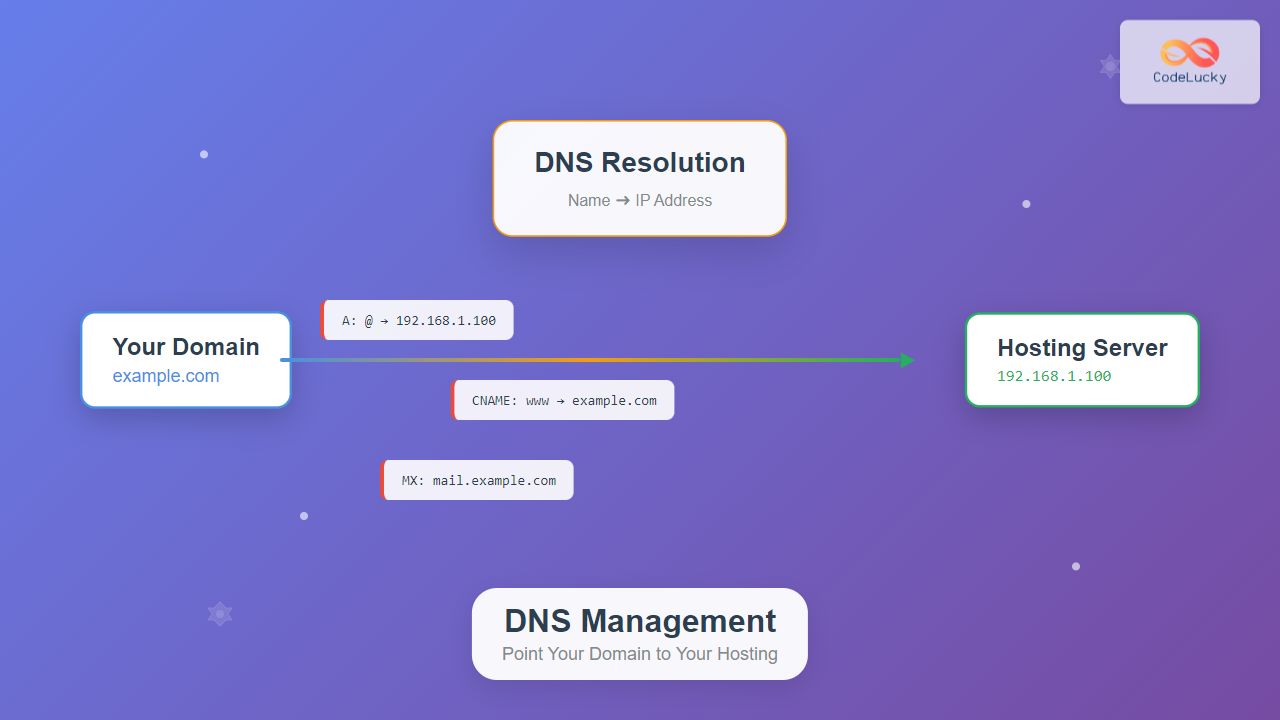
DNS (Domain Name System) management is the backbone of web hosting, acting as the internet’s phonebook by translating human-readable domain names into IP addresses that computers understand. When you purchase a domain and hosting separately, you need to configure DNS settings to connect them properly.
This comprehensive guide will walk you through every aspect of DNS management, from basic concepts to advanced configurations, ensuring your domain points correctly to your hosting provider.
Understanding DNS Fundamentals
DNS works as a hierarchical distributed naming system. When someone types your domain name in their browser, DNS servers resolve that name to your hosting server’s IP address, allowing the browser to load your website.

Key DNS Components
- Domain Registrar: Where you purchase and manage your domain name
- DNS Provider: Service that hosts your DNS records (can be registrar or third-party)
- Hosting Provider: Server where your website files are stored
- Nameservers: DNS servers that contain your domain’s DNS records
Essential DNS Record Types
Understanding different DNS record types is crucial for proper domain management. Each record type serves a specific purpose in routing traffic and services.
A Record (Address Record)
A records map domain names directly to IPv4 addresses. This is the most fundamental DNS record type.
Record Type: A
Name: @ (or domain.com)
Value: 192.168.1.100
TTL: 3600
AAAA Record
Similar to A records but for IPv6 addresses, supporting the newer internet protocol standard.
Record Type: AAAA
Name: @
Value: 2001:0db8:85a3:0000:0000:8a2e:0370:7334
TTL: 3600
CNAME Record (Canonical Name)
CNAME records create aliases, pointing one domain name to another domain name rather than an IP address.
Record Type: CNAME
Name: www
Value: domain.com
TTL: 3600
Important: CNAME records cannot coexist with other record types for the same name, and you cannot create a CNAME for the root domain (@).
MX Record (Mail Exchange)
MX records specify mail servers responsible for receiving email for your domain.
Record Type: MX
Name: @
Value: mail.domain.com
Priority: 10
TTL: 3600
TXT Record
TXT records store text-based information, commonly used for domain verification and email security.
Record Type: TXT
Name: @
Value: "v=spf1 include:_spf.google.com ~all"
TTL: 3600
Methods to Point Your Domain to Hosting
There are two primary approaches to connect your domain with your hosting provider, each with distinct advantages and use cases.

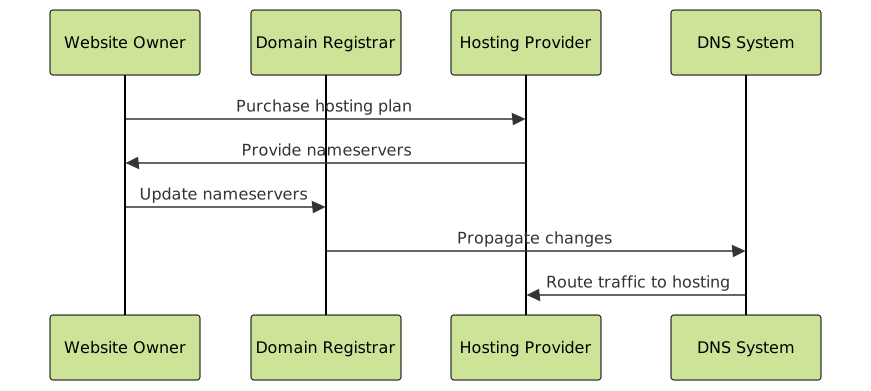
Method 1: Changing Nameservers
This method transfers complete DNS control to your hosting provider by updating your domain’s nameservers at the registrar level.
Steps to Change Nameservers:
- Obtain hosting provider’s nameservers (usually provided in welcome email or control panel)
- Access your domain registrar’s control panel
- Navigate to DNS or Nameserver settings
- Replace existing nameservers with hosting provider’s nameservers
- Save changes and wait for propagation (24-48 hours)
Example nameservers from popular hosting providers:
Bluehost:
ns1.bluehost.com
ns2.bluehost.com

SiteGround:
ns1.siteground.net
ns2.siteground.net

HostGator:
ns1.hostgator.com
ns2.hostgator.com
Advantages:
- Simple one-time setup
- Hosting provider manages all DNS records
- Automatic configuration for hosting-related services
Disadvantages:
- Limited control over DNS settings
- Dependency on hosting provider’s DNS infrastructure
- Potential issues when switching hosting providers
Method 2: Updating DNS Records
This approach keeps nameservers with your registrar while manually configuring DNS records to point to your hosting provider.
Required DNS Records Configuration:
A Record:
Name: @
Value: [Your hosting server IP]
TTL: 3600

A Record:
Name: www
Value: [Your hosting server IP]
TTL: 3600

Or alternatively:
CNAME Record:
Name: www
Value: yourdomain.com
TTL: 3600
Advantages:
- Complete control over DNS settings
- Can use third-party services (CDN, email providers)
- Easier to switch hosting while maintaining email services
Disadvantages:
- More complex initial setup
- Requires manual configuration of additional services
- Need to monitor and update records when hosting changes
Step-by-Step Configuration Guide
Let’s walk through practical examples of configuring DNS for common scenarios using both methods.
Scenario 1: New Website with Basic Hosting
For a simple website hosted on shared hosting, changing nameservers is typically the easiest approach.
Implementation Steps:
- Log into your hosting control panel and locate DNS information
- Copy the nameserver addresses (typically 2-4 servers)
- Access your domain registrar (GoDaddy, Namecheap, etc.)
- Find DNS Management or Nameserver settings
- Replace default nameservers with hosting provider’s nameservers
- Save changes and monitor propagation
Scenario 2: Using CDN with Custom DNS
When using services like Cloudflare CDN, you’ll need more granular DNS control.
DNS Configuration with Cloudflare:

A Record:
Name: @
Value: 104.21.14.100 (Cloudflare IP)
TTL: Auto
Proxy: Enabled

CNAME Record:
Name: www
Value: yourdomain.com
TTL: Auto
Proxy: Enabled

CNAME Record:
Name: api
Value: api-server.hosting.com
TTL: 300
Proxy: Disabled
Scenario 3: Email and Web Services Separation
Many businesses prefer using different providers for web hosting and email services.
Separated Services Configuration:

# Web hosting
A Record:
Name: @
Value: 192.168.1.100
TTL: 3600

CNAME Record:
Name: www
Value: yourdomain.com
TTL: 3600

# Email services (Google Workspace)
MX Record:
Name: @
Value: aspmx.l.google.com
Priority: 1
TTL: 3600

MX Record:
Name: @
Value: alt1.aspmx.l.google.com
Priority: 5
TTL: 3600
Troubleshooting Common DNS Issues
DNS problems can be frustrating, but most issues fall into predictable categories with straightforward solutions.

Common Problems and Solutions
1. Site Not Loading After DNS Changes
Symptoms: Domain shows “Server not found” or timeout errors
Diagnosis:
# Check DNS resolution
nslookup yourdomain.com

# Check current nameservers
nslookup -type=NS yourdomain.com

# Test specific DNS server
nslookup yourdomain.com 8.8.8.8
Solutions:
- Verify DNS records are correctly configured
- Check if changes have propagated globally
- Confirm hosting server is operational
- Review firewall and security settings
2. WWW vs Non-WWW Issues
Problem: One version of your domain works, but the other doesn’t
Solution: Configure both versions in DNS records
Option 1 - Both point to same IP:
A Record: @ → 192.168.1.100
A Record: www → 192.168.1.100

Option 2 - WWW redirects to non-WWW:
A Record: @ → 192.168.1.100
CNAME Record: www → yourdomain.com
3. Slow DNS Resolution
Symptoms: Website loads slowly or intermittently
Solutions:
- Lower TTL values for faster updates (but increases DNS queries)
- Use reliable DNS providers with global infrastructure
- Implement DNS caching strategies
- Consider using CDN services
DNS Propagation Monitoring
DNS changes don’t take effect immediately worldwide. Propagation can take 24-48 hours depending on various factors.
Factors affecting propagation speed:
- TTL (Time To Live) values in previous DNS records
- Internet service provider DNS caching policies
- Geographic location of DNS servers
- Type of DNS record being changed
Tools for monitoring propagation:
# Command line tools
dig yourdomain.com
nslookup yourdomain.com

# Online propagation checkers
whatsmydns.net
dnschecker.org
dns-lookup.com
Advanced DNS Configurations
Beyond basic domain pointing, advanced DNS configurations can optimize performance, security, and functionality.
Load Balancing with Multiple A Records
Distribute traffic across multiple servers by creating multiple A records for the same domain.
A Record:
Name: @
Value: 192.168.1.100
TTL: 300

A Record:
Name: @
Value: 192.168.1.101
TTL: 300

A Record:
Name: @
Value: 192.168.1.102
TTL: 300
Subdomain Management
Organize services and applications using subdomains with specific DNS configurations.
Main Website:
A Record: @ → 192.168.1.100

Blog:
CNAME Record: blog → yourdomain.com

API Server:
A Record: api → 192.168.2.50

CDN Static Content:
CNAME Record: cdn → d1234567.cloudfront.net

Development Environment:
A Record: dev → 192.168.3.25
Security Enhancements
Implement DNS security measures to protect your domain and users.
# SPF Record (Email Security)
TXT Record:
Name: @
Value: "v=spf1 include:_spf.google.com ~all"

# DKIM Record (Email Authentication)
TXT Record:
Name: selector1._domainkey
Value: "k=rsa; p=MIGfMA0GCSqGSIb3DQEBAQUAA4GNADCBiQKBgQC..."

# DMARC Policy
TXT Record:
Name: _dmarc
Value: "v=DMARC1; p=quarantine; rua=mailto:[email protected]"

# CAA Record (Certificate Authority Authorization)
CAA Record:
Name: @
Value: 0 issue "letsencrypt.org"
Best Practices for DNS Management
Following established best practices ensures reliable, secure, and maintainable DNS configurations.
Planning and Documentation
- Document all DNS changes with timestamps and reasons
- Maintain DNS record inventory for all domains and subdomains
- Plan changes during low-traffic periods to minimize user impact
- Keep backup copies of DNS configurations before major changes
Performance Optimization
- Use appropriate TTL values: 300-3600 seconds for most records
- Minimize DNS lookups by avoiding unnecessary CNAME chains
- Choose reliable DNS providers with global infrastructure
- Implement DNS monitoring to detect issues quickly
Security Considerations
- Enable domain locking at the registrar level
- Use strong passwords for DNS management accounts
- Implement two-factor authentication where available
- Regularly audit DNS records for unauthorized changes
- Monitor DNS queries for suspicious activity

Conclusion
Proper DNS management is essential for maintaining a reliable web presence. Whether you choose to delegate DNS control to your hosting provider through nameserver changes or maintain granular control through manual record configuration, understanding these concepts ensures your domain points correctly to your hosting infrastructure.
Key takeaways for successful DNS management:
- Choose the right approach based on your technical expertise and requirements
- Plan DNS changes carefully and monitor propagation progress
- Implement security measures to protect your domain and reputation
- Document configurations and maintain regular backups
- Monitor performance and optimize TTL values for your use case
With this comprehensive understanding of DNS management, you’re equipped to confidently point your domain to any hosting provider and troubleshoot common issues that may arise. Remember that DNS changes require patience during propagation, but proper configuration ensures reliable access to your website for visitors worldwide.





