
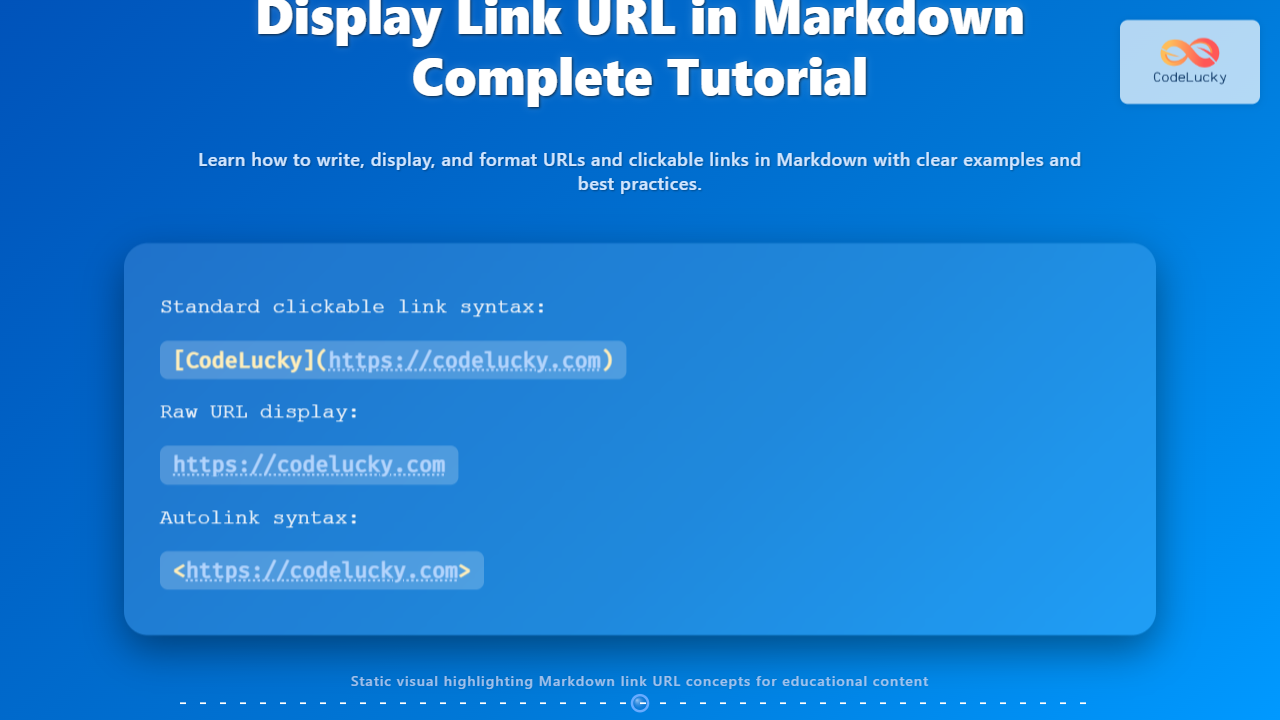
Markdown is a popular lightweight markup language widely used for formatting plain text, especially in programming documentation, blogs, and readme files. One essential skill is to understand how to display link URLs in Markdown effectively. This tutorial provides a comprehensive guide on how to show URLs in Markdown, including clickable links and showing raw URLs explicitly, backed with clear examples and visual explanations.
What Is a Link in Markdown?
In Markdown, links are embedded in the text using square brackets [] for the visible text and parentheses () for the URL. For example:
[OpenAI](https://openai.com)This renders in HTML as: OpenAI
How to Display a URL as a Link in Markdown
The basic syntax for creating a clickable link is:
[Link Text](URL)Example:
[CodeLucky](https://codelucky.com)Output: CodeLucky
Visual Diagram: Markdown Link Syntax

Displaying Raw URLs in Markdown
Sometimes you want to show a URL explicitly, without turning it into a clickable link. You can do this simply by typing the URL directly:
https://codelucky.comIt will render as plain text in many Markdown processors or as an auto-linked URL depending on the platform.
Example – Raw URL Display
Visit https://codelucky.com for more tutorials.Output: Visit https://codelucky.com for more tutorials.
Showing Both Link Text and URL
It can be useful to show both the clickable link text and the URL itself for clarity or citation. Here are methods to do that:
Method 1: Link Text Followed by URL in Parentheses
[CodeLucky](https://codelucky.com) (https://codelucky.com)This displays the clickable link followed by the raw URL:
CodeLucky (https://codelucky.com)
Method 2: Using Reference-Style Links
[CodeLucky][1]

[1]: https://codelucky.com
This syntax separates the link reference from the text and you can optionally display the URL inline as text. It’s cleaner for repeated URLs.
How to Show Link URL Hover Tooltip
Markdown by itself doesn’t support customizing the hover tooltip for links. However, many renderers show the URL in the browser’s status bar or as a tooltip by default, depending on the platform.
Advanced: Displaying URLs with Titles in Markdown
To add a tooltip title to a link:
[CodeLucky](https://codelucky.com "Visit CodeLucky Homepage")This will show the text CodeLucky as a link, and when hovered, a tooltip with “Visit CodeLucky Homepage” appears.
Visual Diagram: Link with Title

Markdown Autolinks
For sometimes auto-linking URLs without link text, simply enclose the URL within angle brackets <>:
<https://codelucky.com>This renders as a clickable link with the URL as the visible text.
Example:
<https://codelucky.com>Output: https://codelucky.com
Summary of Link URL Display Methods in Markdown
| Method | Syntax | Output Description |
|---|---|---|
| Standard Link | [Text](URL) | Clickable text linked to a URL |
| Raw URL | https://example.com | Plain URL text (auto-linked on some platforms) |
| Autolink | <https://example.com> | Clickable link showing full URL as text |
| Link with Tooltip | [Text](URL “Tooltip”) | Hover tooltip with custom text |
| Reference Style | [Text][1] | Separates URL for reuse, cleaner format |
Interactive Tip: Try It Yourself
Many Markdown editors (like VSCode or online playgrounds) let you type Markdown and see live rendered output. Experiment with the above link formats to see differences directly.
Final Notes
Displaying links and URLs in Markdown is straightforward but understanding subtle differences lets you write more readable and user-friendly documents. Always tailor your link style based on the reader’s needs—whether clickable text, raw URLs for clarity, or detailed tooltips for accessibility.
With this complete guide, confidently handle any Markdown link URL needs in your programming documentation or content writing for maximum clarity and usability.





