
When working with Git, a distributed version control system, it’s common to occasionally need to delete a commit from a branch to fix mistakes, remove sensitive data, or tidy up history. This tutorial explains how to delete a commit from a Git branch in a way that is safe and clear, with examples and visualizations to solidify your understanding.
Understanding Commits and Branches in Git
A commit in Git represents a snapshot of your project at a point in time. Branches are pointers to a series of commits. Deleting a commit means rewriting history by removing or altering that snapshot.
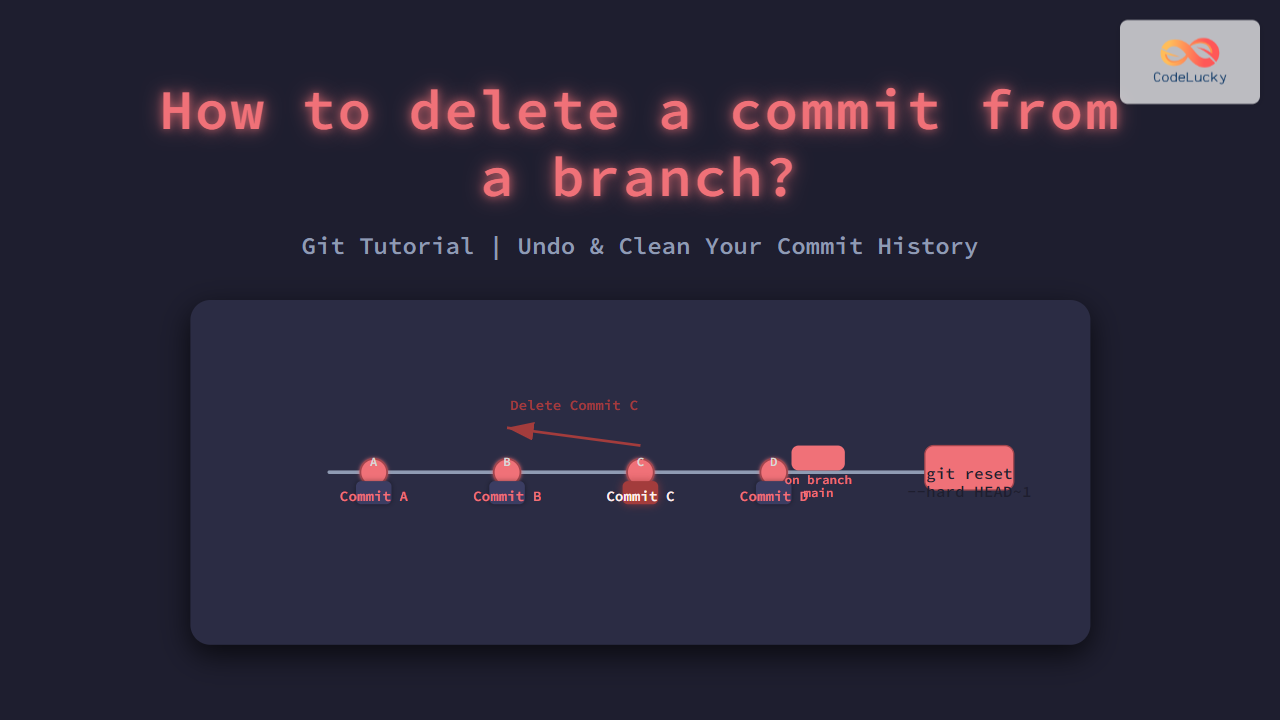
In this diagram, HEAD points to the last commit on the current branch. Deleting Commit C means altering the branch history and moving HEAD.
When and Why Would You Delete a Commit?
- Removing a commit with sensitive or incorrect information
- Cleaning up the commit history before pushing to a shared repository
- Undoing a commit that caused bugs or broke the build
Important Considerations Before Deleting Commits
- Deleting commits rewrites history. If the branch is shared, coordinate with your team to avoid conflicts.
- Always create a backup branch before destructive operations:
git branch backup-branch. - Use Git commands carefully to prevent loss of work.
Method 1: Delete the Most Recent Commit
To delete the latest commit from your branch, use:
git reset --hard HEAD~1
This will remove the latest commit completely and reset the branch pointer (HEAD) to the previous commit.
Example terminal output:
$ git log --oneline
d9f8a3b Commit D
c7e1e6a Commit C
b3f5e2d Commit B

$ git reset --hard HEAD~1

$ git log --oneline
c7e1e6a Commit C
b3f5e2d Commit B
Interactive Explanation
Resetting to HEAD~1 means “go back 1 commit from HEAD,” effectively deleting the most recent commit.
Method 2: Delete a Specific Commit with Interactive Rebase
To delete a commit anywhere in the history (not just the latest), you can use:
git rebase -i HEAD~N
Where N is the number of last commits to review.
Suppose you want to delete Commit 3:
git rebase -i HEAD~5
The interactive editor opens, showing commits in reverse chronological order:
pick e5d1a4d Commit 5
pick b4c3d2e Commit 4
pick c3b2a1f Commit 3
pick d4e5f6a Commit 2
pick a7b8c9d Commit 1
To delete Commit 3, replace pick before Commit 3 with drop or just delete that line.
Save and exit the editor. Git will reapply commits skipping the dropped one, thereby deleting it from history.
Method 3: Delete a Commit Using Git Revert (Undo Without History Rewriting)
If you want to undo a commit but keep history intact, you can use:
git revert <commit-hash>
This creates a new commit that reverses the changes introduced by the specified commit.
Example:
$ git revert c3b2a1f
This approach is safer for shared branches.
Visual Summary of Methods
Additional Tips and Best Practices
- Always backup your branch before rewriting history.
- Use
git reflogto recover lost commits after accidental deletion. - Communicate with your team when force-pushing after rewriting history.
- Use
--softor--mixedoptions withgit resetif you want to keep changes staged or unstaged instead of discarding.
Conclusion
Deleting a commit from a Git branch is a task that requires care but can be done effectively using git reset for recent commits, git rebase -i for specific history editing, or git revert to undo changes safely without history rewrite. Mastering these commands enhances control over your project’s commit history and helps maintain a clean and meaningful Git log.
Try these techniques on a test branch to practice before applying to critical repositories.





