Understanding PowerShell Debugging Fundamentals
Debugging PowerShell scripts is essential for identifying logic errors, performance bottlenecks, and unexpected behavior. PowerShell provides three powerful debugging mechanisms: Set-PSBreakpoint for setting breakpoints, Debug-Process for attaching to running processes, and Trace-Command for monitoring cmdlet execution. These tools transform script troubleshooting from guesswork into systematic analysis.
PowerShell’s debugging model differs from traditional debuggers by offering both interactive and non-interactive debugging modes, making it suitable for local development and remote troubleshooting scenarios.

Set-PSBreakpoint: Types and Usage
Line Breakpoints
Line breakpoints pause script execution at specific line numbers, allowing you to inspect variable states and execution flow. This is the most common debugging technique.
# Create a sample script: Calculate-Total.ps1
function Calculate-Total {
    param($Numbers)

    $total = 0
    foreach ($num in $Numbers) {
        $total += $num
        Write-Host "Current total: $total"
    }
    return $total
}

$values = 10, 20, 30, 40
$result = Calculate-Total -Numbers $values
Write-Host "Final result: $result"
# Set a line breakpoint at line 6
Set-PSBreakpoint -Script .\Calculate-Total.ps1 -Line 6

# Execute the script
.\Calculate-Total.ps1
When the breakpoint triggers, PowerShell enters debug mode with this output:
Entering debug mode. Use h or ? for help.

Hit Line breakpoint on '.\Calculate-Total.ps1:6'

At .\Calculate-Total.ps1:6 char:9
+         $total += $num
+         ~~~~~~~~~~~~~~
[DBG]: PS C:\Scripts>
In debug mode, use these commands:
s(StepInto) – Execute the current line and step into functionsv(StepOver) – Execute the current line without stepping into functionso(StepOut) – Execute remaining lines in the current functionc(Continue) – Resume execution until the next breakpointl(List) – Display the current code contextk(Get-PSCallStack) – View the call stackq(Quit) – Exit debug mode and stop execution
Variable Breakpoints
Variable breakpoints trigger when a variable is read, written, or both. This helps track unexpected value changes.
# Script: Monitor-Configuration.ps1
$config = @{
    ServerName = "localhost"
    Port = 8080
    Timeout = 30
}

function Update-Config {
    $config.Port = 9090
    Write-Host "Port updated to $($config.Port)"
}

function Read-Config {
    $port = $config.Port
    Write-Host "Current port: $port"
}

Update-Config
Read-Config
# Set a variable breakpoint that triggers on write
Set-PSBreakpoint -Script .\Monitor-Configuration.ps1 -Variable config -Mode Write

# Run the script
.\Monitor-Configuration.ps1
Output when the breakpoint triggers:
Entering debug mode. Use h or ? for help.

Hit Variable breakpoint on '.\Monitor-Configuration.ps1:$config' (Write access)

At .\Monitor-Configuration.ps1:7 char:5
+     $config.Port = 9090
+     ~~~~~~~~~~~~~~~~~~~

[DBG]: PS C:\Scripts> $config

Name                           Value
----                           -----
Timeout                        30
Port                           9090
ServerName                     localhost
Command Breakpoints
Command breakpoints pause execution when specific cmdlets or functions are called, useful for tracking function invocations across large scripts.
# Script: Process-Data.ps1
function Get-UserData {
    param($UserId)
    Write-Host "Fetching data for user: $UserId"
    return @{ Id = $UserId; Name = "User$UserId" }
}

function Save-UserData {
    param($UserData)
    Write-Host "Saving user: $($UserData.Name)"
}

$user = Get-UserData -UserId 101
Save-UserData -UserData $user
$user2 = Get-UserData -UserId 102
# Set command breakpoint for Get-UserData function
Set-PSBreakpoint -Script .\Process-Data.ps1 -Command Get-UserData

# Execute
.\Process-Data.ps1
The debugger pauses before each Get-UserData call:
Entering debug mode. Use h or ? for help.

Hit Command breakpoint on '.\Process-Data.ps1:Get-UserData'

At .\Process-Data.ps1:12 char:9
+ $user = Get-UserData -UserId 101
+         ~~~~~~~~~~~~

[DBG]: PS C:\Scripts> $UserId
# Variable not yet assigned

[DBG]: PS C:\Scripts> v
Fetching data for user: 101

[DBG]: PS C:\Scripts> c
Saving user: User101

Hit Command breakpoint on '.\Process-Data.ps1:Get-UserData'
Managing Breakpoints
# List all breakpoints
Get-PSBreakpoint

# Output example:
# ID Script           Line Command          Variable          Action
# -- ------           ---- -------          --------          ------
#  0 Calculate-Tot...    6
#  1 Monitor-Confi...      Get-UserData
#  2 Process-Data....                       config

# Remove specific breakpoint by ID
Remove-PSBreakpoint -Id 0

# Remove all breakpoints
Get-PSBreakpoint | Remove-PSBreakpoint

# Disable breakpoint temporarily
Disable-PSBreakpoint -Id 1

# Re-enable breakpoint
Enable-PSBreakpoint -Id 1

Advanced Breakpoint Techniques
Conditional Breakpoints with Actions
Action blocks execute code when breakpoints trigger without entering debug mode, enabling conditional logging and complex debugging scenarios.
# Script: Process-Orders.ps1
function Process-Order {
    param($OrderId, $Amount)

    $tax = $Amount * 0.1
    $total = $Amount + $tax

    Write-Host "Processing Order #$OrderId - Total: $total"
    return $total
}

1..10 | ForEach-Object {
    Process-Order -OrderId $_ -Amount (Get-Random -Minimum 50 -Maximum 500)
}
# Set breakpoint with conditional action
Set-PSBreakpoint -Script .\Process-Orders.ps1 -Line 6 -Action {
    if ($Amount -gt 400) {
        Write-Host "⚠️ HIGH VALUE ORDER: $OrderId - Amount: $Amount" -ForegroundColor Yellow
        # Log to file
        "$OrderId,$Amount" | Out-File -Append -FilePath .\high-value-orders.log
    }
}

.\Process-Orders.ps1
Output shows script execution continues while actions execute:
Processing Order #1 - Total: 132.00
⚠️ HIGH VALUE ORDER: 2 - Amount: 456
Processing Order #2 - Total: 501.60
Processing Order #3 - Total: 88.00
⚠️ HIGH VALUE ORDER: 4 - Amount: 423
Processing Order #4 - Total: 465.30
Breakpoints in Modules and Remote Scripts
# Set breakpoint in imported module
Import-Module MyCustomModule
Set-PSBreakpoint -Command Invoke-CustomFunction

# Set breakpoint for remote debugging
Enter-PSSession -ComputerName Server01
Set-PSBreakpoint -Script C:\RemoteScripts\Deploy.ps1 -Line 25

# Run remote script - debugger activates in remote session
.\Deploy.ps1
Debug-Process: Attaching to Running Processes
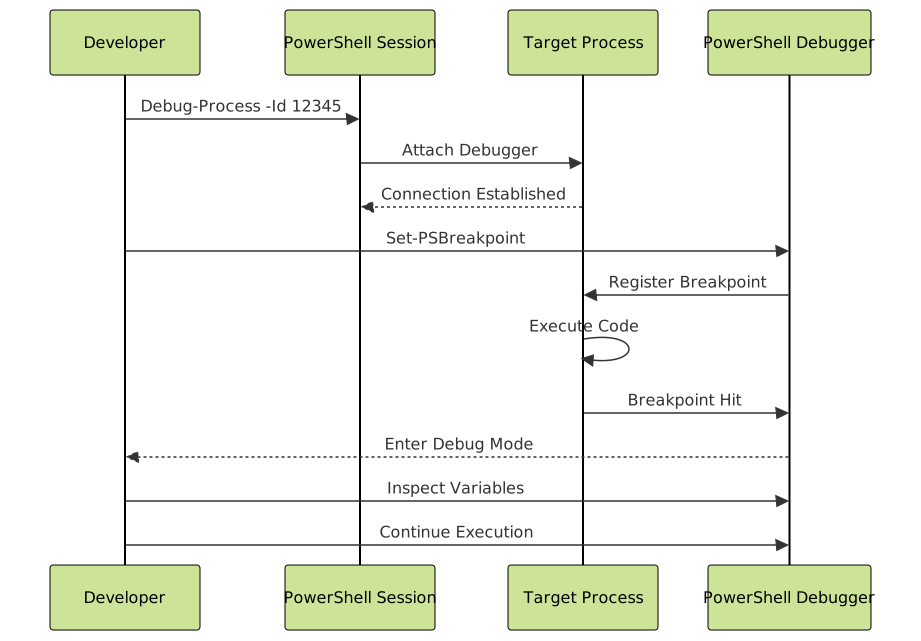
Debug-Process attaches the PowerShell debugger to running .NET processes, enabling runtime debugging without stopping the application. This is invaluable for production troubleshooting.
Basic Process Debugging
# Create a long-running script: Continuous-Worker.ps1
while ($true) {
    $timestamp = Get-Date -Format "yyyy-MM-dd HH:mm:ss"
    Write-Host "[$timestamp] Processing batch..."

    $data = 1..100 | ForEach-Object {
        Start-Sleep -Milliseconds 10
        $_ * 2
    }

    Write-Host "Batch complete. Items processed: $($data.Count)"
    Start-Sleep -Seconds 5
}
# Start the script in a separate PowerShell window
Start-Process powershell -ArgumentList "-File C:\Scripts\Continuous-Worker.ps1"

# Find the process ID
Get-Process pwsh | Where-Object {$_.MainWindowTitle -like "*Continuous-Worker*"}

# Attach debugger (requires elevation)
Debug-Process -Id 12345  # Replace with actual PID
Once attached, set breakpoints in the running process:
# While debugger is attached
Set-PSBreakpoint -Variable data -Mode Write

# The process will pause when $data is modified
# You can then inspect the current state
[DBG]: PS C:\> $data.Count
100

[DBG]: PS C:\> $timestamp
2025-10-22 16:30:15
Debugging PowerShell Background Jobs
# Start a background job
$job = Start-Job -ScriptBlock {
    param($Max)
    $results = @()
    for ($i = 1; $i -le $Max; $i++) {
        $results += "Item $i"
        Start-Sleep -Milliseconds 500
    }
    return $results
} -ArgumentList 20

# Get the job's process ID
$jobProcess = Get-Process | Where-Object {$_.Id -eq $job.ChildJob.PowerShell.Process.Id}

# Debug the background job process
Debug-Process -Id $jobProcess.Id

# Set breakpoints as needed
Set-PSBreakpoint -Variable results -Mode Write
Trace-Command: Monitoring Cmdlet Execution
Trace-Command reveals PowerShell’s internal operations by monitoring parameter binding, pipeline execution, and command resolution. This provides deep insights into how cmdlets process data.
Basic Command Tracing
# Trace parameter binding for Get-ChildItem
Trace-Command -Name ParameterBinding -Expression {
    Get-ChildItem -Path C:\Temp -Filter *.txt
} -PSHost
Detailed output shows parameter resolution:
DEBUG: ParameterBinding Information: 0 : BIND NAMED cmd line args [Get-ChildItem]
DEBUG: ParameterBinding Information: 0 :     BIND arg [C:\Temp] to parameter [Path]
DEBUG: ParameterBinding Information: 0 :         Binding collection parameter Path: argument type [String]
DEBUG: ParameterBinding Information: 0 :         BIND arg [C:\Temp] to param [Path] SUCCESSFUL
DEBUG: ParameterBinding Information: 0 :     BIND arg [*.txt] to parameter [Filter]
DEBUG: ParameterBinding Information: 0 :         BIND arg [*.txt] to param [Filter] SUCCESSFUL
DEBUG: ParameterBinding Information: 0 : BIND POSITIONAL cmd line args [Get-ChildItem]
DEBUG: ParameterBinding Information: 0 : MANDATORY PARAMETER CHECK on cmdlet [Get-ChildItem]
Pipeline Tracing
# Trace pipeline execution
Trace-Command -Name PipelineExecution -Expression {
    1..5 | Where-Object {$_ -gt 2} | ForEach-Object {$_ * 10}
} -PSHost
Output reveals pipeline data flow:
DEBUG: PipelineExecution Information: 0 : Pipeline execution started
DEBUG: PipelineExecution Information: 0 :     Executing command: 1..5
DEBUG: PipelineExecution Information: 0 :     Piping output to: Where-Object
DEBUG: PipelineExecution Information: 0 :         Input object: 1
DEBUG: PipelineExecution Information: 0 :         Filter result: False
DEBUG: PipelineExecution Information: 0 :         Input object: 3
DEBUG: PipelineExecution Information: 0 :         Filter result: True
DEBUG: PipelineExecution Information: 0 :         Output to pipeline: 3
Available Trace Sources
# List all available trace sources
Get-TraceSource

# Common trace sources:
# - ParameterBinding: Parameter matching and binding
# - PipelineExecution: Pipeline processing flow
# - CommandDiscovery: How commands are located
# - TypeConversion: Type casting operations
# - ETS: Extended Type System operations
# - PSHost: Host interface operations
Tracing to File
# Trace complex script execution to file
Trace-Command -Name ParameterBinding, PipelineExecution -Expression {
    Get-Service | Where-Object {$_.Status -eq 'Running'} |
    Select-Object -First 10 Name, DisplayName |
    Export-Csv -Path .\services.csv -NoTypeInformation
} -FilePath .\trace-output.log

# View trace output
Get-Content .\trace-output.log | Select-Object -First 30
Custom Tracing with Write-Debug
# Script with debug statements: Advanced-Function.ps1
function Process-Dataset {
    [CmdletBinding()]
    param(
        [Parameter(Mandatory)]
        [int[]]$Numbers,

        [switch]$CalculateAverage
    )

    Write-Debug "Starting Process-Dataset"
    Write-Debug "Input count: $($Numbers.Count)"

    $sum = ($Numbers | Measure-Object -Sum).Sum
    Write-Debug "Sum calculated: $sum"

    if ($CalculateAverage) {
        $avg = $sum / $Numbers.Count
        Write-Debug "Average calculated: $avg"
        return $avg
    }

    Write-Debug "Returning sum only"
    return $sum
}

# Run with debug output enabled
$DebugPreference = "Continue"
Process-Dataset -Numbers 10,20,30,40,50 -CalculateAverage
Output with debug messages:
DEBUG: Starting Process-Dataset
DEBUG: Input count: 5
DEBUG: Sum calculated: 150
DEBUG: Average calculated: 30
30

Debugging Best Practices and Workflow
Strategic Breakpoint Placement
# Good: Strategic breakpoints at decision points
function Process-Invoice {
    param($Invoice)

    # Breakpoint 1: Verify input
    if ($null -eq $Invoice) {
        throw "Invoice cannot be null"
    }

    # Breakpoint 2: Before complex calculation
    $tax = Calculate-Tax -Amount $Invoice.Amount -Region $Invoice.Region

    # Breakpoint 3: Before data modification
    $Invoice.TotalAmount = $Invoice.Amount + $tax

    # Breakpoint 4: Before external call
    Save-Invoice -Invoice $Invoice
}

# Set strategic breakpoints
Set-PSBreakpoint -Script .\Process-Invoice.ps1 -Line 5, 10, 13, 16
Combining Debugging Techniques
# Comprehensive debugging script
$ErrorActionPreference = "Stop"
$DebugPreference = "Continue"

# Enable transcript for session logging
Start-Transcript -Path .\debug-session.log

try {
    # Set breakpoint with action for monitoring
    Set-PSBreakpoint -Variable criticalData -Mode Write -Action {
        Write-Host "⚠️ Critical data modified at $(Get-Date)" -ForegroundColor Yellow
        $criticalData | ConvertTo-Json -Depth 2 | Out-File -Append .\data-changes.log
    }

    # Trace command execution
    Trace-Command -Name ParameterBinding -Expression {
        # Your script logic here
        $criticalData = Get-BusinessData -Date (Get-Date)
        Process-BusinessLogic -Data $criticalData
    } -FilePath .\parameter-trace.log

} catch {
    Write-Error "Error occurred: $_"
    # Breakpoint on error for investigation
    Set-PSBreakpoint -Command Write-Error
} finally {
    Stop-Transcript
    Get-PSBreakpoint | Remove-PSBreakpoint
}
Remote Debugging Setup
# On remote server: Enable PowerShell remoting
Enable-PSRemoting -Force

# From local machine: Enter remote session with debugging
$session = New-PSSession -ComputerName Server01 -Credential $cred
Enter-PSSession $session

# Set breakpoints in remote scripts
Set-PSBreakpoint -Script C:\RemoteScripts\Deploy.ps1 -Line 50

# Execute remote script with debugging
C:\RemoteScripts\Deploy.ps1

# When debugging finishes
Exit-PSSession
Remove-PSSession $session
Performance Debugging with Measure-Command
# Identify performance bottlenecks
function Optimize-DataProcessing {
    $data = 1..10000

    Write-Host "Method 1: ForEach-Object"
    $time1 = Measure-Command {
        $result1 = $data | ForEach-Object {$_ * 2}
    }

    Write-Host "Method 2: Foreach loop"
    $time2 = Measure-Command {
        $result2 = foreach ($item in $data) {$item * 2}
    }

    Write-Host "Method 3: Array expression"
    $time3 = Measure-Command {
        $result3 = @(
            foreach ($item in $data) {$item * 2}
        )
    }

    [PSCustomObject]@{
        ForEachObject = $time1.TotalMilliseconds
        ForeachLoop = $time2.TotalMilliseconds
        ArrayExpression = $time3.TotalMilliseconds
    }
}

Optimize-DataProcessing
Output comparison:
Method 1: ForEach-Object
Method 2: Foreach loop
Method 3: Array expression

ForEachObject  ForeachLoop  ArrayExpression
--------------  -----------  ---------------
        345.67        45.23            47.89
Common Debugging Scenarios
Debugging Null Reference Errors
# Script with potential null reference issue
function Get-UserProfile {
    param($Username)

    $user = Get-ADUser -Filter "SamAccountName -eq '$Username'" -ErrorAction SilentlyContinue

    # Set breakpoint to inspect $user before accessing properties
    return [PSCustomObject]@{
        Name = $user.Name
        Email = $user.EmailAddress
        Department = $user.Department
    }
}

# Debug approach
Set-PSBreakpoint -Script .\Get-UserProfile.ps1 -Line 6
$profile = Get-UserProfile -Username "testuser"

# At breakpoint, inspect:
[DBG]: PS C:\> $user
# If null, the property access will fail
[DBG]: PS C:\> $null -eq $user
True
Debugging Loop Logic
# Script with loop logic issue
function Process-BatchItems {
    param([int]$BatchSize)

    $items = 1..100
    $batches = [Math]::Ceiling($items.Count / $BatchSize)

    for ($i = 0; $i -lt $batches; $i++) {
        $start = $i * $BatchSize
        $end = [Math]::Min($start + $BatchSize - 1, $items.Count - 1)

        $batch = $items[$start..$end]
        Write-Host "Batch $($i + 1): Items $start to $end"
    }
}

# Set breakpoint with condition check
Set-PSBreakpoint -Script .\Process-BatchItems.ps1 -Line 10 -Action {
    Write-Host "Batch indices: Start=$start, End=$end, Count=$($batch.Count)"
}

Process-BatchItems -BatchSize 15
Debugging in Different Environments
Visual Studio Code Integration
// .vscode/launch.json configuration for PowerShell debugging
{
    "version": "0.2.0",
    "configurations": [
        {
            "name": "PowerShell: Launch Current File",
            "type": "PowerShell",
            "request": "launch",
            "script": "${file}",
            "cwd": "${workspaceFolder}"
        },
        {
            "name": "PowerShell: Attach to Process",
            "type": "PowerShell",
            "request": "attach",
            "processId": "${command:PickPSHostProcess}"
        }
    ]
}
PowerShell ISE Debugging
PowerShell ISE provides integrated debugging with visual breakpoint indicators and variable watch windows. Use F9 to toggle breakpoints, F5 to run, F10 to step over, and F11 to step into functions.
Azure Functions and Cloud Debugging
# Azure Function with debug logging
param($Timer)

Write-Debug "Function triggered at: $(Get-Date)"

$DebugPreference = "Continue"

try {
    $data = Get-AzureStorageData
    Write-Debug "Retrieved $($data.Count) items"

    $processed = Process-Data -Data $data
    Write-Debug "Processed successfully: $($processed.Success)"

} catch {
    Write-Error "Function error: $_"
    throw
}
Troubleshooting and Tips
When Breakpoints Don’t Trigger
- Verify script path is absolute or relative to current directory
- Check if script is dot-sourced (`. .\script.ps1`) vs. executed (`.\script.ps1`)
- Ensure line numbers match after script edits
- Confirm breakpoint IDs with
Get-PSBreakpoint
# Verify breakpoint configuration
$breakpoints = Get-PSBreakpoint
$breakpoints | Format-Table Id, Enabled, Script, Line, Command, Variable

# Re-set if needed
$breakpoints | Remove-PSBreakpoint
Set-PSBreakpoint -Script .\MyScript.ps1 -Line 25
Debugging Module Functions
# Import module in current scope for debugging
Import-Module MyModule -Force

# Get module path
$modulePath = (Get-Module MyModule).Path

# Set breakpoint in module function
Set-PSBreakpoint -Script $modulePath -Command Export-CustomData
Memory and Performance Considerations
# Monitor memory during debugging
function Test-MemoryUsage {
    $before = [System.GC]::GetTotalMemory($false) / 1MB

    # Your code here
    $data = 1..1000000 | ForEach-Object {[PSCustomObject]@{Id=$_; Value=$_ * 2}}

    $after = [System.GC]::GetTotalMemory($false) / 1MB

    Write-Host "Memory used: $([Math]::Round($after - $before, 2)) MB"
}

# Set breakpoint to inspect before collection grows
Set-PSBreakpoint -Variable data -Mode Write
PowerShell debugging transforms script development from trial-and-error into systematic problem-solving. Set-PSBreakpoint provides precise execution control through line, variable, and command breakpoints with optional conditional actions. Debug-Process enables runtime debugging of active processes without interruption. Trace-Command exposes PowerShell’s internal operations for deep analysis of parameter binding and pipeline execution.
Master these tools through regular practice in development environments, then apply them confidently in production troubleshooting scenarios. Combine breakpoints with tracing and performance measurement for comprehensive debugging workflows that identify issues quickly and accurately.