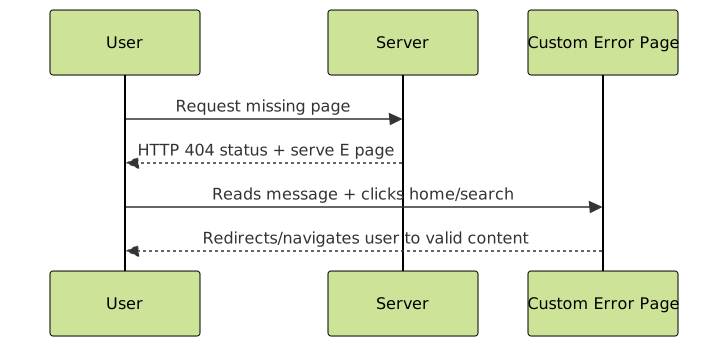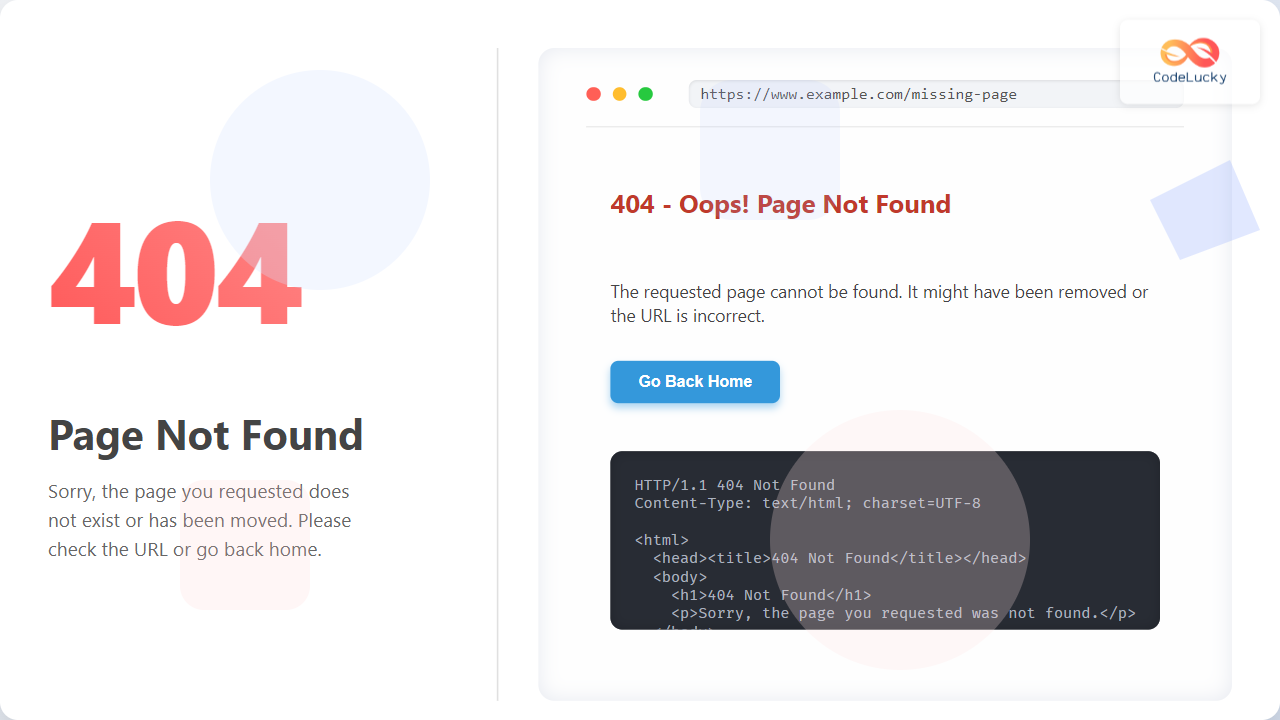
When users encounter errors on your website, default server error pages can be confusing, unattractive, and detrimental to user experience (UX). Custom error pages allow you to replace generic browser or server error messages with beautifully designed, informative pages that guide visitors back to functionality and reduce bounce rates. This tutorial covers creating custom error pages tailored for your website, explains the key HTTP status codes to handle, and includes practical HTML, CSS, and server configuration examples.
What Are Custom Error Pages?
Custom error pages are user-defined webpages that appear when the web server encounters specific HTTP errors such as 404 (Not Found), 403 (Forbidden), 500 (Internal Server Error), and others. Instead of showing a bland, technical message, these pages provide creative, branded content that helps users understand the issue and navigate back smoothly.
Why Use Custom Error Pages? Benefits Explained
- Improve User Experience: Friendly error pages reduce frustration and help retain visitors.
- Maintain Branding: Consistent style, colors, and tone reinforce brand image, even on errors.
- SEO Optimization: Search engines prefer useful pages over default server errors; proper HTTP status codes improve crawling and indexing.
- Clear Guidance: Offer links to homepage, sitemap, or search features to guide users back to relevant content.
Common HTTP Error Codes to Handle
| Error Code | Description | Use Case for Custom Page |
|---|---|---|
| 404 | Not Found | The requested resource does not exist. |
| 403 | Forbidden | User lacks permission to access resource. |
| 500 | Internal Server Error | Server encountered an unexpected condition. |
| 502 | Bad Gateway | Gateway received invalid response from upstream server. |
| 503 | Service Unavailable | Server is temporarily unable to handle the request. |
How to Create a Basic Custom 404 Error Page (HTML + CSS)
Here is a simple yet effective 404 error page example with clean styling to show when a page is not found.
<!DOCTYPE html>
<html lang="en">
<head>
  <meta charset="UTF-8">
  <meta name="viewport" content="width=device-width, initial-scale=1.0">
  <title>404 Not Found</title>
  <style>
    body {
      font-family: 'Segoe UI', Tahoma, Geneva, Verdana, sans-serif;
      text-align: center;
      padding: 5rem;
      background: #f9f9f9;
      color: #333;
    }
    h1 {
      font-size: 4rem;
      margin-bottom: 0.5rem;
      color: #e74c3c;
    }
    p {
      font-size: 1.25rem;
      margin-bottom: 2rem;
    }
    a.button {
      display: inline-block;
      padding: 0.75rem 1.5rem;
      background: #3498db;
      color: white;
      text-decoration: none;
      border-radius: 4px;
      transition: background 0.3s ease;
    }
    a.button:hover {
      background: #2980b9;
    }
  </style>
</head>
<body>
  <h1>404</h1>
  <p>Oops! The page you are looking for does not exist.</p>
  <a href="/" class="button">Go Back Home</a>
</body>
</html>
Configuring Custom Error Pages on Different Servers
Apache (.htaccess)
Using an .htaccess file, instruct Apache to serve a custom error page for specific HTTP error codes:
# .htaccess example
ErrorDocument 404 /custom404.html
ErrorDocument 403 /custom403.html
ErrorDocument 500 /custom500.html
Nginx
In your Nginx site configuration, use the following directives to define error pages:
server {
    ...
    error_page 404 /custom404.html;
    location = /custom404.html {
        root /var/www/html;
        internal;
    }
}
Interactive Example: Custom 404 Page with Search Box
Improve user experience by adding a functional search box on the 404 page allowing visitors to find content easily.
<!DOCTYPE html>
<html lang="en">
<head>
  <meta charset="UTF-8">
  <meta name="viewport" content="width=device-width, initial-scale=1.0">
  <title>Page Not Found - Search</title>
  <style>
    body {
      font-family: Arial, sans-serif;
      text-align: center;
      margin: 3rem;
      color: #444;
    }
    input[type="search"] {
      padding: 0.5rem;
      width: 300px;
      font-size: 1rem;
      border: 1px solid #ccc;
      border-radius: 3px;
    }
    button {
      padding: 0.55rem 1rem;
      font-size: 1rem;
      background-color: #007bff;
      color: white;
      border: none;
      border-radius: 3px;
      cursor: pointer;
      margin-left: 0.5rem;
    }
  </style>
</head>
<body>
  <h1>404 - Page Not Found</h1>
  <p>Try searching for what you need:</p>
  <form action="/search" method="GET">
    <input type="search" name="q" placeholder="Search our site..." required>
    <button type="submit">Search</button>
  </form>
  <p><a href="/">Or go back home</a></p>
</body>
</html>
Best Practices for Custom Error Pages
- Use clear, concise language that communicates the problem without technical jargon.
- Provide navigation options such as home links, site search, or popular pages to reduce bounce rate.
- Use matching branding with logo, colors, and style consistent with your main site.
- Set the HTTP status code properly (e.g., 404 for Not Found) so search engines handle the page correctly.
- Make pages responsive and accessible on all devices.
- Test error pages regularly to ensure they load correctly and do not cause additional errors.

SEO Considerations
Custom error pages improve SEO by giving search engines a proper HTTP status code response while simultaneously keeping visitors on your site longer with useful navigation hints. Avoid soft 404 errors, where a custom page returns 200 OK status instead of 404. This can confuse crawlers and harm SEO rankings.
Summary
Custom error pages are essential for delivering a professional, user-focused web experience during unexpected situations. By building personalized, SEO-aware error pages with useful navigation and branding, you improve UX, reduce bounce rates, and ensure your website stands out even when things go wrong.