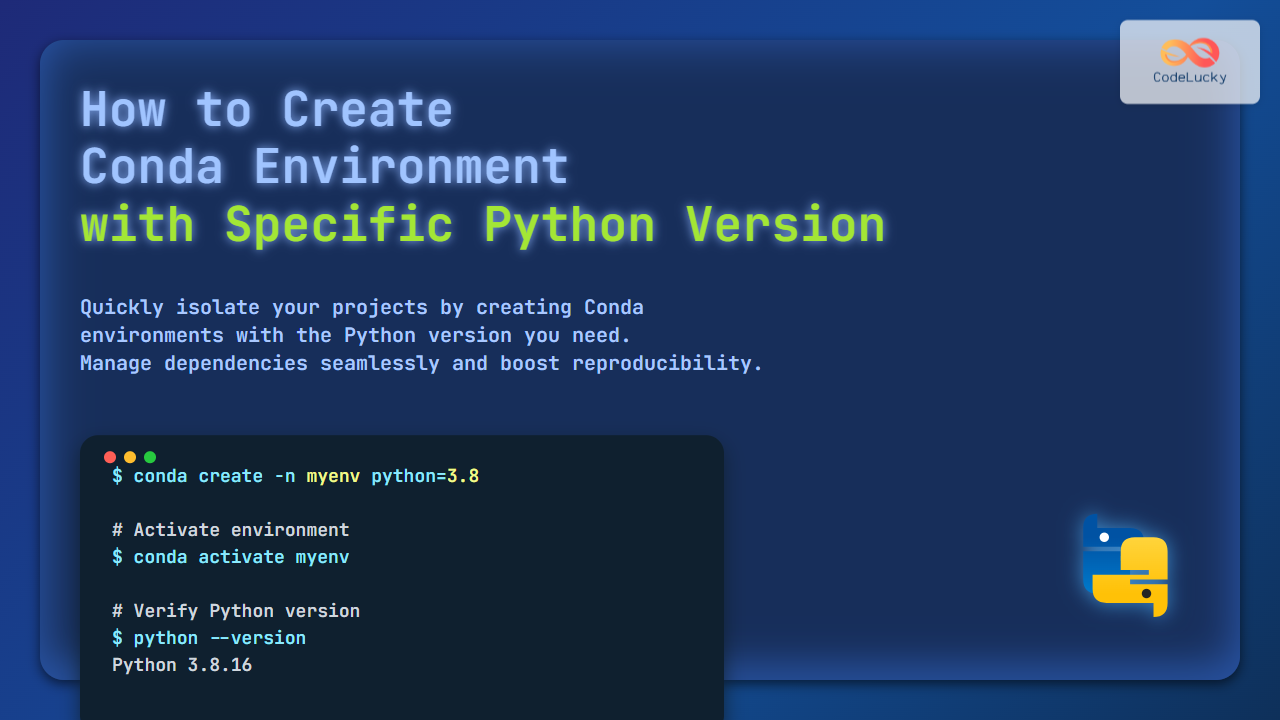
Conda is a powerful package, dependency, and environment management tool widely used in Python programming and data science. One of its key features is the ability to create isolated environments, each with a specific version of Python and other packages.
Creating a Conda environment with a specific Python version helps you manage multiple projects with different Python requirements on the same system—eliminating version conflicts and ensuring reproducibility.
What is a Conda Environment?
A Conda environment is a self-contained directory that includes a specific Python interpreter version along with packages and tools required for a project. This isolation keeps projects independent and avoids dependency conflicts.
Why Specify Python Version in Conda Environment?
- Run legacy or newer Python code requiring precise versions.
- Test code compatibility across different Python versions.
- Maintain stable and reproducible development setups.
Prerequisites
- Conda installed: Either via
AnacondaorMiniconda. - Basic command-line knowledge.
Step-by-Step Guide to Create Conda Environment with Specific Python Version
1. Open Your Terminal or Command Prompt
Ensure Conda commands are recognized by typing:
conda --versionThis confirms Conda is installed and accessible.
2. Verify Available Python Versions in Conda
To see what Python versions are available in the Conda repositories, run:
conda search pythonThis lists all available Python package versions for installation.
3. Create the Environment With Specific Python Version
The basic syntax to create a new environment named env_name with a specific Python version is:
conda create -n env_name python=3.8Replace 3.8 with your desired version such as 3.7, 3.9, or 3.10.

4. Confirm Environment Creation
After executing the create command, Conda will display packages and versions to be installed. Confirm with y (yes) when prompted.
5. Activate Your New Environment
To activate the environment named env_name:
conda activate env_nameNow your terminal session uses the specified Python version.
6. Verify Python Version in Environment
Check the Python version active in the environment by running:
python --versionThis should output the Python version you specified during environment creation.
7. Deactivate Environment (Optional)
To leave the environment and return to your base shell environment:
conda deactivateExample: Creating and Using a Conda Environment with Python 3.9
$ conda create -n py39env python=3.9
Collecting package metadata ...
Solving environment ...
...
Proceed ([y]/n)? y
...
#
# To activate this environment, use
# > conda activate py39env
#
# To deactivate, use
# > conda deactivate
#

$ conda activate py39env
(py39env) $ python --version
Python 3.9.0

(py39env) $ conda deactivate
$
Troubleshooting and Tips
- Version not found: Ensure you typed the Python version correctly and it is available in Conda repositories.
- Updating Conda: Sometimes updating Conda can expose newer Python versions:
conda update conda- Environment Removal: To delete an environment:
conda remove -n env_name --allAdditional Use Cases

Summary
Creating a Conda environment with a specific Python version is crucial for project isolation and consistent development workflows. Using the command conda create -n env_name python=x.x, developers can easily manage multiple Python versions on the same machine. Activating and verifying the environment ensures you work with the proper setup, reducing compatibility issues and simplifying package management.
References
For more about Conda environments and management, refer to official Conda documentation and resources.