
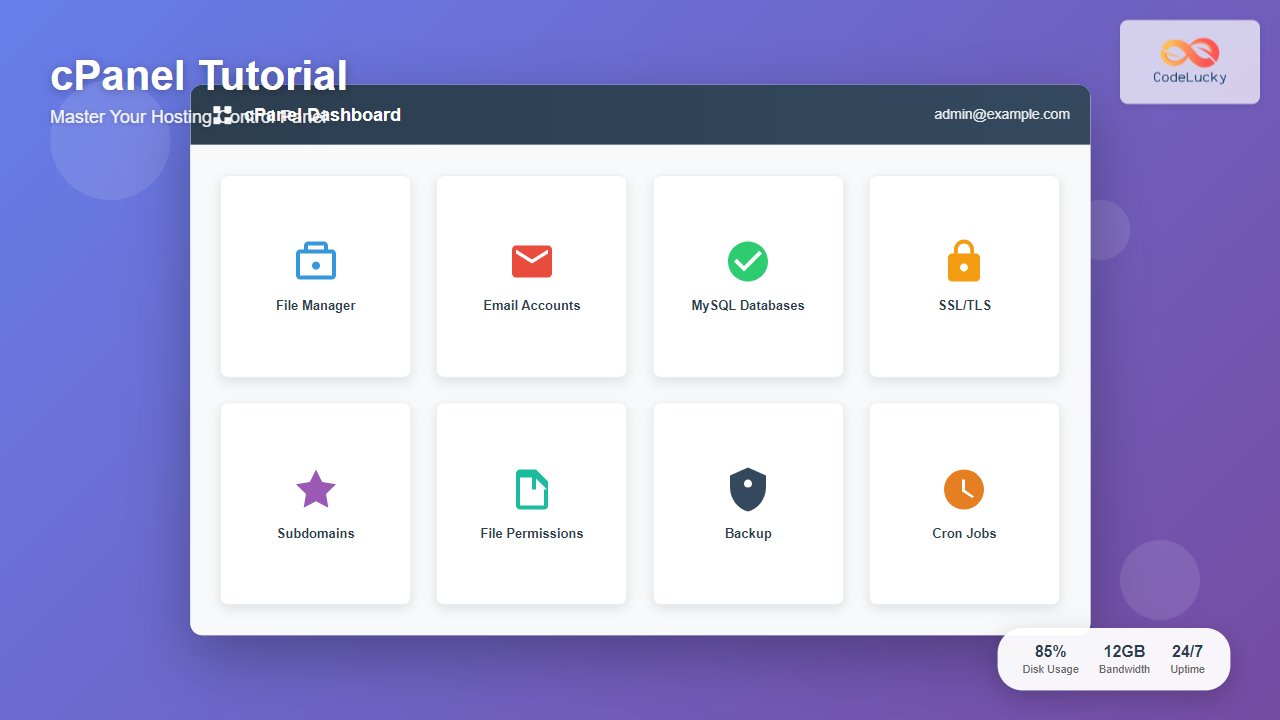

cPanel stands as the most widely-used web hosting control panel, powering millions of websites worldwide. This comprehensive tutorial will transform you from a cPanel novice into a confident user capable of managing every aspect of your web hosting environment.
Getting Started with cPanel
Accessing Your cPanel Dashboard
To access cPanel, you’ll typically use one of these methods:
- Direct URL: https://yourdomain.com/cpanel
- Hosting Provider Portal: Login through your hosting account
- Server IP: https://server-ip:2083
Upon successful login, you’ll see the cPanel dashboard – your command center for managing your hosting account. The interface is organized into logical sections with intuitive icons representing different functions.
Understanding the cPanel Interface
The cPanel dashboard consists of several key areas:
- Header Bar: Contains account information, logout option, and quick links
- Search Bar: Quickly find specific features
- Main Categories: Organized sections for different management tasks
- Quick Stats: Overview of disk usage, bandwidth, and account limits
File Management Mastery
File Manager: Your Digital Workspace
The File Manager is cPanel’s built-in file browser, eliminating the need for separate FTP clients in many cases. Here’s how to leverage its full potential:
Navigating File Manager
When you first open File Manager, you’ll see your account’s directory structure:
- public_html: Your website’s public files
- mail: Email-related files
- logs: Server and error logs
- tmp: Temporary files directory
Essential File Operations
File Manager supports comprehensive file operations:
- Upload: Drag and drop files or use the upload button
- Create: New files and folders with proper permissions
- Edit: Built-in code editor with syntax highlighting
- Compress/Extract: Handle ZIP, TAR, and other archive formats
- Permissions: Set file and folder permissions (chmod)

Advanced File Management Tips
For power users, File Manager offers advanced capabilities:
- Multiple Selection: Hold Ctrl/Cmd to select multiple files
- Right-Click Context: Access quick actions via right-click menus
- Search Function: Find files across your entire directory structure
- Hidden Files: Toggle visibility of system files and .htaccess
Email Management Excellence
Creating Professional Email Accounts
Professional email addresses using your domain name enhance credibility and brand recognition. Here’s the complete process:
Setting Up Email Accounts
- Navigate to “Email Accounts” in the Email section
- Click “Create” to add a new account
- Enter the desired username (e.g., support, info, yourname)
- Set a strong password (cPanel includes a password generator)
- Define mailbox quota or use unlimited storage
- Click “Create Account”
Email Client Configuration
cPanel provides automatic configuration for popular email clients:
- IMAP Settings: Synchronizes across devices
- POP3 Settings: Downloads emails to single device
- SMTP Settings: Outgoing mail server configuration
Advanced Email Features
Email Forwarders
Redirect emails from one address to another without creating separate mailboxes:
- Access “Forwarders” in the Email section
- Click “Add Forwarder”
- Specify source address and destination
- Configure forwarding rules and options
Autoresponders
Set up automatic replies for vacation messages or acknowledgments:
- Open “Autoresponders”
- Create new autoresponder
- Configure start/stop dates
- Compose your automatic message
- Set frequency limitations
Database Administration
MySQL Database Management
Modern websites rely heavily on databases. cPanel’s MySQL management tools provide comprehensive database control:

Creating Databases and Users
Follow this systematic approach for database setup:
- Create Database: Use “MySQL Databases” tool
- Create User: Add database user with secure credentials
- Assign Privileges: Grant appropriate permissions
- Note Connection Details: Record hostname, database name, and credentials
phpMyAdmin Integration
cPanel includes phpMyAdmin for advanced database operations:
- Direct Access: One-click launch from cPanel
- Query Execution: Run SQL commands directly
- Import/Export: Backup and restore database data
- Structure Modification: Alter tables and relationships
Database Security Best Practices
Implement these security measures for database protection:
- Strong Passwords: Use complex, unique passwords
- Limited Privileges: Grant only necessary permissions
- Regular Backups: Automated and manual backup strategies
- Access Monitoring: Review database connection logs
Security and SSL Configuration
SSL/TLS Certificate Management
SSL certificates are essential for website security and SEO rankings. cPanel simplifies certificate management:
Let’s Encrypt Integration
Many cPanel installations include free SSL certificates via Let’s Encrypt:
- Access “SSL/TLS” in the Security section
- Navigate to “Let’s Encrypt”
- Select domains for certificate coverage
- Enable auto-renewal
- Install certificate
Custom Certificate Installation
For premium certificates, use the manual installation process:
- Generate Certificate Signing Request (CSR)
- Purchase certificate from trusted authority
- Install certificate files in SSL/TLS manager
- Configure force HTTPS redirect
Security Features Overview
cPanel includes several security tools:
- IP Blocker: Block malicious IP addresses
- Hotlink Protection: Prevent bandwidth theft
- Leech Protection: Limit simultaneous logins
- Two-Factor Authentication: Enhanced login security

Domain and Subdomain Management
Adding and Configuring Domains
cPanel supports multiple domain types for comprehensive site management:
Addon Domains
Host completely separate websites within single cPanel account:
- Navigate to “Addon Domains”
- Enter new domain name
- Specify document root directory
- Create associated FTP account (optional)
- Configure DNS settings
Subdomains
Create sections of your main website with unique content:
- Access “Subdomains” tool
- Enter subdomain name (e.g., blog, shop, support)
- Select parent domain
- Define document root
- Create subdomain
Parked Domains
Point multiple domain names to the same website content:
- Useful for brand protection
- Redirect traffic from alternate domains
- Maintain single content source
Backup and Restore Operations
Comprehensive Backup Strategy
Regular backups protect against data loss and enable easy site restoration:
Full Account Backup
Create complete snapshots of your hosting account:
- Access “Backup” in Files section
- Choose “Download a Full Website Backup”
- Select backup destination (local or remote)
- Enter email for completion notification
- Generate backup
Partial Backups
Backup specific components individually:
- Home Directory: All files and folders
- MySQL Databases: Individual database backups
- Email Forwarders: Email configuration settings
- Email Filters: Spam and sorting rules

Restoration Process
When restoration becomes necessary, follow these steps:
- Prepare Backup File: Ensure backup accessibility
- Access Restore Tool: Use cPanel’s restore feature
- Select Components: Choose what to restore
- Monitor Progress: Track restoration status
- Verify Functionality: Test restored components
Advanced cPanel Features
Cron Jobs Automation
Automate routine tasks with scheduled scripts:
Setting Up Cron Jobs
- Navigate to “Cron Jobs” in Advanced section
- Choose timing: minute, hour, day, month, weekday
- Enter command or script path
- Configure email notifications
- Save cron job
Common Cron Job Examples
- Database Cleanup:
0 2 * * * /path/to/cleanup-script.php - Log Rotation:
0 0 * * 0 /path/to/log-rotation.sh - Backup Automation:
0 3 * * * /path/to/backup-script.php
Error Pages Customization
Create branded error pages for better user experience:
- Access “Error Pages” tool
- Select HTTP error code (404, 500, etc.)
- Design custom error page
- Include helpful navigation links
- Save and test error page
Redirects Management
Configure URL redirects for SEO and user experience:
- 301 Redirects: Permanent redirections
- 302 Redirects: Temporary redirections
- Wildcard Redirects: Pattern-based redirections
Performance Optimization
Resource Usage Monitoring
Track your account’s resource consumption:
- CPU Usage: Processing power consumption
- Memory Usage: RAM utilization
- Entry Processes: Concurrent script executions
- I/O Usage: Disk input/output operations
Optimization Techniques
Implement these strategies for better performance:
- Image Compression: Reduce file sizes without quality loss
- Gzip Compression: Compress text-based files
- Caching Headers: Configure browser caching
- Database Optimization: Regular maintenance and cleanup
Troubleshooting Common Issues
Website Not Loading
Systematic approach to resolving access issues:
- Check DNS: Verify domain pointing
- Review Error Logs: Identify specific errors
- Test File Permissions: Ensure correct permissions
- Validate .htaccess: Check for syntax errors
Email Delivery Problems
Resolve email functionality issues:
- SMTP Settings: Verify outgoing mail configuration
- SPF Records: Configure sender policy framework
- DKIM Authentication: Set up email authentication
- Blacklist Check: Ensure server IP reputation
Database Connection Errors
Address database connectivity issues:
- Verify database credentials
- Check user privileges
- Review connection strings
- Monitor database server status
Best Practices and Pro Tips
Security Recommendations
- Regular Updates: Keep applications and scripts updated
- Strong Passwords: Use unique, complex passwords
- Limited Access: Restrict unnecessary permissions
- Backup Verification: Test backup integrity regularly
Organization Strategies
- Folder Structure: Maintain logical directory organization
- Naming Conventions: Use consistent file and folder names
- Documentation: Keep records of configurations
- Version Control: Track changes to critical files
Performance Monitoring
- Regular Audits: Review resource usage patterns
- Error Log Analysis: Identify recurring issues
- Speed Testing: Monitor website loading times
- Uptime Monitoring: Track website availability
Conclusion
Mastering cPanel transforms web hosting from a complex technical challenge into a manageable, efficient process. This comprehensive tutorial has covered everything from basic navigation to advanced automation techniques, providing you with the knowledge to confidently manage your hosting environment.
Remember that cPanel proficiency develops through practice and experimentation. Start with basic tasks like file management and email setup, then gradually explore advanced features like cron jobs and security configurations. With consistent use and continued learning, you’ll become a cPanel expert capable of handling any hosting management challenge.
The key to success lies in understanding that cPanel is designed to simplify server administration while maintaining powerful functionality. By following the practices and techniques outlined in this tutorial, you’ll maximize your hosting investment and ensure optimal website performance, security, and reliability.





