Securely copying files between your local Windows machine and a remote server is a frequent need for developers, system administrators, and DevOps engineers. One of the most reliable and secure ways to accomplish this is using SCP (Secure Copy Protocol), which leverages SSH (Secure Shell) for encryption and authentication.
This detailed guide from CodeLucky.com covers everything needed to copy local files from a Windows environment to a remote Linux server using scp. The tutorial includes practical, interactive examples with clear command outputs, common troubleshooting tips, and valuable visual diagrams that illustrate the concepts clearly.
What is SCP?
SCP is a command-line utility used to securely transfer files between a local host and a remote host or between two remote hosts. It ensures encrypted data transfer through the underlying SSH protocol, making file transfers safe over insecure networks.

Prerequisites for Using SCP on Windows
- SSH Client: Windows 10 and later come with a built-in OpenSSH client which includes
scp. - Access to Remote Server: You need valid SSH credentials (username, IP address/hostname, and optionally a key file or password) for the remote server.
- Firewall and Network: The remote server must allow SSH connections (default port 22).
How to Check if SCP is Available on Windows
Open PowerShell or Command Prompt and run:
scp -VIf installed, this prints the version of OpenSSH. If it returns an error, you might need to enable/install the OpenSSH client from Windows Settings > Optional Features.
Basic SCP Command Syntax for Windows
scp [options] <source_path> <user>@<remote_host>:<destination_path>source_path: Path to the local file on your Windows machine.user: Username to log in on the remote server.remote_host: IP address or domain name of the remote server.destination_path: Path where the file will be stored on the remote server.
Step-by-Step Example: Copying a File from Windows to a Remote Linux Server
Example Scenario
Local file path:
C:\Users\Alice\Documents\report.txtRemote server:
username: alice
IP address: 192.168.1.50
Destination folder: /home/alice/uploads
SCP Command
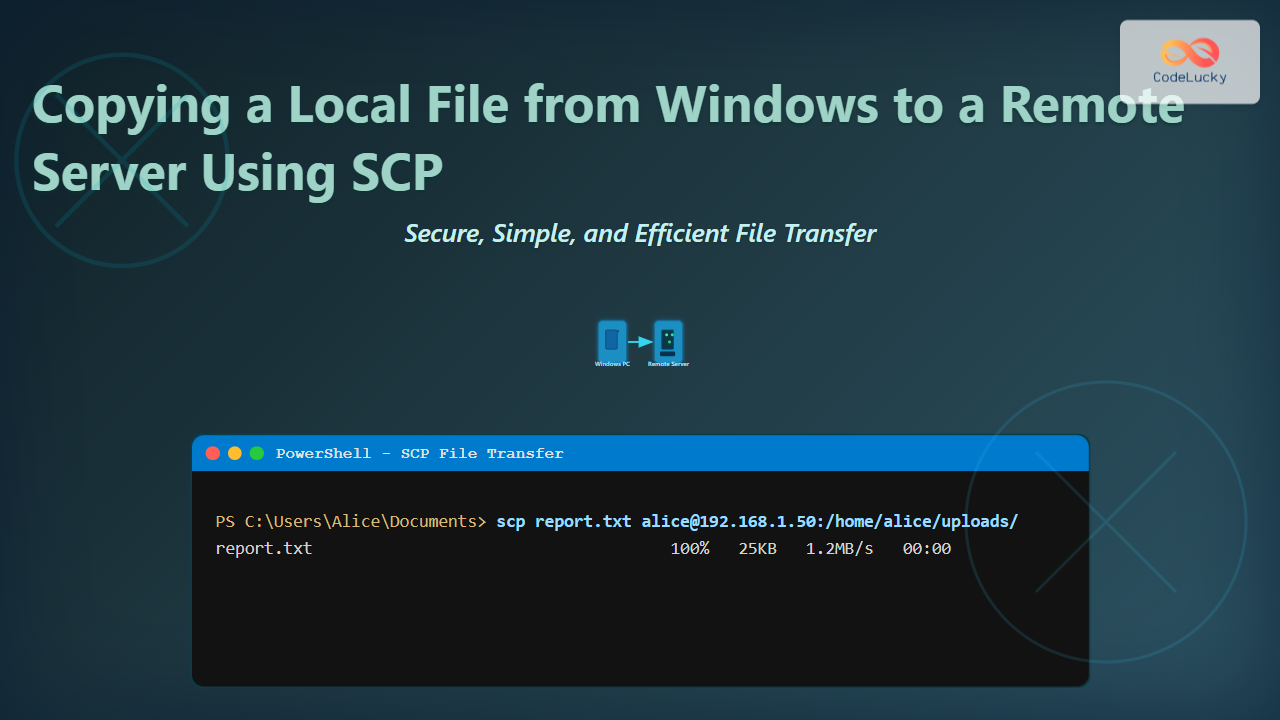
scp C:\Users\Alice\Documents\report.txt [email protected]:/home/alice/uploads/Expected Output
report.txt 100% 25KB 1.2MB/s 00:00This output indicates the file was successfully copied, showing the progress bar, file size, transfer speed, and duration.
Handling Windows Paths in SCP
Windows paths use backslashes (\) which need to be escaped or replaced by forward slashes (/) when used in SCP commands. You can do either:
- Use double backslashes:
C:\\Users\\Alice\\Documents\\report.txt - Use forward slashes:
C:/Users/Alice/Documents/report.txt
Using SCP with SSH Key Authentication
If your remote server uses SSH keys for authentication, add the -i option followed by the path to your private key:
scp -i C:/Users/Alice/.ssh/id_rsa C:/Users/Alice/Documents/report.txt [email protected]:/home/alice/uploads/Copying an Entire Folder Recursively
Use the -r option to copy folders recursively. For example:
scp -r C:/Users/Alice/Documents/Project [email protected]:/home/alice/uploads/Common SCP Options Summary
| Option | Description |
|---|---|
-r |
Recursively copy entire directories |
-i <keyfile> |
Specify SSH private key for authentication |
-P <port> |
Specify an alternative SSH port if not 22 |
-v |
Enable verbose output for debugging |
Troubleshooting SCP on Windows
- Permission denied: Check SSH credentials and permissions on the remote folder.
- Connection timed out: Ensure the remote server is reachable and port 22 or custom SSH port is open.
- Command not found: Verify OpenSSH client installation on Windows.

Interactive SCP Command Experiment
Try modifying this example command to fit your local and remote environment:
scp <local-file-path> <user>@<remote-host>:<remote-path>Replace <local-file-path> with your actual Windows file path (remember to use forward slashes or escape backslashes), <user> with your SSH user, <remote-host> with your server IP or domain, and <remote-path> where you want the file saved on the server.
Why Use SCP Over Other Methods?
SCP is widely supported, fast, secure, and straightforward for single or recursive file transfers without needing additional software beyond SSH. Unlike FTP or SMB, SCP encrypts data, protecting sensitive files during transfer.
Summary
Copying files from Windows to a remote Linux server via SCP is simple once the prerequisites are met. Use the built-in OpenSSH SCP client on Windows, construct the proper command with correct paths, and authenticate via password or SSH key for secure transfers.
This guide provided clear, hands-on examples with command syntax, visual diagrams for process understanding, and troubleshooting tips to confidently transfer files over SSH using SCP.