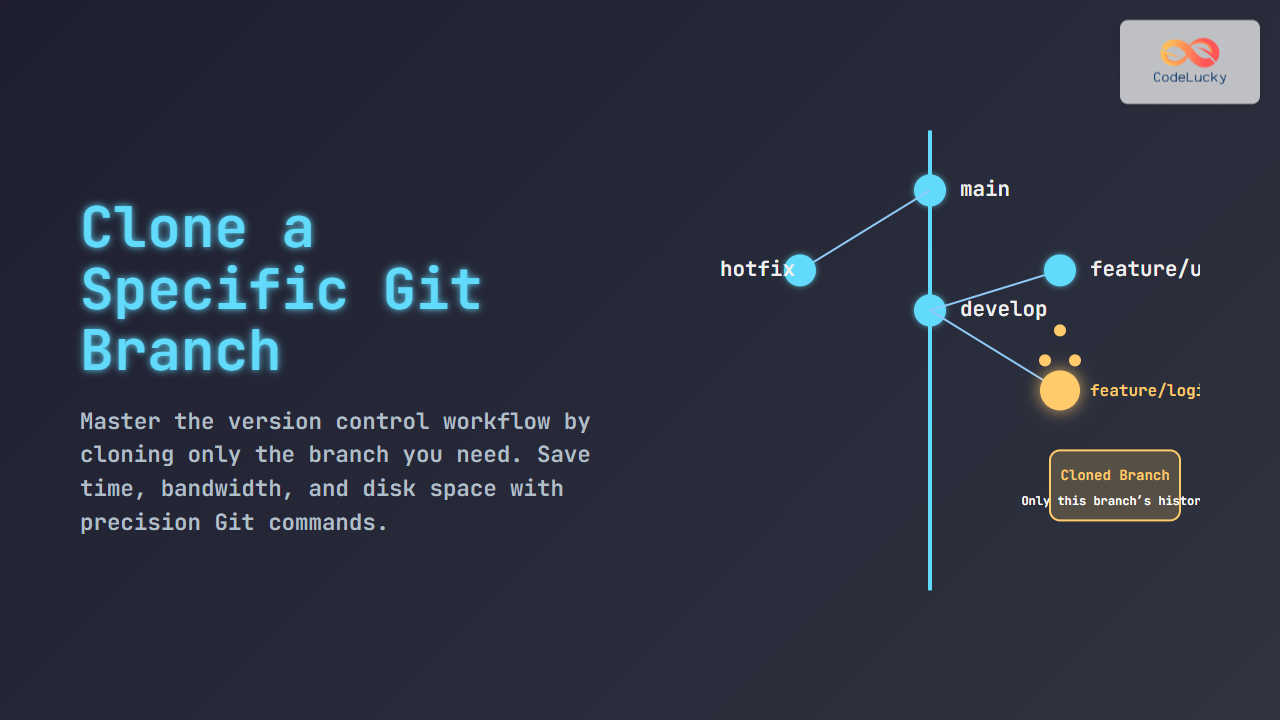
Git is the most widely used version control system today, prized for its flexibility and efficiency in managing codebase changes. Often, developers need to work on specific features or fixes isolated to a particular branch without cloning the entire repository’s history or all branches. This article guides you through cloning a specific Git branch with clear examples, output illustrations, and diagrams to enhance understanding.
Why Clone a Specific Git Branch?
By default, git clone copies the entire repository including all branches, tags, and commit history, which can be time-consuming and resource-heavy for large projects. If you only need a particular branch, cloning just that branch is more efficient, saves bandwidth, saves disk space, and accelerates your setup.
Basic Git Branch Concepts
A branch in Git is simply a pointer to a specific commit, allowing parallel lines of development. The default branch is usually main or master, but repositories can have multiple branches for features, fixes, or experiments.

How to Clone a Specific Git Branch
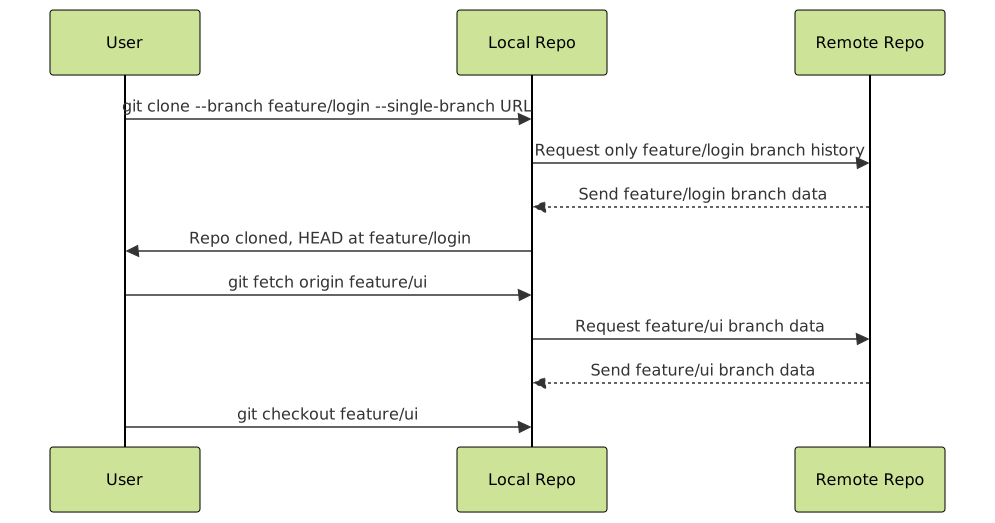
The most direct way to clone a specific branch is to use the --branch (or -b) option with git clone combined with the --single-branch option. This method clones only the history of the specified branch, skipping other branches.
git clone --branch <branch-name> --single-branch <repository-url>**Example:** Cloning the feature/login branch from a repository:
git clone --branch feature/login --single-branch https://github.com/example/repo.gitThis command will output something like:
Cloning into 'repo'...
remote: Enumerating objects: 120, done.
remote: Counting objects: 100% (120/120), done.
remote: Compressing objects: 100% (85/85), done.
Receiving objects: 100% (120/120), 2.5 MiB | 2.0 MiB/s, done.
Resolving deltas: 100% (60/60), done.
Note: switching to 'feature/login'.

You are in 'detached HEAD' state. Use git switch or git checkout to switch branches.
After cloning, your current HEAD will point to the specified branch.
Visual Explanation of Cloning a Specific Branch

Cloning Without –single-branch
Using --branch without --single-branch clones the whole repository but checks out the specified branch by default. This means you still get all branches but start on the one you want.
git clone --branch feature/login https://github.com/example/repo.gitFor large repositories, this is less efficient compared to the --single-branch option.
Interactive Example: Listing Remote Branches
Before cloning, you may want to see which branches exist in the remote repository:
git ls-remote --heads https://github.com/example/repo.gitThe output lists all available branches:
refs/heads/main
refs/heads/feature/login
refs/heads/feature/ui
Post-Clone: Checking Out Other Branches
When you clone with --single-branch, only the specified branch is cloned. To switch or fetch other branches later:
git fetch origin <branch-name>
git checkout <branch-name>
This fetches the new branch and then switches to it.
Summary of Git Clone Branch Options
| Command | Description | Clones Other Branches? | Recommended Usage |
|---|---|---|---|
git clone --branch <branch> --single-branch URL |
Clones only the specified branch | No | Efficient cloning for specific branch work |
git clone --branch <branch> URL |
Clones whole repo but checks out specified branch | Yes | When you want full repo history but start in a branch |
git clone URL |
Clones entire repo and default branch | Yes | Default if unsure or need all branches |
Additional Tips
- Use
git branch -aafter clone to list all branches available locally and remotely. - Use shallow clone (
--depth 1) with--single-branchfor the fastest cloning when history is not needed. - Remember that cloning a single branch does not fetch tags or other branches unless explicitly requested.
Conclusion
Cloning a specific Git branch is a powerful way to optimize your development workflow, saving time and resources while focusing on the exact code you need. Using git clone --branch <branch> --single-branch ensures only the relevant branch is retrieved, making initial setup faster and more efficient. Combining this with knowledge about remote branch management and shallow cloning makes you a more effective Git user.