Introduction
Integrating modern web technologies into desktop applications has become increasingly important for developers seeking to leverage the power of Chromium-based browsers inside their software. ChromiumFX is a popular C# wrapper around the Chromium Embedded Framework (CEF) that allows you to embed a ChromiumWebBrowser control into your .NET addins or desktop applications seamlessly.
This detailed guide walks you through the process of embedding ChromiumWebBrowser inside a C# addin, offering clear, practical examples and visual explanations designed to make your implementation smooth and powerful.
What is ChromiumFX and ChromiumWebBrowser?
ChromiumFX is a managed wrapper library that exposes the Chromium Embedded Framework (CEF) API to C# developers, enabling embedding of Chromium’s browser capabilities in .NET applications. The main control you interact with is ChromiumWebBrowser, a high-performance, feature-rich, and customizable browser component.
Using this control inside an addin allows you to:
- Render modern web content using Chromium’s Blink engine.
- Run JavaScript and interact with web pages programmatically.
- Integrate smoothly with your app UI while having full Chromium features.
Prerequisites
- Basic understanding of C# and .NET development
- A C# IDE such as Visual Studio
- ChromiumFX binaries and dependencies (download from official sources or NuGet packages)
- Basic knowledge of addin architecture if embedding inside apps like Visual Studio, Outlook, or custom products
Step-by-Step Guide: Embedding ChromiumWebBrowser in a C# Addin
- Set Up Your C# Addin Project: Create or open the addin project where you intend to embed ChromiumFX.
- Add ChromiumFX References: Add references to ChromiumFX DLLs in your project. Ensure that native runtime binaries (e.g., CEF files) are included alongside your executable.
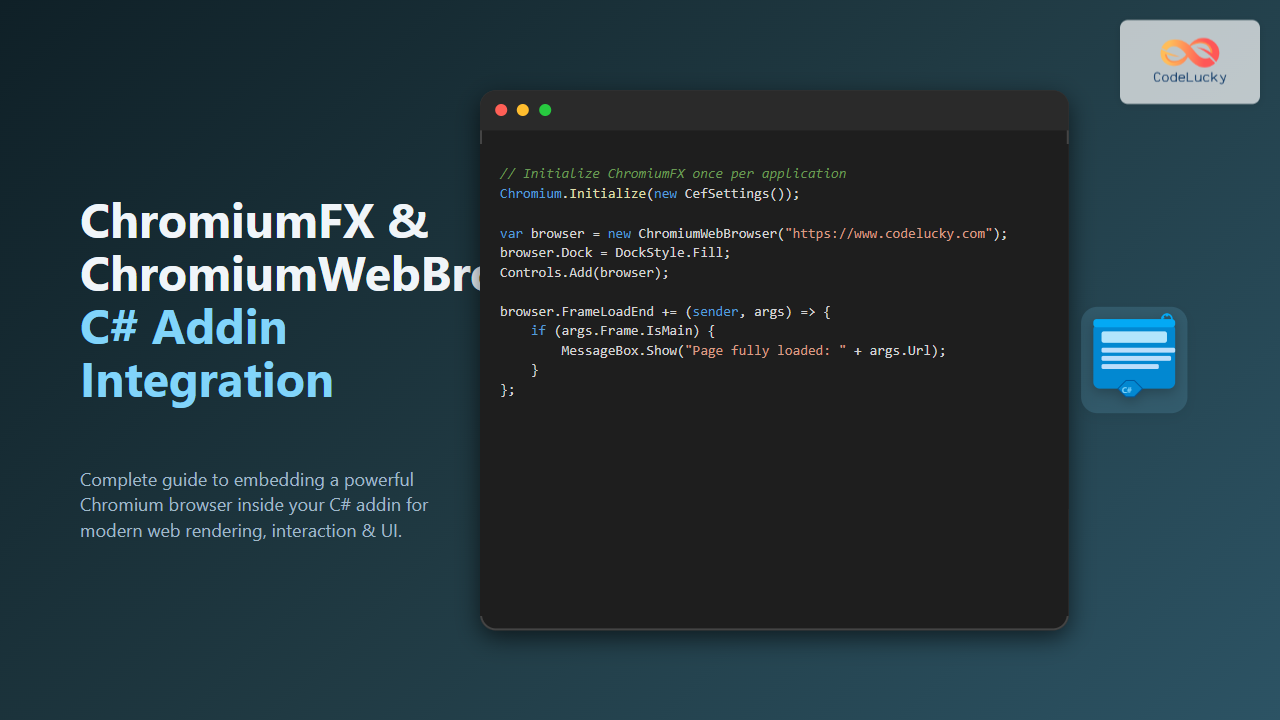
- Initialize ChromiumFX in your addin startup code:
Chromium.Initialize(new CefSettings()); - Create an Instance of ChromiumWebBrowser within your addin UI container (e.g., a Windows Form or WPF user control):
var browser = new ChromiumWebBrowser("https://www.codelucky.com");This will load the initial URL inside the embedded browser control.
- Embed the Browser Control Into Your UI: Add the browser control to the parent container and set necessary layout properties, e.g.:
this.Controls.Add(browser); browser.Dock = DockStyle.Fill; - Handle Browser Events (Optional): You can react to page loads, JavaScript dialogs, or navigation events through event handlers:
browser.FrameLoadEnd += (sender, args) => {
   if(args.Frame.IsMain)
   {
       Console.WriteLine("Main frame loaded: " + args.Url);
   }
};
Example: A Minimal C# Addin Using ChromiumWebBrowser
Below is a simple example of a WinForms user control that hosts ChromiumWebBrowser:
using Chromium.WebBrowser;
using System.Windows.Forms;

public partial class BrowserAddinControl : UserControl
{
    private ChromiumWebBrowser browser;

    public BrowserAddinControl()
    {
        InitializeComponent();
        InitializeBrowser();
    }

    private void InitializeBrowser()
    {
        // Initialize Cef settings only once in app lifetime
        Chromium.Initialize(new CefSettings());

        browser = new ChromiumWebBrowser("https://www.codelucky.com");
        browser.Dock = DockStyle.Fill;
        Controls.Add(browser);

        // Example event subscription
        browser.FrameLoadEnd += Browser_FrameLoadEnd;
    }

    private void Browser_FrameLoadEnd(object sender, FrameLoadEndEventArgs e)
    {
        if (e.Frame.IsMain)
        {
            // Inject some JS or notify UI
            MessageBox.Show("Page loaded: " + e.Url);
        }
    }
}
This minimal example sets up the Chromium browser inside a user control that could be added easily as an addin component.
Visual Concept of ChromiumFX Embedded in Addin
This diagram illustrates the architecture flow starting from the host app, through the C# addin which contains the browser control, down to the native Chromium engine rendering the content.
Interactive Features with ChromiumWebBrowser
You can interact with the embedded browser using the API to execute JavaScript, retrieve DOM information, or handle custom browser events. For example:
// Executing JavaScript to get page title asynchronously
string script = "document.title;";
var task = browser.EvaluateScriptAsync(script);
task.ContinueWith(t =>
{
    if (!t.IsFaulted)
    {
        var response = t.Result;
        if (response.Success && response.Result != null)
        {
            string title = response.Result.ToString();
            MessageBox.Show("Page title: " + title);
        }
    }
});
This approach allows rich interactive behaviors within your addin’s browser instance.
Best Practices and Tips
- Single Initialization: Call
Chromium.Initialize()once per application lifecycle to avoid crashes. - Resource Management: Properly dispose of the browser control and release native resources when your addin unloads.
- UI Integration: Use
DockStyle.Fillto ensure browser occupies intended area seamlessly. - Thread Safety: Interact with UI controls on the main thread to prevent cross-thread exceptions.
- Customizing Browser Behavior: Leverage event handlers for navigation control, context menus, and JS dialogs as needed.
Advanced: Loading Local Resources and Inter-Process Communication
ChromiumFX supports custom schemes and resource handlers, allowing C# addins to serve local files or resources securely. You can also enable IPC between your addin and web content for complex scenarios.

This enables tightly coupled UI features combining desktop and web capabilities.
Troubleshooting Common Issues
- Black Screen or Blank Browser: Verify CEF binaries and dependencies are correctly copied to output folders.
- Chromium not initializing: Ensure
Chromium.Initialize()is called once and before browser creation. - Performance Lag: Check if hardware acceleration conflicts exist; can be toggled via CefSettings.
- JavaScript not responding: Confirm event handlers and JavaScript execution calls are awaited and running on the correct thread.
Conclusion
Embedding ChromiumWebBrowser from ChromiumFX inside your C# addin unlocks the full power of modern web rendering within your desktop extensions. It offers rich interactivity, performance, and flexibility across various use cases. This guide provided a stepwise, detailed approach with practical code examples, diagrams, and best practices to help developers implement this integration confidently.
With further exploration, developers can expand to advanced customizations such as handling custom protocols, browser caching, and detailed navigation control, making ChromiumFX an ideal choice for web-centric addin development.