
Working with remote Git branches is a fundamental skill every developer needs to master. Whether you’re collaborating on a team project or contributing to open-source software, understanding how to properly check out and work with remote branches is crucial for effective version control management.
In this comprehensive guide, we’ll explore various methods to check out remote Git branches, understand the underlying concepts, and provide practical examples that you can implement immediately in your development workflow.
Understanding Remote Branches
Remote branches are references to the state of branches in your remote repositories. They act as bookmarks to remind you where the branches in your remote repositories were the last time you connected to them. These branches are read-only references that you cannot modify directly.

When you clone a repository, Git automatically creates remote-tracking branches for each branch in the remote repository. These are typically prefixed with the remote name (usually “origin”).
Prerequisites
Before we dive into checking out remote branches, ensure you have:
- Git installed on your system (version 2.0 or later recommended)
- A Git repository either cloned or initialized
- Remote repository access with appropriate permissions
- Basic understanding of Git commands and terminology
Method 1: Checking Out Remote Branches with git checkout
The most straightforward method to check out a remote branch is using the git checkout command. This method automatically creates a local branch that tracks the remote branch.
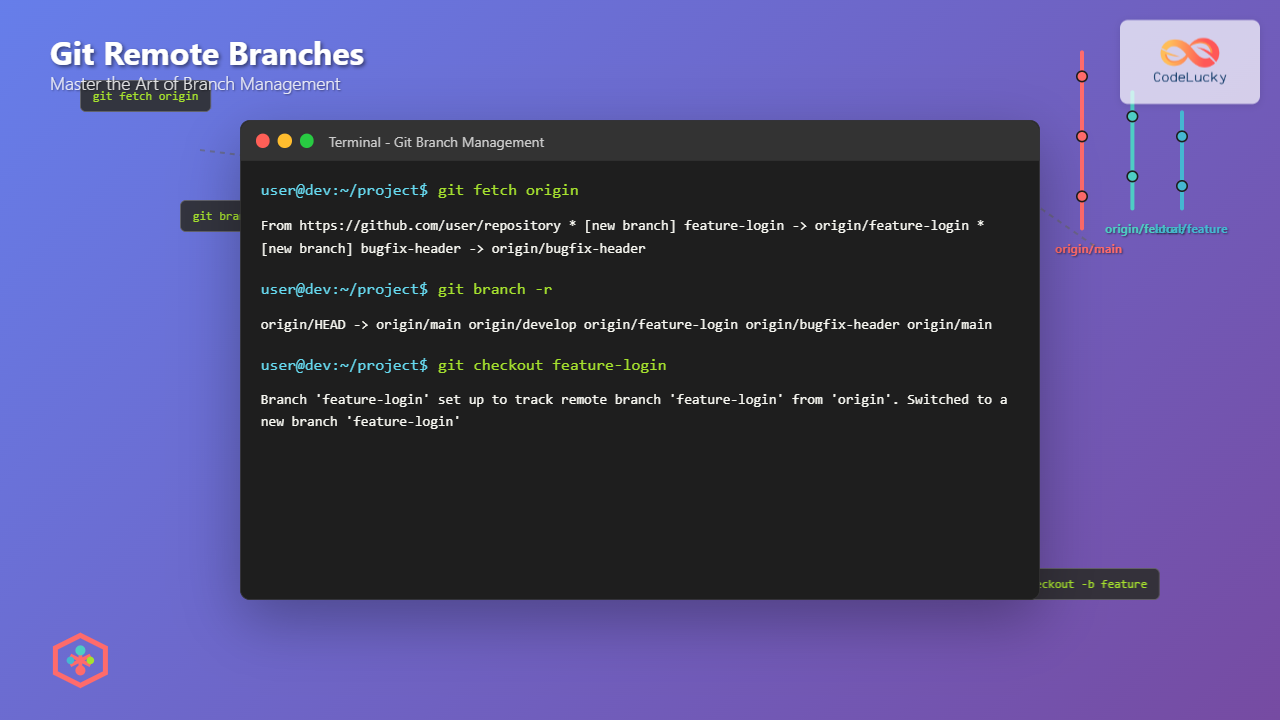
Step 1: Fetch Remote Branches
First, ensure you have the latest information about remote branches:
git fetch originExpected output:
From https://github.com/username/repository
 * [new branch]      feature-login    -> origin/feature-login
 * [new branch]      bugfix-header    -> origin/bugfix-header
Step 2: List Available Remote Branches
View all available remote branches:
git branch -rExpected output:
origin/HEAD -> origin/main
origin/develop
origin/feature-login
origin/bugfix-header
origin/main
Step 3: Checkout the Remote Branch
Use the following command to check out a remote branch:
git checkout feature-loginExpected output:
Branch 'feature-login' set up to track remote branch 'feature-login' from 'origin'.
Switched to a new branch 'feature-login'
Git automatically creates a local branch named feature-login that tracks origin/feature-login.
Method 2: Using git checkout with Explicit Remote Reference
For more control over the branch creation process, you can explicitly specify the remote branch:
git checkout -b local-feature-name origin/remote-feature-nameExample:
git checkout -b my-feature origin/feature-loginExpected output:
Branch 'my-feature' set up to track remote branch 'feature-login' from 'origin'.
Switched to a new branch 'my-feature'
This creates a local branch named my-feature that tracks the remote origin/feature-login branch.
Method 3: Modern Approach with git switch
Git 2.23 introduced the git switch command, which provides a cleaner syntax for branch operations:
git switch feature-loginOr to create a new local branch with a different name:
git switch -c my-local-branch origin/remote-branch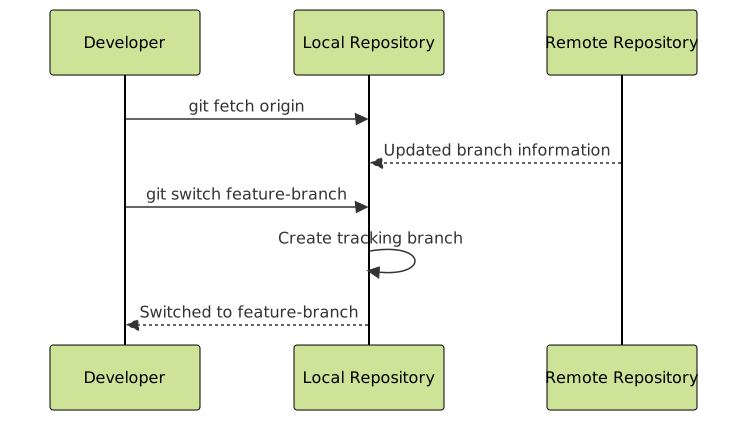
Advanced Scenarios
Checking Out with Specific Commit
Sometimes you might want to check out a remote branch at a specific commit:
git checkout -b new-branch origin/feature-branch
git reset --hard commit-hash
Working with Multiple Remotes
When working with multiple remotes, specify the remote name explicitly:
git checkout -b local-branch upstream/feature-branchList all remotes to identify available options:
git remote -vExpected output:
origin    https://github.com/your-username/repo.git (fetch)
origin    https://github.com/your-username/repo.git (push)
upstream  https://github.com/original-owner/repo.git (fetch)
upstream  https://github.com/original-owner/repo.git (push)
Troubleshooting Common Issues
Branch Already Exists
If you encounter this error:
fatal: A branch named 'feature-login' already exists.Solution: Use the force flag or delete the existing branch:
# Option 1: Force checkout
git checkout -B feature-login origin/feature-login

# Option 2: Delete and recreate
git branch -D feature-login
git checkout feature-login
Remote Branch Not Found
If you see:
error: pathspec 'feature-branch' did not match any file(s) known to git.Solution: Ensure you’ve fetched the latest remote information:
git fetch --all
git branch -r | grep feature-branch
Tracking Branch Issues
To set up tracking for an existing branch:
git branch --set-upstream-to=origin/feature-branch feature-branch
Best Practices for Remote Branch Management
1. Regular Fetching
Keep your remote references up-to-date by fetching regularly:
# Fetch from all remotes
git fetch --all

# Fetch and prune deleted branches
git fetch --prune
2. Branch Naming Conventions
Follow consistent naming patterns:
- Feature branches:
feature/user-authentication - Bug fixes:
bugfix/header-alignment - Hotfixes:
hotfix/security-patch - Releases:
release/v2.1.0
3. Clean Up Local Branches
Remove stale local branches that no longer exist on the remote:
# List branches that are safe to delete
git branch --merged

# Delete merged branches (except main/master)
git branch --merged | grep -v "\*\|main\|master" | xargs -n 1 git branch -d
Working with Checked Out Remote Branches
Once you’ve successfully checked out a remote branch, you can work with it like any local branch:
Making Changes
# Make your changes
echo "New feature code" >> feature.txt

# Stage changes
git add .

# Commit changes
git commit -m "Add new feature implementation"
Pushing Changes
Push your changes to the remote branch:
git push origin feature-loginStaying Synchronized
Keep your local branch synchronized with the remote:
# Pull latest changes
git pull origin feature-login

# Or fetch and merge separately
git fetch origin
git merge origin/feature-login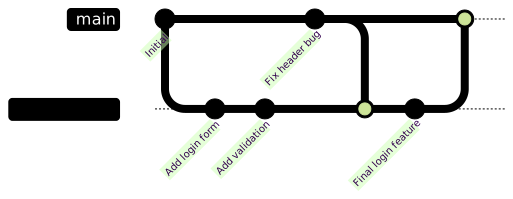
Interactive Example: Complete Workflow
Let’s walk through a complete example of checking out a remote branch and working with it:
# Step 1: Clone repository (if not already done)
git clone https://github.com/username/project.git
cd project

# Step 2: Fetch latest remote information
git fetch origin

# Step 3: List available remote branches
git branch -r

# Step 4: Check out the remote branch
git checkout feature-user-profile

# Step 5: Verify current branch
git branch

# Step 6: Check branch tracking information
git branch -vv

# Step 7: Make changes and commit
echo "User profile implementation" >> profile.js
git add profile.js
git commit -m "Implement user profile functionality"

# Step 8: Push changes to remote
git push origin feature-user-profile
Expected workflow output:
# After git branch -r
origin/HEAD -> origin/main
origin/feature-user-profile
origin/develop

# After git checkout feature-user-profile
Branch 'feature-user-profile' set up to track remote branch 'feature-user-profile' from 'origin'.
Switched to a new branch 'feature-user-profile'

# After git branch -vv
* feature-user-profile 7a8b9c2 [origin/feature-user-profile] Latest commit message
  main                 1a2b3c4 [origin/main] Main branch commit
Security Considerations
When working with remote branches, especially in collaborative environments:
- Verify remote URLs before fetching to prevent malicious repository access
- Use HTTPS or SSH for secure connections to remote repositories
- Review branch contents before making local changes, especially from untrusted contributors
- Enable branch protection rules on critical branches in your remote repository
Performance Tips
Optimize your Git workflow when dealing with large repositories:
Shallow Clones
For large repositories, consider using shallow clones:
git clone --depth 1 https://github.com/username/large-repo.gitPartial Clone
Clone only specific branches:
git clone --single-branch --branch feature-branch https://github.com/username/repo.gitSparse Checkout
Work with only specific directories:
git config core.sparseCheckout true
echo "src/" > .git/info/sparse-checkout
git read-tree -m -u HEAD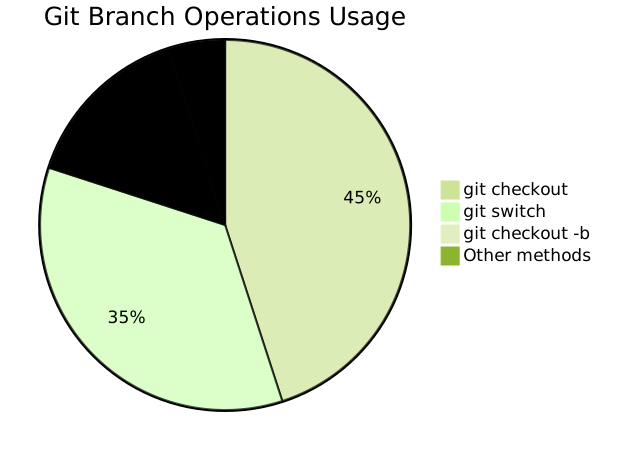
Conclusion
Mastering remote branch checkout operations is essential for effective Git workflow management. Whether you prefer the traditional git checkout command or the modern git switch approach, understanding these techniques enables you to collaborate efficiently with team members and contribute to projects seamlessly.
Remember to always fetch the latest remote information before attempting to check out branches, maintain clean branch naming conventions, and regularly synchronize your local branches with their remote counterparts. These practices will help you avoid common pitfalls and maintain a smooth development workflow.
As you continue working with Git, experiment with different methods and find the workflow that best suits your development style and project requirements. The flexibility of Git’s branching model makes it an invaluable tool for any software development project.
- Understanding Remote Branches
- Prerequisites
- Method 1: Checking Out Remote Branches with git checkout
- Method 2: Using git checkout with Explicit Remote Reference
- Method 3: Modern Approach with git switch
- Advanced Scenarios
- Troubleshooting Common Issues
- Best Practices for Remote Branch Management
- Working with Checked Out Remote Branches
- Interactive Example: Complete Workflow
- Security Considerations
- Performance Tips
- Conclusion





