Knowing which version of Python is installed on your system is crucial for development, compatibility, and troubleshooting. Whether you’re debugging code, installing packages, or ensuring compatibility with frameworks, checking your Python version is often the first step in resolving issues.
In this comprehensive guide, we’ll explore multiple methods to check your Python version across different operating systems and environments.
Why Python Version Matters
Python versions can significantly impact your development experience:
- Compatibility: Libraries and frameworks often require specific Python versions
- Features: New Python versions introduce language features and improvements
- Security: Older versions may have known vulnerabilities
- Performance: Newer versions typically offer better performance optimizations

Method 1: Using Command Line
The most common and straightforward method is using the command line interface.
Basic Version Check
Open your terminal or command prompt and run:
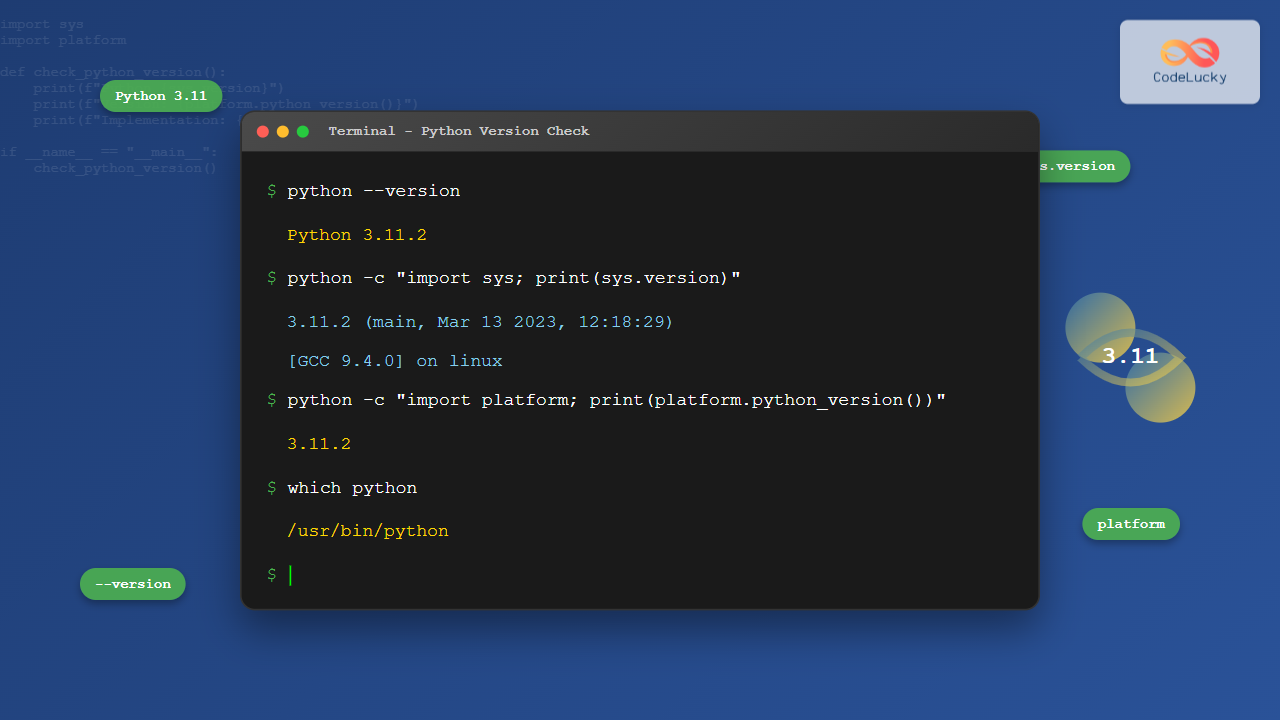
python --versionExpected Output:
Python 3.11.2Alternative syntax:
python -VFor Python 3 Specifically
On systems with both Python 2 and 3 installed:
python3 --versionExpected Output:
Python 3.11.2Platform-Specific Commands
Windows
# Command Prompt or PowerShell
python --version
py --version

# Check specific version
py -3 --version
macOS
# Terminal
python3 --version
/usr/bin/python3 --version
Linux
# Terminal
python3 --version
which python3
whereis python3
Method 2: Using Python Interactive Shell
You can check the version from within Python itself:
pythonExpected Output:
Python 3.11.2 (main, Mar 13 2023, 12:18:29) [GCC 9.4.0] on linux
Type "help", "copyright", "credits" or "license" for more information.
>>>
The version information appears in the welcome message when you start the Python interpreter.
Method 3: Using sys Module
For programmatic version checking, use the sys module:
import sys
print(sys.version)
Expected Output:
3.11.2 (main, Mar 13 2023, 12:18:29) [GCC 9.4.0] on linuxGet Version as Tuple
import sys
print(sys.version_info)
Expected Output:
sys.version_info(major=3, minor=11, micro=2, releaselevel='final', serial=0)Version Comparison Example
import sys

# Check if Python version is 3.8 or higher
if sys.version_info >= (3, 8):
    print("Python 3.8+ detected")
else:
    print("Please upgrade to Python 3.8 or higher")
Method 4: Using platform Module
The platform module provides detailed system information:
import platform
print(platform.python_version())
Expected Output:
3.11.2Detailed Version Information
import platform

print("Python version:", platform.python_version())
print("Python implementation:", platform.python_implementation())
print("Python compiler:", platform.python_compiler())
print("Python build:", platform.python_build())
Expected Output:
Python version: 3.11.2
Python implementation: CPython
Python compiler: GCC 9.4.0
Python build: ('main', 'Mar 13 2023 12:18:29')
Method 5: Using Virtual Environments
When working with virtual environments, it’s important to check the Python version within the environment:
Activate Virtual Environment First
# Windows
venv\Scripts\activate

# macOS/Linux
source venv/bin/activate

# Then check version
python --version
Check Without Activation
# Windows
venv\Scripts\python.exe --version

# macOS/Linux
venv/bin/python --version
Method 6: IDE and Code Editors
Visual Studio Code
- Open VS Code
- Press
Ctrl+Shift+P(Windows/Linux) orCmd+Shift+P(macOS) - Type “Python: Select Interpreter”
- View available Python versions
PyCharm
- Go to File → Settings (Windows/Linux) or PyCharm → Preferences (macOS)
- Navigate to Project → Python Interpreter
- View the current interpreter and version
Jupyter Notebook
import sys
print(f"Python {sys.version}")

# Or in a cell
!python --version
Multiple Python Installations
Many systems have multiple Python versions installed. Here’s how to identify them:
List All Python Installations
Windows
# Using Python Launcher
py -0

# Check specific versions
py -2 --version
py -3 --version
py -3.11 --version
macOS/Linux
# Find Python executables
which -a python
which -a python3

# Or
whereis python
ls /usr/bin/python*
Troubleshooting Common Issues
Python Command Not Found
If you get a “command not found” error:
- Check installation: Ensure Python is installed
- Verify PATH: Add Python to your system PATH
- Use full path: Try the absolute path to Python executable
# Windows
C:\Python311\python.exe --version

# macOS/Linux
/usr/bin/python3 --version
Wrong Version Displayed
If the wrong version appears:
- Check which Python executable is being used:
which python which python3 - Use specific version commands:
python3.11 --version - Modify your PATH environment variable
Permission Denied Errors
On Unix-like systems, you might need elevated permissions:
sudo which python3
sudo /usr/bin/python3 --version
Programmatic Version Checking Script
Here’s a comprehensive script to check Python version with detailed information:
#!/usr/bin/env python3

import sys
import platform
import os

def check_python_version():
    """Display comprehensive Python version information."""

    print("=== Python Version Information ===")
    print(f"Python Version: {platform.python_version()}")
    print(f"Implementation: {platform.python_implementation()}")
    print(f"Compiler: {platform.python_compiler()}")
    print(f"Build Info: {platform.python_build()}")
    print(f"Architecture: {platform.architecture()}")

    print(f"\n=== Detailed Version Info ===")
    print(f"Major: {sys.version_info.major}")
    print(f"Minor: {sys.version_info.minor}")
    print(f"Micro: {sys.version_info.micro}")
    print(f"Release Level: {sys.version_info.releaselevel}")
    print(f"Serial: {sys.version_info.serial}")

    print(f"\n=== Executable Information ===")
    print(f"Executable Path: {sys.executable}")
    print(f"Platform: {sys.platform}")

    # Check for virtual environment
    if hasattr(sys, 'real_prefix') or (hasattr(sys, 'base_prefix') and sys.base_prefix != sys.prefix):
        print(f"Virtual Environment: Yes")
        print(f"Virtual Env Path: {sys.prefix}")
    else:
        print(f"Virtual Environment: No")

if __name__ == "__main__":
    check_python_version()
Expected Output:
=== Python Version Information ===
Python Version: 3.11.2
Implementation: CPython
Compiler: GCC 9.4.0
Build Info: ('main', 'Mar 13 2023 12:18:29')
Architecture: ('64bit', 'ELF')

=== Detailed Version Info ===
Major: 3
Minor: 11
Micro: 2
Release Level: final
Serial: 0

=== Executable Information ===
Executable Path: /usr/bin/python3
Platform: linux

Virtual Environment: No
Best Practices
- Use specific commands: Prefer
python3overpythonto avoid ambiguity - Document requirements: Always specify Python version requirements in your projects
- Virtual environments: Use virtual environments to manage different Python versions per project
- Regular updates: Keep Python updated for security and performance improvements
- Version pinning: Pin specific Python versions in production environments
Integration with Development Workflow
Requirements.txt
# Specify Python version requirement
python_requires=">=3.8"
GitHub Actions
strategy:
  matrix:
    python-version: [3.8, 3.9, 3.10, 3.11]
Docker
FROM python:3.11-slimConclusion
Checking your Python version is a fundamental skill every Python developer should master. Whether you’re using command-line tools, Python scripts, or IDE interfaces, understanding how to verify your Python installation helps ensure compatibility and smooth development workflows.
Remember to:
- Use the method that best fits your current context
- Be aware of multiple Python installations on your system
- Consider virtual environments for project-specific Python versions
- Keep your Python installation updated for optimal security and performance
With these techniques, you’ll be able to quickly identify Python versions across any development environment and troubleshoot version-related issues effectively.
- Why Python Version Matters
- Method 1: Using Command Line
- Method 2: Using Python Interactive Shell
- Method 3: Using sys Module
- Method 4: Using platform Module
- Method 5: Using Virtual Environments
- Method 6: IDE and Code Editors
- Multiple Python Installations
- Troubleshooting Common Issues
- Programmatic Version Checking Script
- Best Practices
- Integration with Development Workflow
- Conclusion