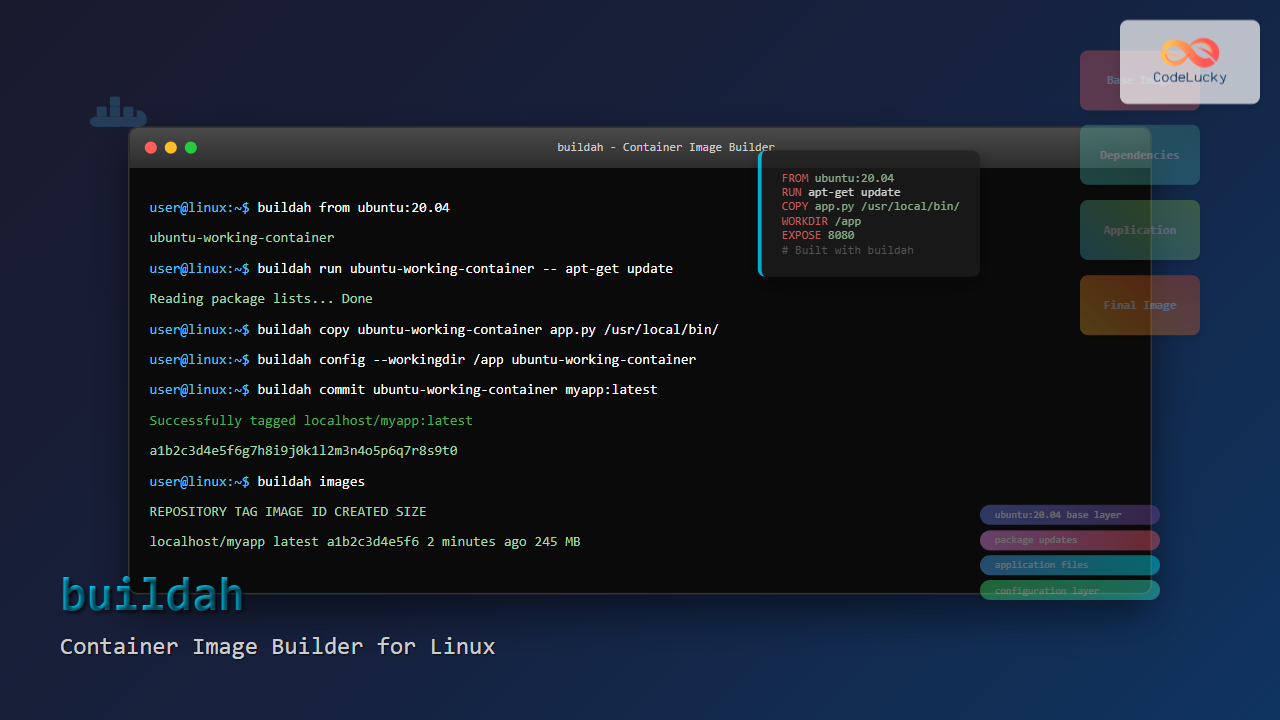
The buildah command is a powerful tool for building Open Container Initiative (OCI) compliant container images in Linux environments. Unlike Docker, buildah provides a more granular approach to image construction, allowing developers to build containers without requiring a daemon process.
What is buildah?
Buildah is a command-line tool designed specifically for building container images. It creates OCI-compliant images that can run on any container runtime, including Docker, Podman, and Kubernetes. The tool focuses solely on image building, making it lightweight and efficient for CI/CD pipelines.
Key Features of buildah
- Daemonless operation – no background service required
- OCI-compliant image creation
- Dockerfile compatibility
- Rootless container building support
- Fine-grained control over image layers
- Integration with Podman and other container tools
Installing buildah
Before using buildah commands, ensure it’s installed on your Linux system:
Ubuntu/Debian Installation
sudo apt update
sudo apt install buildah
CentOS/RHEL/Fedora Installation
# For CentOS/RHEL
sudo yum install buildah

# For Fedora
sudo dnf install buildah
Basic buildah Command Syntax
The general syntax for buildah commands follows this pattern:
buildah [global-options] command [command-options] [arguments]Common Global Options
| Option | Description |
|---|---|
--help |
Display help information |
--version |
Show buildah version |
--storage-driver |
Specify storage driver |
--root |
Set storage root directory |
Essential buildah Commands
1. Building Images from Dockerfile
The most common use case is building images from a Dockerfile:
buildah build -t myapp:latest .Example Output:
STEP 1/4: FROM ubuntu:20.04
Getting image source signatures
Copying blob 7c3b88808835 done
Copying config 1318b700e4 done
Writing manifest to image destination
Storing signatures
STEP 2/4: RUN apt-get update && apt-get install -y nginx
--> Running in a1b2c3d4e5f6
Reading package lists...
Building dependency tree...
STEP 3/4: COPY index.html /var/www/html/
--> a7b8c9d0e1f2
STEP 4/4: EXPOSE 80
COMMIT myapp:latest
--> b2c3d4e5f6a7
Successfully tagged localhost/myapp:latest
b2c3d4e5f6a7c8d9e0f1a2b3c4d5e6f7g8h9i0j1
2. Creating a Working Container
Start with a base image and create a working container:
buildah from ubuntu:20.04Output:
ubuntu-working-container3. Running Commands in Container
Execute commands inside the working container:
buildah run ubuntu-working-container -- apt-get updatebuildah run ubuntu-working-container -- apt-get install -y python34. Copying Files to Container
Add files from your host system to the container:
buildah copy ubuntu-working-container app.py /usr/local/bin/5. Configuring Container Settings
Set various container configurations:
# Set working directory
buildah config --workingdir /app ubuntu-working-container

# Set environment variables
buildah config --env PATH=/usr/local/bin:$PATH ubuntu-working-container

# Set entry point
buildah config --entrypoint '["python3", "/usr/local/bin/app.py"]' ubuntu-working-container

# Expose ports
buildah config --port 8080 ubuntu-working-container
6. Committing Changes to Image
Save your container as a new image:
buildah commit ubuntu-working-container myapp:v1.0Output:
Getting image source signatures
Copying blob 1234567890ab done
Copying config abcdef123456 done
Writing manifest to image destination
Storing signatures
abcdef123456789012345678901234567890abcdef123456789012345678901234
Advanced buildah Usage
Multi-stage Builds
Create efficient images using multi-stage builds:
# Create build stage
buildah from --name builder golang:1.19-alpine
buildah copy builder . /src
buildah config --workingdir /src builder
buildah run builder -- go build -o app .

# Create runtime stage
buildah from --name runtime alpine:latest
buildah copy --from builder /src/app /usr/local/bin/
buildah config --entrypoint '["./usr/local/bin/app"]' runtime
buildah commit runtime myapp:optimized
Buildah with Custom Storage
Specify custom storage locations:
buildah --root /custom/storage --runroot /custom/run build -t myapp .Building Images Without Dockerfile
Create images programmatically without a Dockerfile:
#!/bin/bash
# Create a working container
container=$(buildah from alpine:latest)

# Install packages
buildah run $container -- apk add --no-cache nodejs npm

# Copy application files
buildah copy $container package.json /app/
buildah copy $container server.js /app/

# Set working directory and install dependencies
buildah config --workingdir /app $container
buildah run $container -- npm install

# Configure the container
buildah config --port 3000 $container
buildah config --cmd '["node", "server.js"]' $container

# Commit the image
buildah commit $container nodejs-app:latest

# Clean up
buildah rm $container
Managing Container Images
Listing Images
buildah imagesSample Output:
REPOSITORY                TAG      IMAGE ID       CREATED       SIZE
localhost/myapp           latest   b2c3d4e5f6a7   2 hours ago   245 MB
localhost/nodejs-app      latest   a1b2c3d4e5f6   1 hour ago    156 MB
docker.io/library/alpine  latest   c1d2e3f4g5h6   3 days ago    5.61 MB
Removing Images
# Remove specific image
buildah rmi myapp:latest

# Remove all unused images
buildah rmi --prune
Inspecting Images
buildah inspect myapp:latestWorking with Containers
Listing Working Containers
buildah containersOutput:
CONTAINER ID  BUILDER  IMAGE ID     IMAGE NAME              CONTAINER NAME
a1b2c3d4e5f6  *        1234567890ab docker.io/library/ubuntu ubuntu-working-container
Mounting Container Filesystem
Access container filesystem directly:
# Mount container filesystem
mountpoint=$(buildah mount ubuntu-working-container)
echo $mountpoint

# Make changes directly
echo "Hello World" > $mountpoint/tmp/greeting.txt

# Unmount when done
buildah umount ubuntu-working-container
Removing Working Containers
# Remove specific container
buildah rm ubuntu-working-container

# Remove all containers
buildah rm --all
buildah vs Docker Comparison
| Feature | buildah | Docker |
|---|---|---|
| Daemon Required | No | Yes |
| Root Access | Optional (rootless) | Required by default |
| Focus | Building only | Full container lifecycle |
| OCI Compliance | Native | Supported |
Best Practices
1. Use Multi-stage Builds
Minimize final image size by separating build and runtime environments:
FROM node:16 AS builder
WORKDIR /app
COPY package*.json ./
RUN npm ci --only=production

FROM node:16-alpine
WORKDIR /app
COPY --from=builder /app/node_modules ./node_modules
COPY . .
EXPOSE 3000
CMD ["node", "index.js"]
2. Optimize Layer Caching
Order Dockerfile instructions to maximize cache efficiency:
# Good - dependencies change less frequently
COPY package.json ./
RUN npm install
COPY . .

# Bad - invalidates cache on every code change
COPY . .
RUN npm install
3. Use .dockerignore
Exclude unnecessary files to reduce build context:
# .dockerignore
node_modules
.git
*.log
.DS_Store
README.md
Troubleshooting Common Issues
Permission Denied Errors
If you encounter permission issues, try running in rootless mode:
buildah --storage-driver vfs build -t myapp .Storage Space Issues
Clean up unused resources regularly:
# Remove unused images
buildah rmi --prune

# Remove all stopped containers
buildah rm --all

# Check storage usage
buildah info
Network Issues During Build
Configure network settings if needed:
buildah build --network host -t myapp .Integration with CI/CD
Buildah works excellently in CI/CD pipelines due to its daemonless architecture:
#!/bin/bash
# CI/CD build script
set -e

# Build the image
buildah build -t $CI_REGISTRY_IMAGE:$CI_COMMIT_SHA .

# Tag as latest if on main branch
if [ "$CI_COMMIT_REF_NAME" = "main" ]; then
    buildah tag $CI_REGISTRY_IMAGE:$CI_COMMIT_SHA $CI_REGISTRY_IMAGE:latest
fi

# Push to registry
buildah push $CI_REGISTRY_IMAGE:$CI_COMMIT_SHA
if [ "$CI_COMMIT_REF_NAME" = "main" ]; then
    buildah push $CI_REGISTRY_IMAGE:latest
fi
Conclusion
The buildah command provides a powerful, flexible approach to building container images in Linux environments. Its daemonless architecture, OCI compliance, and fine-grained control make it an excellent choice for both development and production scenarios. Whether you’re building simple applications or complex multi-stage images, buildah offers the tools needed for efficient container image creation.
By mastering buildah’s commands and best practices, you can create optimized, secure container images that integrate seamlessly with modern container orchestration platforms and CI/CD pipelines.
Related Posts
containerd Linux: Complete Guide to Industry-Standard Container Runtime
Containerd has emerged as the industry-standard container runtime, serving as the foundation for modern containerization platforms like Docker and Kubernetes....
Packer Linux: Complete Guide to Machine Image Builder for DevOps Automation
Packer is a powerful open-source tool developed by HashiCorp that automates the creation of machine images for multiple platforms from...

OpenShift Linux: Complete Guide to Enterprise Kubernetes Platform Management
OpenShift represents Red Hat's enterprise-grade Kubernetes platform that revolutionizes how organizations deploy, manage, and scale containerized applications on Linux systems....

podman Command Linux: Complete Container Management Guide
Podman (Pod Manager) is a powerful, daemonless container engine that provides a Docker-compatible command-line interface for managing containers and pods...
Container Operating Systems: Complete Guide to Docker and Kubernetes Platforms
Container operating systems have revolutionized how we deploy, manage, and scale applications in modern computing environments. Unlike traditional operating systems...
docker Linux: Complete Container Platform Guide for Developers
Docker has revolutionized software development and deployment by introducing lightweight containerization technology. As a platform that enables developers to package...

CRI-O Linux: Complete Guide to Lightweight Container Runtime for Kubernetes
CRI-O (Container Runtime Interface - Open Container Initiative) is a lightweight, OCI-compliant container runtime specifically designed for Kubernetes. Unlike Docker,...
skopeo Command Linux: Complete Guide to Container Image Management
The skopeo command is a powerful Linux utility designed for working with container images and registries. Unlike Docker or Podman,...

machinectl Command Linux: Complete Guide to Managing systemd Containers and VMs
The machinectl command is a powerful utility in Linux systems that provides comprehensive management capabilities for systemd containers and virtual...

PHP Docker: Containerizing PHP Applications
In today's fast-paced development world, containerization has become a game-changer. Docker, the leading containerization platform, has revolutionized how we develop,...
Rancher Linux: Complete Container Management Platform for DevOps Teams
Rancher Linux revolutionizes container management by providing a comprehensive platform that simplifies Kubernetes orchestration, multi-cloud deployments, and enterprise-grade container operations....

Kubernetes Linux: Complete Guide to Container Orchestration Platform
Kubernetes has revolutionized how we deploy, manage, and scale containerized applications on Linux systems. As the leading container orchestration platform,...