Conditional statements are the backbone of decision-making in Bash scripts. The if, elif, and else statements allow your scripts to execute different code blocks based on specific conditions, making them dynamic and intelligent. Whether you’re a beginner or looking to refine your shell scripting skills, this comprehensive guide will walk you through everything you need to know about Bash conditional statements.
Understanding Bash Conditional Statements
Bash conditional statements evaluate expressions and execute code blocks based on whether conditions are true or false. The basic structure follows a logical flow that mirrors human decision-making processes.

Basic if Statement Syntax
The simplest form of conditional statement in Bash is the if statement. Here’s the basic syntax:
if [ condition ]; then
    # commands to execute if condition is true
fi
Simple if Statement Example
#!/bin/bash

age=25

if [ $age -ge 18 ]; then
    echo "You are eligible to vote!"
fi
Output:
You are eligible to vote!In this example, the script checks if the age is greater than or equal to 18. Since 25 meets this condition, the message is displayed.
Adding else for Alternative Actions
The else statement provides an alternative action when the initial condition is false:
if [ condition ]; then
    # commands if condition is true
else
    # commands if condition is false
fi
if-else Example
#!/bin/bash

temperature=15

if [ $temperature -gt 20 ]; then
    echo "It's warm outside!"
else
    echo "It's cold outside!"
fi
Output:
It's cold outside!Multiple Conditions with elif
When you need to test multiple conditions, elif (else if) allows you to chain additional conditions:
if [ condition1 ]; then
    # commands for condition1
elif [ condition2 ]; then
    # commands for condition2
elif [ condition3 ]; then
    # commands for condition3
else
    # commands if none of the conditions are true
fi
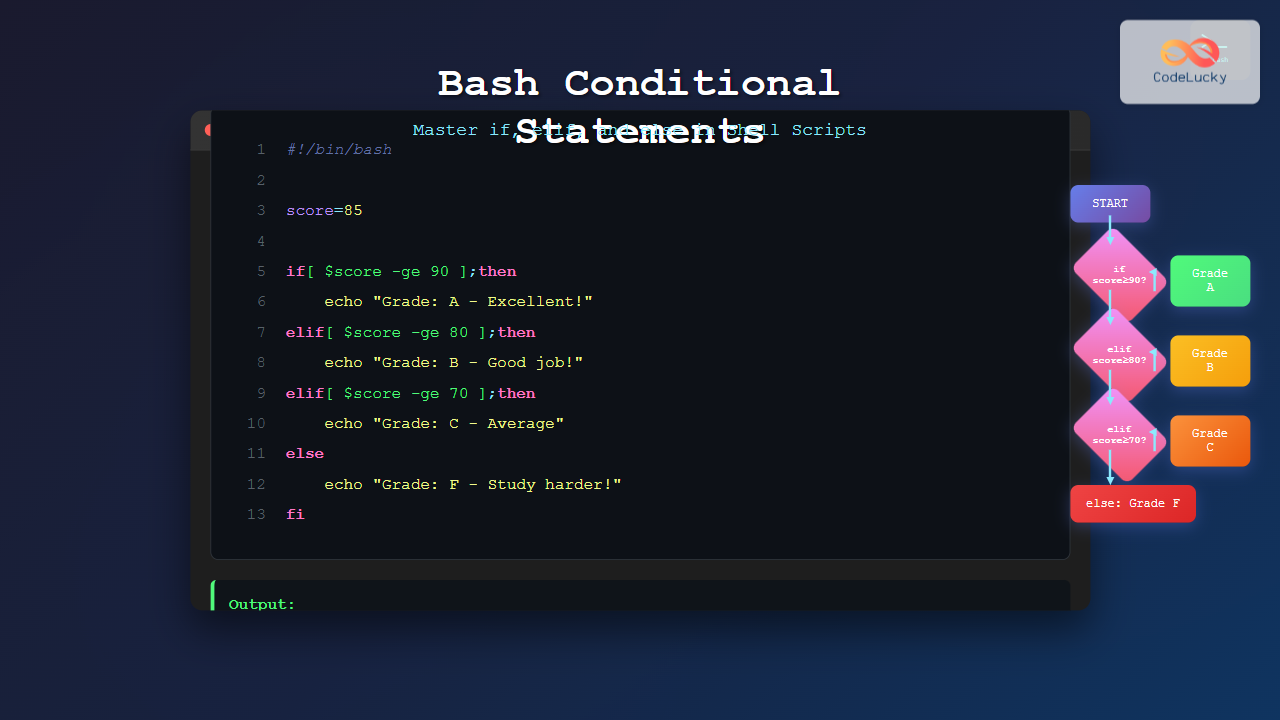
Complete if-elif-else Example
#!/bin/bash

score=85

if [ $score -ge 90 ]; then
    grade="A"
    echo "Excellent! Grade: $grade"
elif [ $score -ge 80 ]; then
    grade="B"
    echo "Good job! Grade: $grade"
elif [ $score -ge 70 ]; then
    grade="C"
    echo "Average performance. Grade: $grade"
elif [ $score -ge 60 ]; then
    grade="D"
    echo "Below average. Grade: $grade"
else
    grade="F"
    echo "Failed. Grade: $grade"
fi
Output:
Good job! Grade: BComparison Operators in Bash
Understanding comparison operators is crucial for writing effective conditional statements. Bash provides different operators for numeric and string comparisons.
Numeric Comparison Operators
| Operator | Description | Example |
|---|---|---|
| -eq | Equal to | [ $a -eq $b ] |
| -ne | Not equal to | [ $a -ne $b ] |
| -lt | Less than | [ $a -lt $b ] |
| -le | Less than or equal | [ $a -le $b ] |
| -gt | Greater than | [ $a -gt $b ] |
| -ge | Greater than or equal | [ $a -ge $b ] |
String Comparison Operators
| Operator | Description | Example |
|---|---|---|
| = | Equal to | [ “$str1” = “$str2” ] |
| != | Not equal to | [ “$str1” != “$str2” ] |
| -z | String is empty | [ -z “$str” ] |
| -n | String is not empty | [ -n “$str” ] |
Practical Comparison Examples
#!/bin/bash

# Numeric comparison
num1=10
num2=20

if [ $num1 -lt $num2 ]; then
    echo "$num1 is less than $num2"
fi

# String comparison
name="Alice"

if [ "$name" = "Alice" ]; then
    echo "Hello, Alice!"
elif [ "$name" = "Bob" ]; then
    echo "Hello, Bob!"
else
    echo "Hello, stranger!"
fi

# Empty string check
message=""

if [ -z "$message" ]; then
    echo "Message is empty"
else
    echo "Message: $message"
fi
Output:
10 is less than 20
Hello, Alice!
Message is empty
File and Directory Testing
Bash provides powerful operators for testing file and directory properties, which are essential for system administration scripts.
File Test Operators
| Operator | Description | Example |
|---|---|---|
| -f | File exists and is regular file | [ -f “/path/file.txt” ] |
| -d | Directory exists | [ -d “/path/directory” ] |
| -r | File is readable | [ -r “/path/file.txt” ] |
| -w | File is writable | [ -w “/path/file.txt” ] |
| -x | File is executable | [ -x “/path/script.sh” ] |
| -e | File or directory exists | [ -e “/path/item” ] |
File Testing Example
#!/bin/bash

file_path="/home/user/document.txt"
backup_dir="/home/user/backup"

if [ -f "$file_path" ]; then
    echo "File exists: $file_path"

    if [ -r "$file_path" ]; then
        echo "File is readable"
    else
        echo "File is not readable"
    fi

    if [ -d "$backup_dir" ]; then
        echo "Backup directory exists"
    else
        echo "Creating backup directory..."
        mkdir -p "$backup_dir"
    fi
else
    echo "File does not exist: $file_path"
fi
Logical Operators for Complex Conditions
Combine multiple conditions using logical operators to create more sophisticated decision logic.
Logical AND (&&) Example
#!/bin/bash

age=25
has_license=true

if [ $age -ge 18 ] && [ "$has_license" = "true" ]; then
    echo "You can drive!"
else
    echo "You cannot drive."
fi
Logical OR (||) Example
#!/bin/bash

day="Saturday"

if [ "$day" = "Saturday" ] || [ "$day" = "Sunday" ]; then
    echo "It's weekend!"
else
    echo "It's a weekday."
fi
Complex Logical Conditions
#!/bin/bash

username="admin"
password="secret123"
is_active=true

if [ "$username" = "admin" ] && [ "$password" = "secret123" ] && [ "$is_active" = "true" ]; then
    echo "Access granted!"
elif [ "$username" = "admin" ] && [ "$password" = "secret123" ]; then
    echo "Account is inactive"
elif [ "$username" = "admin" ]; then
    echo "Wrong password"
else
    echo "Unknown user"
fi
Advanced Conditional Techniques
Using Double Brackets [[ ]]
Double brackets provide enhanced functionality and are more forgiving with variable handling:
#!/bin/bash

text="Hello World"

# Pattern matching with double brackets
if [[ $text == *"World"* ]]; then
    echo "Text contains 'World'"
fi

# Regular expression matching
email="[email protected]"
if [[ $email =~ ^[a-zA-Z0-9._%+-]+@[a-zA-Z0-9.-]+\.[a-zA-Z]{2,}$ ]]; then
    echo "Valid email format"
else
    echo "Invalid email format"
fi
Case-Insensitive String Comparison
#!/bin/bash

input="YES"

# Convert to lowercase for comparison
if [[ "${input,,}" == "yes" ]]; then
    echo "User confirmed"
elif [[ "${input,,}" == "no" ]]; then
    echo "User declined"
else
    echo "Invalid input"
fi
Real-World Script Examples
System Monitoring Script
#!/bin/bash

# Check disk usage
disk_usage=$(df / | awk 'NR==2 {print $5}' | sed 's/%//')

if [ $disk_usage -ge 90 ]; then
    echo "CRITICAL: Disk usage is $disk_usage%"
    # Send alert or take action
elif [ $disk_usage -ge 80 ]; then
    echo "WARNING: Disk usage is $disk_usage%"
    # Log warning
elif [ $disk_usage -ge 70 ]; then
    echo "NOTICE: Disk usage is $disk_usage%"
else
    echo "OK: Disk usage is $disk_usage%"
fi

# Check if service is running
service_name="nginx"
if systemctl is-active --quiet $service_name; then
    echo "$service_name is running"
else
    echo "$service_name is not running - attempting to start"
    sudo systemctl start $service_name
fi
User Input Validation Script
#!/bin/bash

echo "Enter your age:"
read age

if ! [[ "$age" =~ ^[0-9]+$ ]]; then
    echo "Error: Please enter a valid number"
    exit 1
elif [ $age -lt 0 ] || [ $age -gt 150 ]; then
    echo "Error: Age must be between 0 and 150"
    exit 1
elif [ $age -lt 13 ]; then
    echo "Category: Child"
elif [ $age -lt 20 ]; then
    echo "Category: Teenager"
elif [ $age -lt 60 ]; then
    echo "Category: Adult"
else
    echo "Category: Senior"
fi
Best Practices and Common Pitfalls
Always Quote Your Variables
# Bad - can break with spaces
if [ $filename = "my file.txt" ]; then

# Good - always quote variables
if [ "$filename" = "my file.txt" ]; then
Handle Empty Variables
#!/bin/bash

username=""

# Safe way to handle potentially empty variables
if [ -n "$username" ] && [ "$username" = "admin" ]; then
    echo "Admin user detected"
elif [ -z "$username" ]; then
    echo "Username is empty"
else
    echo "Regular user: $username"
fi
Use Proper Exit Codes
#!/bin/bash

config_file="/etc/myapp/config.conf"

if [ ! -f "$config_file" ]; then
    echo "Error: Configuration file not found: $config_file"
    exit 1
elif [ ! -r "$config_file" ]; then
    echo "Error: Configuration file is not readable: $config_file"
    exit 2
else
    echo "Configuration loaded successfully"
    # Continue with normal execution
fi
Interactive Examples and Practice
Here’s an interactive script that demonstrates multiple concepts:
#!/bin/bash

echo "=== Interactive Bash Conditional Demo ==="
echo

# Get user input
echo "Enter your name:"
read name

echo "Enter your age:"
read age

echo "Enter your favorite programming language:"
read language

echo
echo "Processing your information..."
echo

# Validate and process input
if [ -z "$name" ]; then
    echo "❌ Name cannot be empty"
    exit 1
elif [ -z "$age" ]; then
    echo "❌ Age cannot be empty"
    exit 1
elif ! [[ "$age" =~ ^[0-9]+$ ]]; then
    echo "❌ Age must be a number"
    exit 1
fi

# Generate personalized response
echo "👋 Hello, $name!"

if [ $age -lt 18 ]; then
    echo "🎓 You're young! Focus on learning and having fun."
elif [ $age -ge 18 ] && [ $age -lt 30 ]; then
    echo "🚀 Great age to start or advance your career!"
elif [ $age -ge 30 ] && [ $age -lt 50 ]; then
    echo "💼 Prime time for leadership and expertise!"
else
    echo "🧠 Wisdom and experience are your strengths!"
fi

# Language-specific advice
case "${language,,}" in
    "bash" | "shell")
        echo "🐚 Excellent choice! Bash is powerful for automation."
        ;;
    "python")
        echo "🐍 Python is versatile and beginner-friendly!"
        ;;
    "javascript" | "js")
        echo "🌐 JavaScript runs the web! Great for full-stack development."
        ;;
    "java")
        echo "☕ Java is robust and widely used in enterprise applications."
        ;;
    *)
        echo "💻 Every programming language has its strengths!"
        ;;
esac

echo
echo "✨ Thanks for trying our interactive demo!"
Debugging Conditional Statements
When your conditionals don’t work as expected, use these debugging techniques:
Enable Debug Mode
#!/bin/bash
set -x  # Enable debug mode

age=25

if [ $age -ge 18 ]; then
    echo "Adult"
else
    echo "Minor"
fi

set +x  # Disable debug mode
Add Debug Output
#!/bin/bash

file_path="/etc/passwd"

echo "Debug: Checking file: $file_path"

if [ -f "$file_path" ]; then
    echo "Debug: File exists"
    if [ -r "$file_path" ]; then
        echo "Debug: File is readable"
        echo "File processing..."
    else
        echo "Debug: File is not readable"
    fi
else
    echo "Debug: File does not exist"
fi
Performance Considerations

Optimize Condition Order
# Put most likely conditions first
if [ "$user_type" = "regular" ]; then
    # Handle 90% of cases first
    handle_regular_user
elif [ "$user_type" = "premium" ]; then
    # Handle 9% of cases
    handle_premium_user
elif [ "$user_type" = "admin" ]; then
    # Handle 1% of cases last
    handle_admin_user
fi
Conclusion
Mastering Bash conditional statements is essential for creating robust and intelligent shell scripts. The if, elif, and else statements provide the foundation for decision-making in your scripts, while understanding comparison operators, logical operators, and best practices ensures your code is reliable and maintainable.
Remember to always quote your variables, handle edge cases, and use appropriate comparison operators for different data types. With practice, these conditional statements will become second nature, enabling you to write more sophisticated and powerful Bash scripts.
Start with simple conditions and gradually build complexity as you become more comfortable with the syntax. The examples and techniques covered in this guide provide a solid foundation for implementing conditional logic in your own shell scripting projects.