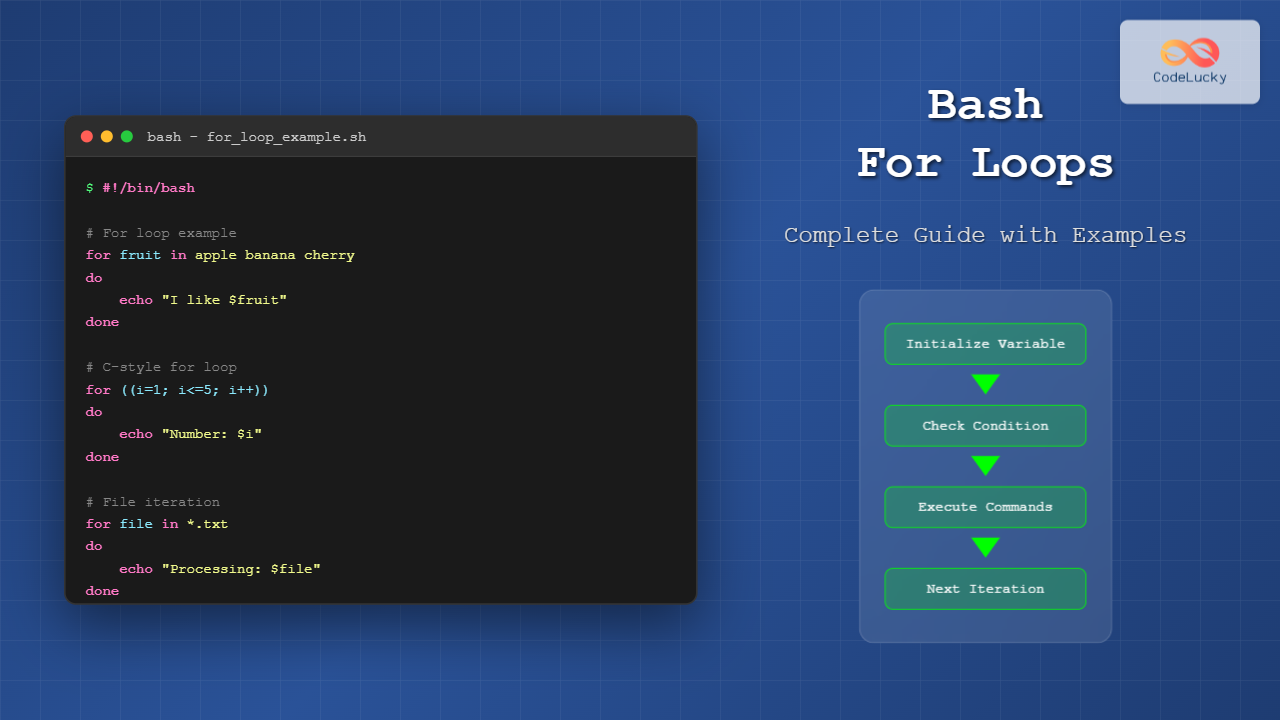
For loops are fundamental control structures in Bash scripting that allow you to execute a block of code repeatedly. Whether you’re processing files, iterating through arrays, or automating repetitive tasks, mastering Bash for loops is essential for efficient shell scripting.
Basic For Loop Syntax
The most common for loop syntax in Bash follows this pattern:
for variable in list
do
    # commands to execute
done
Here’s a simple example that demonstrates the basic structure:
#!/bin/bash

for fruit in apple banana cherry
do
    echo "I like $fruit"
done
Output:
I like apple
I like banana
I like cherry
C-Style For Loop
Bash also supports C-style for loops, which are particularly useful for numeric iterations:
for ((initialization; condition; increment))
do
    # commands to execute
done
Here’s a practical example:
#!/bin/bash

for ((i=1; i<=5; i++))
do
    echo "Iteration number: $i"
done
Output:
Iteration number: 1
Iteration number: 2
Iteration number: 3
Iteration number: 4
Iteration number: 5
Iterating Over Files and Directories
One of the most common use cases for Bash for loops is processing files and directories:
Processing Files in Current Directory
#!/bin/bash

for file in *.txt
do
    echo "Processing file: $file"
    # Add your file processing commands here
    wc -l "$file"
done
Iterating Through Directories
#!/bin/bash

for dir in */
do
    echo "Directory: $dir"
    echo "Contains $(ls -1 "$dir" | wc -l) items"
done
Working with Arrays
For loops work seamlessly with Bash arrays, providing clean iteration over array elements:
Indexed Arrays
#!/bin/bash

# Declare an array
colors=("red" "green" "blue" "yellow")

# Method 1: Iterate over values
for color in "${colors[@]}"
do
    echo "Color: $color"
done

echo "---"

# Method 2: Iterate using indices
for i in "${!colors[@]}"
do
    echo "Index $i: ${colors[i]}"
done
Output:
Color: red
Color: green
Color: blue
Color: yellow
---
Index 0: red
Index 1: green
Index 2: blue
Index 3: yellow
Associative Arrays
#!/bin/bash

# Declare associative array
declare -A servers
servers[web]="192.168.1.10"
servers[database]="192.168.1.20"
servers[cache]="192.168.1.30"

# Iterate over keys
for server in "${!servers[@]}"
do
    echo "Server: $server, IP: ${servers[$server]}"
done
Range-Based Iterations
Bash provides several ways to create ranges for numeric iterations:
Using Brace Expansion
#!/bin/bash

# Simple range
for num in {1..10}
do
    echo "Number: $num"
done

echo "---"

# Range with step
for num in {0..20..2}
do
    echo "Even number: $num"
done

echo "---"

# Alphabetic range
for letter in {a..z}
do
    echo -n "$letter "
done
echo
Using seq Command
#!/bin/bash

# Basic sequence
for i in $(seq 1 5)
do
    echo "Step $i"
done

echo "---"

# Sequence with custom step
for i in $(seq 0 0.5 3)
do
    echo "Value: $i"
done
Command Substitution in For Loops
You can use command substitution to generate dynamic lists for your for loops:
#!/bin/bash

# Iterate over command output
echo "Currently logged in users:"
for user in $(who | cut -d' ' -f1 | sort -u)
do
    echo "User: $user"
done

echo "---"

# Process running services
echo "Running services containing 'ssh':"
for service in $(systemctl list-units --type=service --state=running | grep ssh | awk '{print $1}')
do
    echo "Service: $service"
done
Nested For Loops
For loops can be nested to handle multi-dimensional data or complex iterations:
#!/bin/bash

# Multiplication table
echo "Multiplication Table (1-5):"
for i in {1..5}
do
    for j in {1..5}
    do
        result=$((i * j))
        printf "%2d " $result
    done
    echo  # New line after each row
done

echo "---"

# File organization example
directories=("docs" "images" "scripts")
file_types=("backup" "temp" "archive")

for dir in "${directories[@]}"
do
    echo "Processing directory: $dir"
    for type in "${file_types[@]}"
    do
        echo "  Creating $dir/$type folder"
        # mkdir -p "$dir/$type"  # Uncomment to actually create folders
    done
done
Loop Control: Break and Continue
Use break and continue statements to control loop execution:
#!/bin/bash

echo "Finding first number divisible by 7:"
for num in {1..50}
do
    if [ $((num % 7)) -eq 0 ]; then
        echo "Found: $num"
        break  # Exit the loop
    fi
done

echo "---"

echo "Odd numbers from 1 to 10:"
for num in {1..10}
do
    if [ $((num % 2)) -eq 0 ]; then
        continue  # Skip even numbers
    fi
    echo "$num"
done
Practical Examples
File Backup Script
#!/bin/bash

backup_dir="/backup/$(date +%Y%m%d)"
source_dirs=("/home/user/documents" "/home/user/pictures" "/etc")

# Create backup directory
mkdir -p "$backup_dir"

for dir in "${source_dirs[@]}"
do
    if [ -d "$dir" ]; then
        echo "Backing up $dir..."
        tar -czf "$backup_dir/$(basename "$dir")_backup.tar.gz" "$dir"
        echo "Backup completed for $dir"
    else
        echo "Warning: $dir does not exist"
    fi
done
System Monitoring Script
#!/bin/bash

services=("nginx" "mysql" "redis" "ssh")

echo "Service Status Report - $(date)"
echo "================================"

for service in "${services[@]}"
do
    if systemctl is-active --quiet "$service"; then
        status="RUNNING"
        color="\033[32m"  # Green
    else
        status="STOPPED"
        color="\033[31m"  # Red
    fi

    printf "%-10s: ${color}%s\033[0m\n" "$service" "$status"
done
Log File Analysis
#!/bin/bash

log_files=("/var/log/apache2/access.log" "/var/log/nginx/access.log" "/var/log/auth.log")

for log_file in "${log_files[@]}"
do
    if [ -f "$log_file" ]; then
        echo "Analyzing $log_file:"
        echo "  Total lines: $(wc -l < "$log_file")"
        echo "  Size: $(du -h "$log_file" | cut -f1)"
        echo "  Last modified: $(stat -c %y "$log_file")"
        echo "---"
    fi
done
Performance Considerations and Best Practices
Quoting Variables
Always quote variables to handle spaces and special characters properly:
# Good practice
for file in *.txt
do
    echo "Processing: $file"
    cp "$file" "/backup/$file"
done

# Handle files with spaces
for file in *
do
    if [ -f "$file" ]; then
        echo "File: $file"
    fi
done
Efficient File Processing
# Efficient: Using shell globbing
for file in /path/to/files/*.log
do
    [ -f "$file" ] || continue  # Skip if no matches
    process_file "$file"
done

# Less efficient: Using find with command substitution
for file in $(find /path/to/files -name "*.log")
do
    process_file "$file"
done
Common Pitfalls and Troubleshooting
Word Splitting Issues
# Problem: Word splitting
files="file1.txt file2.txt file with spaces.txt"
for file in $files  # Wrong: will split on spaces
do
    echo "$file"
done

# Solution: Use arrays
files=("file1.txt" "file2.txt" "file with spaces.txt")
for file in "${files[@]}"  # Correct: preserves spaces
do
    echo "$file"
done
Empty Glob Patterns
# Handle cases where glob doesn't match anything
shopt -s nullglob  # Enable nullglob to handle empty matches

for file in *.nonexistent
do
    echo "This won't execute if no matches"
done

# Alternative approach
for file in *.txt
do
    [ -f "$file" ] || continue  # Skip if file doesn't exist
    echo "Processing: $file"
done
Advanced For Loop Techniques
Reading from Files
#!/bin/bash

# Method 1: Read file line by line (not recommended for large files)
for line in $(cat userlist.txt)
do
    echo "User: $line"
done

# Method 2: Better approach using while loop
while IFS= read -r line
do
    echo "User: $line"
done < userlist.txt
Parallel Processing
#!/bin/bash

# Process files in parallel (background jobs)
for file in *.txt
do
    {
        echo "Processing $file..."
        # Simulate work
        sleep 2
        echo "Completed $file"
    } &
done

# Wait for all background jobs to complete
wait
echo "All files processed!"
Testing and Debugging For Loops
Use these techniques to debug your for loops effectively:
#!/bin/bash

# Enable debug mode
set -x

# Add verbose output
for i in {1..3}
do
    echo "Debug: Current iteration = $i"
    # Your commands here
done

# Disable debug mode
set +x

# Use conditional debugging
DEBUG=true

for file in *.txt
do
    [ "$DEBUG" = "true" ] && echo "Debug: Processing $file"
    # Process file
done
Conclusion
Mastering Bash for loops opens up powerful possibilities for automation and system administration. From simple iterations to complex file processing tasks, for loops provide the foundation for efficient shell scripting. Remember to always quote your variables, handle edge cases, and choose the most appropriate loop type for your specific use case.
Practice with these examples and gradually incorporate more advanced techniques as you become comfortable with the basics. The key to becoming proficient with Bash for loops is consistent practice and understanding the various syntax options available for different scenarios.