
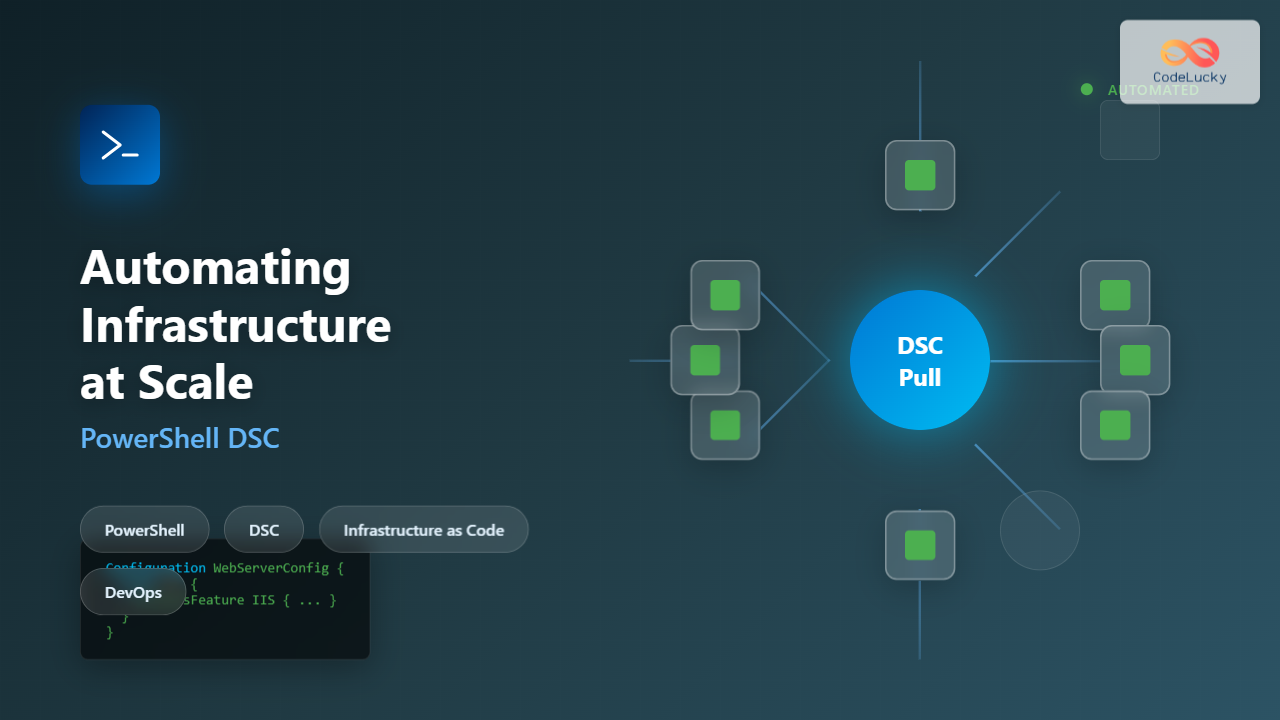
Managing infrastructure at scale presents unique challenges that manual configuration simply cannot address. As organizations grow from managing dozens to hundreds or thousands of servers, the need for consistent, repeatable, and automated configuration management becomes critical. PowerShell Desired State Configuration (DSC) provides a declarative framework that enables infrastructure teams to define and enforce configurations across entire server fleets with minimal effort.
This comprehensive guide explores how to leverage PowerShell DSC to automate infrastructure at enterprise scale, covering core concepts, practical implementations, and production-ready strategies for managing large-scale deployments.
Understanding Desired State Configuration
Desired State Configuration represents a paradigm shift from imperative to declarative infrastructure management. Instead of writing scripts that describe how to configure systems, DSC allows you to declare what the desired end state should be, and the DSC engine ensures systems conform to that state.

Core DSC Components
DSC architecture consists of several interconnected components that work together to manage configuration state:
- Configuration Documents: MOF (Managed Object Format) files that define the desired state
- Local Configuration Manager (LCM): The DSC engine running on each target node
- DSC Resources: PowerShell modules that implement configuration logic for specific components
- Pull/Push Servers: Centralized distribution points for configurations
Creating Your First DSC Configuration
A DSC configuration resembles a PowerShell function but uses the Configuration keyword. Let’s start with a basic example that ensures the Web-Server feature is installed:
Configuration WebServerConfig {
    param (
        [string[]]$ComputerName = 'localhost'
    )

    Import-DscResource -ModuleName PSDesiredStateConfiguration

    Node $ComputerName {
        WindowsFeature IIS {
            Ensure = 'Present'
            Name   = 'Web-Server'
        }

        WindowsFeature AspNet45 {
            Ensure = 'Present'
            Name   = 'Web-Asp-Net45'
            DependsOn = '[WindowsFeature]IIS'
        }

        File WebContent {
            Ensure          = 'Present'
            DestinationPath = 'C:\inetpub\wwwroot\index.html'
            Contents        = '<h1>Server Configured by DSC</h1>'
            Type            = 'File'
            DependsOn       = '[WindowsFeature]IIS'
        }
    }
}

# Generate the MOF file
WebServerConfig -ComputerName 'WEB01', 'WEB02'

# Apply the configuration
Start-DscConfiguration -Path .\WebServerConfig -Wait -Verbose -Force
Visual Output:
VERBOSE: Perform operation 'Invoke CimMethod' with following parameters
VERBOSE: [WEB01]: LCM: [Start Set ]
VERBOSE: [WEB01]: [DSCEngine] Importing the module PSDesiredStateConfiguration
VERBOSE: [WEB01]: LCM: [Start Resource] [[WindowsFeature]IIS]
VERBOSE: [WEB01]: [[WindowsFeature]IIS] Installation of Web-Server succeeded
VERBOSE: [WEB01]: LCM: [End Resource] [[WindowsFeature]IIS]
VERBOSE: [WEB01]: LCM: [Start Resource] [[WindowsFeature]AspNet45]
VERBOSE: [WEB01]: [[WindowsFeature]AspNet45] Installation of Web-Asp-Net45 succeeded
VERBOSE: [WEB01]: LCM: [End Set ]
VERBOSE: Operation 'Invoke CimMethod' complete.
Scaling DSC with Pull Server Architecture
When managing infrastructure at scale, the pull server model provides significant advantages over push-based deployments. Pull servers enable nodes to autonomously retrieve and apply configurations on a schedule, reducing network overhead and enabling centralized management.

Configuring a DSC Pull Server
Setting up a pull server requires installing necessary features and configuring the endpoint:
# Install required features
Install-WindowsFeature -Name DSC-Service -IncludeManagementTools

# Configure the pull server
Configuration DscPullServer {
    param (
        [string]$CertificateThumbprint,
        [string]$RegistrationKey = (New-Guid).Guid
    )

    Import-DscResource -ModuleName PSDesiredStateConfiguration
    Import-DscResource -ModuleName xPSDesiredStateConfiguration

    Node localhost {
        WindowsFeature DSCServiceFeature {
            Ensure = 'Present'
            Name   = 'DSC-Service'
        }

        xDscWebService PSDSCPullServer {
            Ensure                   = 'Present'
            EndpointName             = 'PSDSCPullServer'
            Port                     = 8080
            PhysicalPath             = "$env:SystemDrive\inetpub\PSDSCPullServer"
            CertificateThumbPrint    = $CertificateThumbprint
            ModulePath               = "$env:PROGRAMFILES\WindowsPowerShell\DscService\Modules"
            ConfigurationPath        = "$env:PROGRAMFILES\WindowsPowerShell\DscService\Configuration"
            State                    = 'Started'
            RegistrationKeyPath      = "$env:PROGRAMFILES\WindowsPowerShell\DscService"
            DependsOn                = '[WindowsFeature]DSCServiceFeature'
        }

        File RegistrationKeyFile {
            Ensure          = 'Present'
            Type            = 'File'
            DestinationPath = "$env:PROGRAMFILES\WindowsPowerShell\DscService\RegistrationKeys.txt"
            Contents        = $RegistrationKey
        }
    }
}

# Generate and apply configuration
$cert = Get-ChildItem Cert:\LocalMachine\My | Where-Object {$_.Subject -eq 'CN=DSCPullServer'}
DscPullServer -CertificateThumbprint $cert.Thumbprint
Start-DscConfiguration -Path .\DscPullServer -Wait -Verbose
Registering Nodes with Pull Server
Configure nodes to pull configurations automatically:
[DSCLocalConfigurationManager()]
Configuration PullClientConfig {
    param (
        [string]$NodeName = 'localhost',
        [string]$RegistrationKey,
        [string]$PullServerURL
    )

    Node $NodeName {
        Settings {
            RefreshMode                    = 'Pull'
            RefreshFrequencyMins           = 30
            RebootNodeIfNeeded             = $true
            ConfigurationMode              = 'ApplyAndAutoCorrect'
            ConfigurationModeFrequencyMins = 15
            AllowModuleOverwrite           = $true
        }

        ConfigurationRepositoryWeb PullServer {
            ServerURL          = $PullServerURL
            RegistrationKey    = $RegistrationKey
            ConfigurationNames = @('WebServerConfig')
            AllowUnsecureConnection = $false
        }

        ReportServerWeb ReportServer {
            ServerURL       = $PullServerURL
            RegistrationKey = $RegistrationKey
            AllowUnsecureConnection = $false
        }
    }
}

# Apply LCM configuration
$regKey = Get-Content "$env:PROGRAMFILES\WindowsPowerShell\DscService\RegistrationKeys.txt"
PullClientConfig -RegistrationKey $regKey -PullServerURL 'https://dscpull.company.com:8080/PSDSCPullServer.svc'
Set-DscLocalConfigurationManager -Path .\PullClientConfig -Verbose
Advanced Configuration Patterns for Scale
Configuration Data Separation
Separating configuration logic from environment-specific data enables reusability across multiple environments:
# ConfigurationData.psd1
@{
    AllNodes = @(
        @{
            NodeName                    = '*'
            PSDscAllowPlainTextPassword = $false
            PSDscAllowDomainUser        = $true
            RetryCount                  = 3
            RetryIntervalSec            = 30
        },
        @{
            NodeName = 'WEB01'
            Role     = 'WebServer'
            Environment = 'Production'
            IPAddress = '10.0.1.10'
            Features = @('Web-Server', 'Web-Asp-Net45')
        },
        @{
            NodeName = 'WEB02'
            Role     = 'WebServer'
            Environment = 'Production'
            IPAddress = '10.0.1.11'
            Features = @('Web-Server', 'Web-Asp-Net45')
        },
        @{
            NodeName = 'DB01'
            Role     = 'DatabaseServer'
            Environment = 'Production'
            IPAddress = '10.0.2.10'
            Features = @('RSAT-AD-PowerShell')
        }
    )
}

# Use configuration data
Configuration InfrastructureConfig {
    param (
        [Parameter(Mandatory)]
        [hashtable]$ConfigurationData
    )

    Import-DscResource -ModuleName PSDesiredStateConfiguration

    Node $AllNodes.Where({$_.Role -eq 'WebServer'}).NodeName {
        foreach ($feature in $Node.Features) {
            WindowsFeature "Feature_$feature" {
                Name   = $feature
                Ensure = 'Present'
            }
        }

        Registry DisableIEESC {
            Key       = 'HKLM:\SOFTWARE\Microsoft\Active Setup\Installed Components\{A509B1A7-37EF-4b3f-8CFC-4F3A74704073}'
            ValueName = 'IsInstalled'
            ValueData = '0'
            ValueType = 'Dword'
            Ensure    = 'Present'
        }
    }

    Node $AllNodes.Where({$_.Role -eq 'DatabaseServer'}).NodeName {
        foreach ($feature in $Node.Features) {
            WindowsFeature "Feature_$feature" {
                Name   = $feature
                Ensure = 'Present'
            }
        }
    }
}

# Generate configurations
$configData = Import-PowerShellDataFile -Path .\ConfigurationData.psd1
InfrastructureConfig -ConfigurationData $configData
Composite Resources for Reusability
Create custom composite resources that bundle multiple configurations into reusable components:
Configuration SecureWebServer {
    param (
        [string]$WebsiteName,
        [string]$PhysicalPath,
        [int]$Port = 443
    )

    Import-DscResource -ModuleName PSDesiredStateConfiguration
    Import-DscResource -ModuleName xWebAdministration

    WindowsFeature IIS {
        Name   = 'Web-Server'
        Ensure = 'Present'
    }

    WindowsFeature AspNet {
        Name      = 'Web-Asp-Net45'
        Ensure    = 'Present'
        DependsOn = '[WindowsFeature]IIS'
    }

    File WebsiteContent {
        Type            = 'Directory'
        DestinationPath = $PhysicalPath
        Ensure          = 'Present'
    }

    xWebsite DefaultSite {
        Name         = 'Default Web Site'
        Ensure       = 'Absent'
        DependsOn    = '[WindowsFeature]IIS'
    }

    xWebsite SecureSite {
        Name            = $WebsiteName
        State           = 'Started'
        PhysicalPath    = $PhysicalPath
        BindingInfo     = @(
            MSFT_xWebBindingInformation {
                Protocol  = 'HTTPS'
                Port      = $Port
                CertificateStoreName = 'My'
            }
        )
        DependsOn       = '[File]WebsiteContent', '[xWebsite]DefaultSite'
    }

    Registry DisableSSLv3 {
        Key       = 'HKLM:\SYSTEM\CurrentControlSet\Control\SecurityProviders\SCHANNEL\Protocols\SSL 3.0\Server'
        ValueName = 'Enabled'
        ValueData = '0'
        ValueType = 'Dword'
        Ensure    = 'Present'
    }
}

# Use the composite resource
Configuration WebFarm {
    Import-DscResource -ModuleName PSDesiredStateConfiguration

    Node 'WEB01', 'WEB02', 'WEB03' {
        SecureWebServer ProductionSite {
            WebsiteName  = 'ProductionApp'
            PhysicalPath = 'C:\WebApps\Production'
            Port         = 443
        }
    }
}
Implementing Configuration Drift Detection
One of DSC’s most powerful capabilities is continuous monitoring and automatic correction of configuration drift. This ensures infrastructure remains compliant even when manual changes occur:
# Test compliance without applying changes
$result = Test-DscConfiguration -Detailed -Verbose

# Output shows which resources are out of compliance
foreach ($resource in $result.ResourcesNotInDesiredState) {
    Write-Host "Resource: $($resource.ResourceId)" -ForegroundColor Red
    Write-Host "Reason: Configuration drift detected" -ForegroundColor Yellow
    Write-Host "Expected: $($resource.InstanceName)" -ForegroundColor Green
}

# Get detailed drift information
Get-DscConfigurationStatus | Select-Object -ExpandProperty ResourcesNotInDesiredState

# Schedule drift detection and reporting
Configuration DriftMonitoring {
    [DSCLocalConfigurationManager()]
    param()

    Settings {
        ConfigurationMode              = 'ApplyAndMonitor'
        ConfigurationModeFrequencyMins = 15
        RefreshMode                    = 'Pull'
        RefreshFrequencyMins          = 30
        RebootNodeIfNeeded            = $true
        StatusRetentionTimeInDays     = 30
    }
}
Sample Output from Drift Detection:
ResourceId           : [WindowsFeature]TelnetClient
InDesiredState       : False
ConfigurationName    : ServerHardeningConfig
StartDate           : 10/22/2025 5:15:30 PM
DependsOn           : {}
ModuleName          : PSDesiredStateConfiguration
Duration            : 2.453
ResourceName        : WindowsFeature
InstanceName        : TelnetClient

VERBOSE: Resource [WindowsFeature]TelnetClient is not in desired state
VERBOSE: Expected state: Absent
VERBOSE: Current state: Present
VERBOSE: Change required: Remove Windows Feature
Managing Secrets and Credentials at Scale
Securely managing credentials across large deployments requires careful planning. DSC provides several approaches:
Using Certificate-Based Encryption
# Generate encryption certificate
$cert = New-SelfSignedCertificate -Type DocumentEncryptionCertLegacyCsp `
    -DnsName 'DscEncryption' `
    -HashAlgorithm SHA256 `
    -KeyLength 2048 `
    -Subject 'CN=DSC Credential Encryption'

# Export public key for target nodes
Export-Certificate -Cert $cert -FilePath "C:\DSC\DscPublicKey.cer"

# Configuration with encrypted credentials
$configData = @{
    AllNodes = @(
        @{
            NodeName             = 'APP01'
            CertificateFile      = 'C:\DSC\DscPublicKey.cer'
            Thumbprint           = $cert.Thumbprint
        }
    )
}

Configuration SecureServiceAccount {
    param (
        [Parameter(Mandatory)]
        [PSCredential]$ServiceCredential
    )

    Import-DscResource -ModuleName PSDesiredStateConfiguration

    Node $AllNodes.NodeName {
        User ServiceAccount {
            UserName    = $ServiceCredential.UserName
            Password    = $ServiceCredential
            Ensure      = 'Present'
            Description = 'Service Account for Application'
        }

        Service AppService {
            Name        = 'CustomAppService'
            Credential  = $ServiceCredential
            StartupType = 'Automatic'
            State       = 'Running'
            DependsOn   = '[User]ServiceAccount'
        }
    }
}

# Apply with encrypted credentials
$cred = Get-Credential -Message "Enter service account credentials"
SecureServiceAccount -ConfigurationData $configData -ServiceCredential $cred
Integration with Azure Key Vault
# Retrieve secrets from Key Vault
Configuration AzureIntegratedConfig {
    param (
        [string]$KeyVaultName,
        [string]$SecretName
    )

    Import-DscResource -ModuleName PSDesiredStateConfiguration

    Node localhost {
        Script RetrieveSecret {
            GetScript  = {
                $secret = Get-AzKeyVaultSecret -VaultName $using:KeyVaultName -Name $using:SecretName
                @{ Result = $secret.SecretValueText }
            }

            TestScript = {
                $secret = Get-AzKeyVaultSecret -VaultName $using:KeyVaultName -Name $using:SecretName
                return ($null -ne $secret)
            }

            SetScript  = {
                # Configuration logic using retrieved secret
                $secret = Get-AzKeyVaultSecret -VaultName $using:KeyVaultName -Name $using:SecretName
                # Apply configuration with secret
            }
        }
    }
}
Orchestrating Multi-Tier Deployments
Complex infrastructure often requires coordinated configuration across multiple tiers with specific dependency ordering:

Configuration MultiTierApplication {
    param (
        [Parameter(Mandatory)]
        [hashtable]$ConfigurationData
    )

    Import-DscResource -ModuleName PSDesiredStateConfiguration
    Import-DscResource -ModuleName xNetworking

    # Database Tier
    Node $AllNodes.Where({$_.Tier -eq 'Database'}).NodeName {
        WindowsFeature SQLEngine {
            Name   = 'SQL-Server-2019'
            Ensure = 'Present'
        }

        xFirewall SQLServerPort {
            Name        = 'SQL-Server-Database-Engine'
            DisplayName = 'SQL Server Database Engine'
            Ensure      = 'Present'
            Enabled     = 'True'
            Direction   = 'Inbound'
            LocalPort   = '1433'
            Protocol    = 'TCP'
            DependsOn   = '[WindowsFeature]SQLEngine'
        }

        Script DatabaseInitialization {
            GetScript  = { @{ Result = (Get-Service MSSQLSERVER).Status } }
            TestScript = { (Get-Service MSSQLSERVER).Status -eq 'Running' }
            SetScript  = {
                Start-Service MSSQLSERVER
                # Additional database initialization
            }
            DependsOn  = '[WindowsFeature]SQLEngine'
        }
    }

    # Application Tier
    Node $AllNodes.Where({$_.Tier -eq 'Application'}).NodeName {
        WindowsFeature AppServer {
            Name      = 'Application-Server'
            Ensure    = 'Present'
        }

        File AppBinaries {
            Type            = 'Directory'
            DestinationPath = 'C:\Applications\ProductionApp'
            Ensure          = 'Present'
            SourcePath      = '\\deployment\applications\ProductionApp'
            Recurse         = $true
            Credential      = $Node.DeploymentCredential
            DependsOn       = '[WindowsFeature]AppServer'
        }

        Registry ConnectionString {
            Key       = 'HKLM:\SOFTWARE\ProductionApp'
            ValueName = 'DatabaseServer'
            ValueData = $ConfigurationData.DatabaseServers[0]
            ValueType = 'String'
            Ensure    = 'Present'
            DependsOn = '[File]AppBinaries'
        }
    }

    # Web Tier
    Node $AllNodes.Where({$_.Tier -eq 'Web'}).NodeName {
        WindowsFeature IIS {
            Name   = 'Web-Server'
            Ensure = 'Present'
        }

        WindowsFeature WebSockets {
            Name      = 'Web-WebSockets'
            Ensure    = 'Present'
            DependsOn = '[WindowsFeature]IIS'
        }

        Registry AppServerPool {
            Key       = 'HKLM:\SOFTWARE\WebApp'
            ValueName = 'AppServers'
            ValueData = ($ConfigurationData.AppServers -join ',')
            ValueType = 'String'
            Ensure    = 'Present'
        }
    }
}

# Configuration data with tier definitions
$multiTierConfig = @{
    AllNodes = @(
        @{ NodeName = 'DB01'; Tier = 'Database' },
        @{ NodeName = 'DB02'; Tier = 'Database' },
        @{ NodeName = 'APP01'; Tier = 'Application' },
        @{ NodeName = 'APP02'; Tier = 'Application' },
        @{ NodeName = 'WEB01'; Tier = 'Web' },
        @{ NodeName = 'WEB02'; Tier = 'Web' }
    )
    DatabaseServers = @('DB01', 'DB02')
    AppServers = @('APP01', 'APP02')
}

MultiTierApplication -ConfigurationData $multiTierConfig
Monitoring and Reporting at Scale
Effective monitoring becomes critical when managing large infrastructure deployments. DSC provides comprehensive reporting capabilities:
# Query DSC compliance status across nodes
$nodes = 'WEB01', 'WEB02', 'APP01', 'APP02', 'DB01'

$complianceReport = foreach ($node in $nodes) {
    $session = New-CimSession -ComputerName $node

    $status = Get-DscConfigurationStatus -CimSession $session

    [PSCustomObject]@{
        NodeName        = $node
        Status          = $status.Status
        StartDate       = $status.StartDate
        Type            = $status.Type
        Mode            = $status.Mode
        NumberResources = $status.NumberOfResources
        InDesiredState  = ($status.ResourcesNotInDesiredState.Count -eq 0)
        DriftDetected   = ($status.ResourcesNotInDesiredState.Count -gt 0)
        DriftCount      = $status.ResourcesNotInDesiredState.Count
    }

    Remove-CimSession $session
}

# Display formatted report
$complianceReport | Format-Table -AutoSize

# Export to CSV for analysis
$complianceReport | Export-Csv -Path "C:\Reports\DSC-Compliance-$(Get-Date -Format 'yyyyMMdd').csv" -NoTypeInformation

# Generate HTML dashboard
$html = $complianceReport | ConvertTo-Html -Title "DSC Compliance Dashboard" -PreContent "<h1>Infrastructure Compliance Report</h1><p>Generated: $(Get-Date)</p>" -PostContent "<p>Total Nodes: $($nodes.Count) | Compliant: $(($complianceReport | Where-Object InDesiredState).Count)</p>"
$html | Out-File -FilePath "C:\Reports\DSC-Dashboard.html"
Sample Compliance Report Output:
NodeName Status  StartDate            Type    Mode              NumberResources InDesiredState DriftDetected DriftCount
-------- ------  ---------            ----    ----              --------------- -------------- ------------- ----------
WEB01    Success 10/22/2025 4:30:15 PM Consistency ApplyAndAutoCorrect      12            True         False          0
WEB02    Success 10/22/2025 4:31:22 PM Consistency ApplyAndAutoCorrect      12            True         False          0
APP01    Success 10/22/2025 4:32:45 PM Consistency ApplyAndMonitor          8             False        True           2
APP02    Success 10/22/2025 4:33:10 PM Consistency ApplyAndAutoCorrect      8             True         False          0
DB01     Success 10/22/2025 4:35:00 PM Consistency ApplyAndAutoCorrect      15            True         False          0
Event Log Integration
# Query DSC event logs for analysis
$dscEvents = Get-WinEvent -FilterHashtable @{
    LogName   = 'Microsoft-Windows-DSC/Operational'
    StartTime = (Get-Date).AddHours(-24)
} -MaxEvents 1000

# Analyze event patterns
$eventSummary = $dscEvents | Group-Object Id | Select-Object Count, Name, @{
    Name = 'Description'
    Expression = { $_.Group[0].Message.Split("`n")[0] }
}

$eventSummary | Format-Table -AutoSize

# Alert on critical events
$criticalEvents = $dscEvents | Where-Object { $_.LevelDisplayName -eq 'Error' }

if ($criticalEvents.Count -gt 0) {
    $message = "DSC Critical Events Detected: $($criticalEvents.Count) errors in the last 24 hours"
    # Send notification via email, Slack, Teams, etc.
    Write-Warning $message
}
Performance Optimization Strategies
Parallel Configuration Application
When deploying to hundreds of nodes, parallel execution dramatically reduces deployment time:
# Sequential deployment (slow for large scale)
$nodes = Get-Content C:\Infrastructure\nodes.txt
foreach ($node in $nodes) {
    Start-DscConfiguration -ComputerName $node -Path .\WebServerConfig -Wait -Force
}

# Parallel deployment with throttling
$nodes = Get-Content C:\Infrastructure\nodes.txt

$nodes | ForEach-Object -ThrottleLimit 20 -Parallel {
    $node = $_
    try {
        Start-DscConfiguration -ComputerName $node -Path $using:configPath -Wait -Force -ErrorAction Stop
        Write-Host "[$node] Configuration applied successfully" -ForegroundColor Green
    }
    catch {
        Write-Warning "[$node] Configuration failed: $_"
    }
}

# Job-based parallel execution with progress tracking
$jobs = foreach ($node in $nodes) {
    Start-Job -ScriptBlock {
        param($NodeName, $ConfigPath)
        Start-DscConfiguration -ComputerName $NodeName -Path $ConfigPath -Wait -Force
    } -ArgumentList $node, $configPath
}

# Monitor progress
$completed = 0
$total = $jobs.Count

while ($jobs | Where-Object { $_.State -eq 'Running' }) {
    $completed = ($jobs | Where-Object { $_.State -eq 'Completed' }).Count
    $progress = [math]::Round(($completed / $total) * 100, 2)
    Write-Progress -Activity "Applying DSC Configuration" -Status "$completed of $total nodes completed" -PercentComplete $progress
    Start-Sleep -Seconds 5
}

# Retrieve results
$results = $jobs | Receive-Job
$jobs | Remove-Job
Configuration Compilation Optimization
# Cache compiled configurations
$configCache = @{}

function Get-CachedConfiguration {
    param (
        [string]$ConfigurationName,
        [hashtable]$Parameters
    )

    $cacheKey = "$ConfigurationName-$($Parameters.GetHashCode())"

    if (-not $configCache.ContainsKey($cacheKey)) {
        # Compile and cache
        $configCache[$cacheKey] = & $ConfigurationName @Parameters
    }

    return $configCache[$cacheKey]
}

# Reuse compiled configurations for similar nodes
$webNodes = 'WEB01', 'WEB02', 'WEB03', 'WEB04', 'WEB05'
$compiledConfig = Get-CachedConfiguration -ConfigurationName 'WebServerConfig' -Parameters @{ Environment = 'Production' }

foreach ($node in $webNodes) {
    Copy-Item -Path "$compiledConfig\*.mof" -Destination "\\$node\C$\Program Files\WindowsPowerShell\DscService\Configuration\" -Force
}
Troubleshooting DSC at Scale

Common Issues and Solutions
# Diagnose LCM issues
Get-DscLocalConfigurationManager | Format-List

# Check for pending reboot
Test-Path "HKLM:\SOFTWARE\Microsoft\Windows\CurrentVersion\Component Based Servicing\RebootPending"

# Verify resource availability
Get-DscResource | Where-Object { $_.Name -like '*Web*' }

# Clear DSC cache and reset LCM (use cautiously)
Remove-Item -Path C:\Windows\System32\Configuration\*.mof -Force
Remove-Item -Path C:\Windows\System32\Configuration\ConfigurationStatus\* -Force -Recurse
Remove-DscConfigurationDocument -Stage Current, Previous, Pending -Force

# Enable debug logging
Set-DscLocalConfigurationManager -Path .\LcmConfig -Force -Verbose
$VerbosePreference = 'Continue'
Start-DscConfiguration -Path .\Config -Wait -Verbose -Force

# Analyze resource-specific errors
$status = Get-DscConfigurationStatus
$failedResources = $status.ResourcesNotInDesiredState

foreach ($resource in $failedResources) {
    Write-Host "Failed Resource: $($resource.ResourceId)" -ForegroundColor Red
    Write-Host "Error Message: $($resource.Error)" -ForegroundColor Yellow
    Write-Host "---"
}
Best Practices for Enterprise DSC Deployments
Version Control and Change Management
- Store all DSC configurations in source control (Git, Azure DevOps)
- Implement code review processes for configuration changes
- Use semantic versioning for configuration modules
- Tag configurations with release versions
- Maintain separate branches for development, staging, and production environments
Testing and Validation
# Pester test for DSC configuration
Describe 'WebServerConfig Tests' {
    BeforeAll {
        # Compile configuration
        WebServerConfig -OutputPath TestDrive:\
    }

    It 'Should generate MOF files' {
        Test-Path "TestDrive:\*.mof" | Should -Be $true
    }

    It 'Should contain required resources' {
        $mof = Get-Content "TestDrive:\localhost.mof" -Raw
        $mof | Should -Match 'WindowsFeature'
        $mof | Should -Match 'Web-Server'
    }

    It 'Should validate against schema' {
        { Test-DscConfiguration -Path TestDrive:\ -ErrorAction Stop } | Should -Not -Throw
    }
}

# Integration testing on test nodes
Describe 'DSC Integration Tests' {
    BeforeAll {
        $testNode = 'TEST-WEB01'
        Start-DscConfiguration -ComputerName $testNode -Path .\WebServerConfig -Wait -Force
    }

    It 'Should have IIS installed' {
        $feature = Invoke-Command -ComputerName $testNode -ScriptBlock {
            Get-WindowsFeature -Name Web-Server
        }
        $feature.Installed | Should -Be $true
    }

    It 'Should be in desired state' {
        $result = Test-DscConfiguration -ComputerName $testNode
        $result | Should -Be $true
    }
}
Security Hardening
- Use certificate-based encryption for credentials
- Enable HTTPS for pull server communications
- Implement role-based access control (RBAC) for configuration management
- Regular audit configuration changes and access logs
- Store secrets in secure vaults (Azure Key Vault, HashiCorp Vault)
- Implement least-privilege principles for DSC service accounts
Disaster Recovery Planning
# Backup DSC configurations and state
function Backup-DscInfrastructure {
    param (
        [string]$BackupPath = "C:\Backup\DSC\$(Get-Date -Format 'yyyyMMdd')"
    )

    New-Item -Path $BackupPath -ItemType Directory -Force | Out-Null

    # Backup configurations
    Copy-Item -Path "$env:PROGRAMFILES\WindowsPowerShell\DscService\Configuration\*" `
              -Destination "$BackupPath\Configurations" -Recurse -Force

    # Backup modules
    Copy-Item -Path "$env:PROGRAMFILES\WindowsPowerShell\DscService\Modules\*" `
              -Destination "$BackupPath\Modules" -Recurse -Force

    # Export LCM configurations
    $nodes = Get-Content C:\Infrastructure\nodes.txt
    foreach ($node in $nodes) {
        $lcm = Get-DscLocalConfigurationManager -CimSession $node
        $lcm | Export-Clixml -Path "$BackupPath\LCM\$node.xml"
    }

    # Backup registration keys
    Copy-Item -Path "$env:PROGRAMFILES\WindowsPowerShell\DscService\RegistrationKeys.txt" `
              -Destination "$BackupPath\RegistrationKeys.txt" -Force

    Write-Host "Backup completed: $BackupPath" -ForegroundColor Green
}

# Schedule regular backups
$trigger = New-ScheduledTaskTrigger -Daily -At 2am
$action = New-ScheduledTaskAction -Execute 'PowerShell.exe' -Argument '-File C:\Scripts\Backup-DscInfrastructure.ps1'
Register-ScheduledTask -TaskName "DSC Infrastructure Backup" -Trigger $trigger -Action $action -RunLevel Highest
Integration with CI/CD Pipelines
Modern infrastructure automation requires tight integration with continuous integration and deployment pipelines:
# Azure DevOps pipeline integration
# azure-pipelines.yml

trigger:
  branches:
    include:
      - main
      - develop
  paths:
    include:
      - DSC/Configurations/*

pool:
  vmImage: 'windows-latest'

stages:
- stage: Build
  jobs:
  - job: CompileDSC
    steps:
    - task: PowerShell@2
      displayName: 'Install DSC Modules'
      inputs:
        targetType: 'inline'
        script: |
          Install-Module -Name PSDesiredStateConfiguration -Force
          Install-Module -Name xWebAdministration -Force

    - task: PowerShell@2
      displayName: 'Compile Configurations'
      inputs:
        filePath: '$(Build.SourcesDirectory)/DSC/Build-Configurations.ps1'

    - task: PublishBuildArtifacts@1
      displayName: 'Publish MOF Files'
      inputs:
        PathtoPublish: '$(Build.ArtifactStagingDirectory)/MOF'
        ArtifactName: 'DSC-Configurations'

- stage: Test
  jobs:
  - job: ValidateConfigurations
    steps:
    - task: PowerShell@2
      displayName: 'Run Pester Tests'
      inputs:
        targetType: 'inline'
        script: |
          Install-Module -Name Pester -Force -SkipPublisherCheck
          Invoke-Pester -Script .\Tests\*.Tests.ps1 -OutputFile Test-Results.xml -OutputFormat NUnitXml

    - task: PublishTestResults@2
      inputs:
        testResultsFormat: 'NUnit'
        testResultsFiles: '**/Test-Results.xml'

- stage: Deploy
  jobs:
  - deployment: DeployToProduction
    environment: 'Production'
    strategy:
      runOnce:
        deploy:
          steps:
          - task: PowerShell@2
            displayName: 'Deploy DSC Configurations'
            inputs:
              targetType: 'inline'
              script: |
                $nodes = Get-Content $(Pipeline.Workspace)/nodes.txt
                $configPath = "$(Pipeline.Workspace)/DSC-Configurations"

                $nodes | ForEach-Object -Parallel {
                  Start-DscConfiguration -ComputerName $_ -Path $using:configPath -Wait -Force
                } -ThrottleLimit 10
Conclusion
PowerShell Desired State Configuration provides a robust framework for managing infrastructure at scale through declarative, idempotent configuration management. By implementing the patterns and practices outlined in this guide—including pull server architecture, configuration data separation, drift detection, and CI/CD integration—organizations can achieve consistent, auditable, and automated infrastructure management across hundreds or thousands of servers.
The key to successful DSC implementation at scale lies in careful planning, comprehensive testing, continuous monitoring, and adherence to infrastructure-as-code principles. As your infrastructure grows, DSC’s ability to automatically detect and correct configuration drift ensures systems remain compliant with minimal manual intervention, freeing operations teams to focus on strategic initiatives rather than repetitive configuration tasks.
Start small with pilot deployments, validate configurations thoroughly in test environments, and gradually expand your DSC implementation as confidence and expertise grow. The investment in learning and implementing DSC pays substantial dividends in operational efficiency, system reliability, and infrastructure consistency.





