
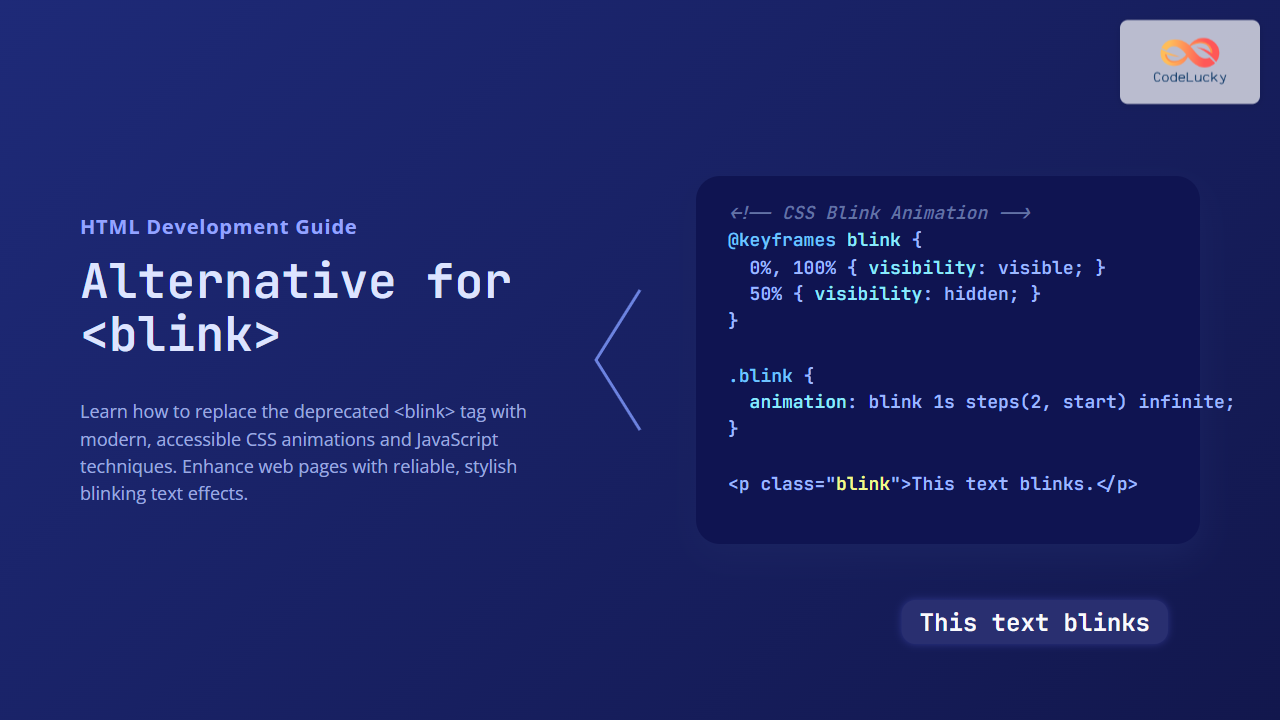
The <blink> HTML tag was once a popular way to make text blink on web pages to attract users’ attention. However, it was deprecated early on due to usability, accessibility, and inconsistent browser support. In modern web development, relying on <blink> is strongly discouraged. This article explores several well-supported, accessible, and customizable alternatives using CSS and JavaScript to achieve blinking or attention-grabbing text effects.
Why Not Use <blink>?
The <blink> element originally caused text to flash on and off automatically, but it was never part of any official HTML specification beyond early drafts. Key reasons to avoid it include:
- Lack of Support: Most browsers, including modern ones, do not support it and simply ignore it.
- Accessibility Concerns: Blinking text can trigger seizures or distract screen reader users.
- Poor User Experience: The blinking effect is often considered annoying and detracts from readability.
Modern Alternatives to <blink>
Instead of the deprecated tag, you should use CSS animations or JavaScript for blinking and other attention effects. These techniques provide more control, better accessibility, and compatibility across browsers.
1. CSS Keyframe Animation for Blinking
Use CSS @keyframes to create a blinking effect by toggling the element’s opacity or visibility. This is the simplest approach and widely supported.
<style>
.blink {
  animation: blinkAnimation 1s steps(2, start) infinite;
}
@keyframes blinkAnimation {
  0%, 100% {
    visibility: visible;
  }
  50% {
    visibility: hidden;
  }
}
</style>

<p class="blink">This text blinks using CSS animation.</p>
Visual Output:
This text blinks using CSS animation.
2. CSS Opacity Animation for Smoother Blinking
Control the blinking with opacity for a smoother fade effect. This mimics blinking but is less jarring.
<style>
.smooth-blink {
  animation: smoothBlink 1.5s ease-in-out infinite;
}
@keyframes smoothBlink {
  0%, 100% {
    opacity: 1;
  }
  50% {
    opacity: 0;
  }
}
</style>

<p class="smooth-blink">This text fades in and out to simulate blinking.</p>
Visual Output:
This text fades in and out to simulate blinking.
3. JavaScript Controlled Blinking
If you want more control over the blinking intervals or to toggle blinking on user actions, JavaScript is useful.
<p id="jsBlink">This text will blink controlled by JavaScript.</p>

<script>
const blinkElement = document.getElementById('jsBlink');
setInterval(() => {
  if (blinkElement.style.visibility === 'hidden') {
    blinkElement.style.visibility = 'visible';
  } else {
    blinkElement.style.visibility = 'hidden';
  }
}, 500);
</script>
4. Accessible Attention-Grabbing Alternatives
Since repeated blinking can be harmful for some users, consider alternatives that draw attention without animation:
- Color Change: Change text color on hover or focus.
- Underline or Bold on Hover: Highlight text with underlines or weight shifts.
- Icons or Badges: Use icons like stars or badges for emphasis.
Mermaid Diagram: CSS Blink Animation Workflow
Interactive Example: Toggle Blinking Text
This example lets users toggle blinking text on and off using CSS class toggling via JavaScript.
<button id="toggleBlink">Toggle Blink</button>
<p id="toggleText">This text can blink on demand.</p>

<style>
.toggle-blink {
  animation: blinkAnimation 1s steps(2, start) infinite;
}
@keyframes blinkAnimation {
  0%, 100% { visibility: visible; }
  50% { visibility: hidden; }
}
</style>

<script>
const toggleButton = document.getElementById('toggleBlink');
const toggleText = document.getElementById('toggleText');
toggleButton.addEventListener('click', () => {
  toggleText.classList.toggle('toggle-blink');
});
</script>
Summary
While the <blink> element is obsolete and unsupported, modern web technologies enable developers to recreate blinking text effects safely and accessibly. CSS animations offer lightweight, declarative control, while JavaScript enables dynamic interaction. Always keep accessibility in mind and prefer subtle, user-friendly alternatives to blinking. This ensures content is engaging without sacrificing usability or inclusiveness.





