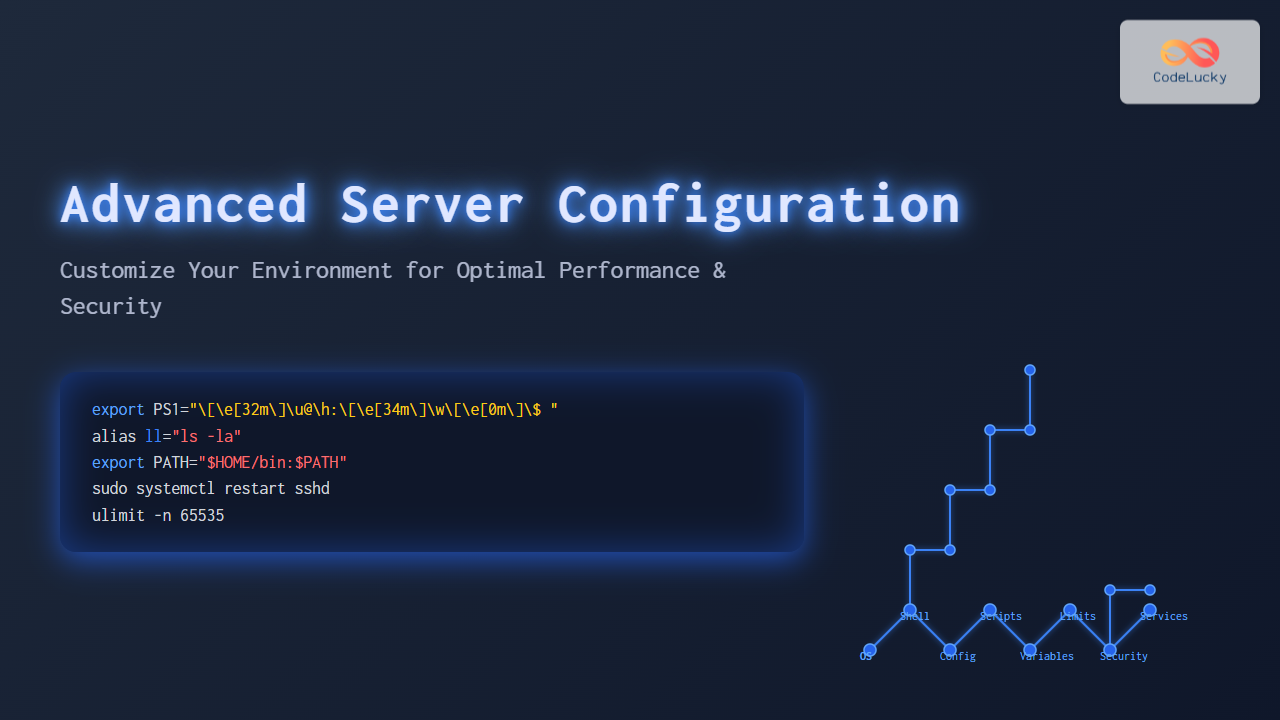
To truly master server management, customizing your server environment beyond default setups is essential. Advanced server configuration allows developers and system administrators to optimize performance, improve security, automate repetitive tasks, and create a workspace tailored to specific application needs. This detailed guide covers powerful customization techniques with clear, practical examples and visual diagrams to help you configure your server environment like a pro.
Understanding the Server Environment
The “server environment” broadly refers to the configuration of your server’s operating system, shell settings, installed software, environment variables, and resource limits. Tailoring this environment lets you automate workflows, enhance user experience for SSH access, and adjust hardware utilization.

Step 1: Configure Shell Environment for Productivity
One of the quickest ways to customize your server environment is by tailoring shell settings. Most servers run bash or zsh. Customizing your shell can include modifying ~/.bashrc, ~/.bash_profile, or ~/.zshrc files.
Example: Customizing Bash Prompt with Useful Information
export PS1="\[\e[32m\]\u@\h:\[\e[34m\]\w\[\e[0m\]\$ "This changes the prompt to show the username, hostname, and current working directory with colors.
Adding Aliases for Efficiency
alias ll="ls -la"
alias gs="git status"
alias srvstart="sudo systemctl start apache2"
Aliases help reduce typing for common commands, speeding up command-line interactions.
Step 2: Manage Environment Variables
Environment variables define settings that control system behavior. Common examples are PATH, LANG, JAVA_HOME. Setting these globally or per-user affects software operation.
Example: Adding a Custom Bin Directory to PATH
export PATH="$HOME/bin:$PATH"This inserts the user’s bin folder at the start of the path, prioritizing custom scripts.
Step 3: Automate with Shell Initialization Scripts
Servers run scripts on shell startup, e.g., /etc/profile, ~/.bashrc. Adding commands here can load environment variables, configure the prompt, or launch background processes automatically.
Example: Automatically Start a Monitoring Script
nohup ~/scripts/resource_monitor.sh &Placed inside ~/.bashrc will start resource monitoring in the background each session.
Step 4: Customize Server Resource Limits
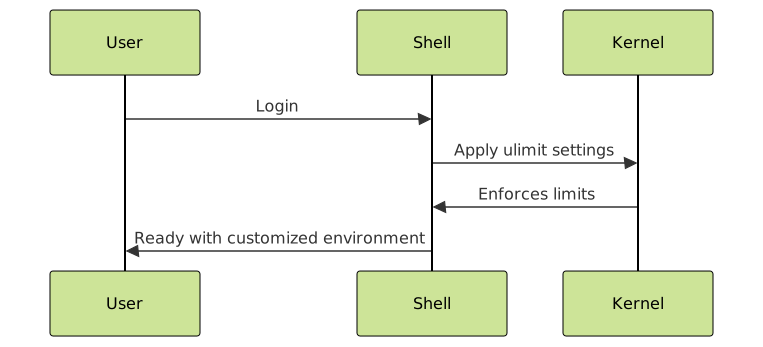
Limiting resources like open files, processes, and memory prevents abuse or crashes. This is controlled via ulimit and system configuration files.
Example: Setting File Descriptor Limits
echo "fs.file-max = 100000" | sudo tee -a /etc/sysctl.conf
sudo sysctl -p
ulimit -n 65535
This configures kernel and user limits for file descriptors for handling numerous connections.
Step 5: Secure Your Environment
Advanced configuration should also focus on security: disabling root SSH login, enforcing key authentication, and limiting user permissions help safeguard your server.
Example: Disable Root SSH Login
sudo sed -i 's/^PermitRootLogin yes/PermitRootLogin no/' /etc/ssh/sshd_config
sudo systemctl restart sshd
Step 6: Use Configuration Management Tools
For large or complex environments, tools like Ansible, Puppet, or Chef automate server config deployment, reducing manual errors and ensuring consistency across multiple machines.

Bonus: Interactive Example – Dynamic Prompt with Git Branch
This Bash snippet dynamically shows the current Git branch in your prompt for convenience in development workflows:
parse_git_branch() {
  git branch 2>/dev/null | grep '*' | sed 's/* //'
}
export PS1='\u@\h:\w$ (parse_git_branch) \$ '
This script detects the branch if inside a Git repo, updating the prompt live for each command line.
Summary
Customizing your server environment through advanced configuration is vital for efficiency, security, and scalability. By optimizing shell behavior, managing environment variables, automating startup scripts, setting resource limits, and securing access, you gain full control over your server’s behavior. Leveraging configuration management tools takes it further by simplifying complex setups across multiple systems.